
Translation may be out of date – the German version has changed since. German version
Full screen and full-screen shortcut in the warehouse app
Use the warehouse app without browser bars – full screen on start (like F11), install the app on phones and tablets, and a full-screen shortcut for fixed workstations on a Windows PC, also as a kiosk and at startup.
At the shelf and at the packing station, the address bar and tabs get in the way. That's why the warehouse app can be used without browser bars in three ways. You find everything in the side menu under Settings.
| Way | For | How |
|---|---|---|
| Full screen on start | any device with a browser | switch in the menu, on by default |
| Install app | smartphone, tablet, handheld scanner | add it to the home screen once |
| Full-screen shortcut | fixed workstations with a Windows PC | create a desktop shortcut |
Full screen on start
Browsers only allow a page to go full screen after a user interaction. When you open the warehouse app from the ERP, it therefore switches to full screen on the first tap or click – like with F11.
- Turn on and off: Menu → Settings → Full screen on start. The setting applies only to this device.
- Press Esc or F11 to leave full screen. The app then stays without it until the page is reloaded.
- Automatic locking keeps full screen – see Menu, settings and locking.
Install app (phone and tablet)
Menu → Settings → Install app adds the warehouse app to the home screen. It then starts like a normal app, without browser bars. On iPhone and iPad, use Share → Add to Home Screen. If the app is already installed, the entry is missing.
Step by step for Chrome and Safari on the iPad: see Setting up the POS → iPad and iPhone – the warehouse app works the same way.
Full-screen shortcut (fixed workstation)
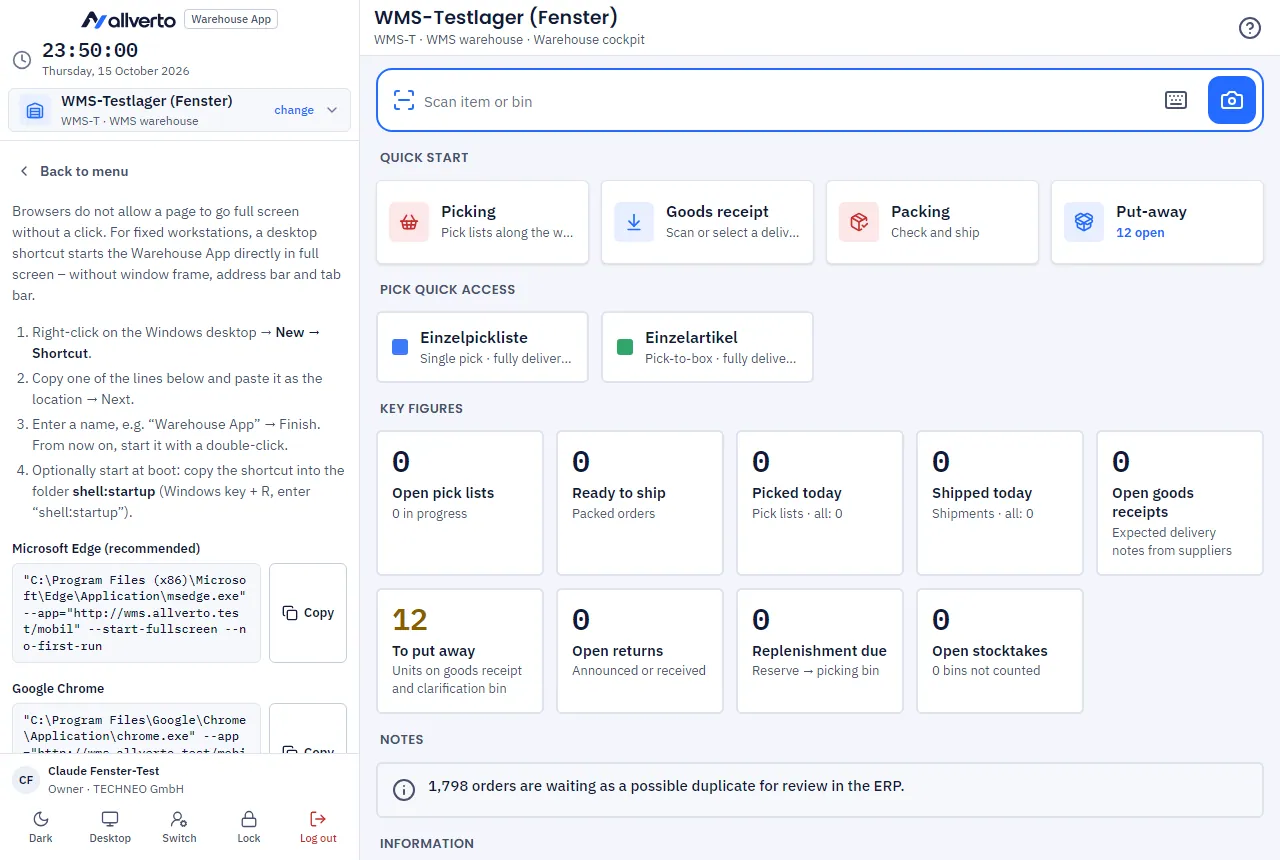
For packing stations and goods receipt stations with a Windows PC, a desktop shortcut starts the warehouse app straight in full screen – without window frame, address bar and tab bar.
- In the warehouse app: Menu → Settings → Full-screen shortcut. There you find three ready-made lines with the address of your warehouse app.
- Right-click on the Windows desktop → New → Shortcut.
- Copy one of the lines (button next to it) and paste it as the location → Next:
- Microsoft Edge (recommended)
- Google Chrome
- Kiosk – locked, exit only with Alt+F4 (Chrome)
- Enter a name, e.g. "Warehouse App" → Finish. From now on, start it with a double-click.
- Optionally start at boot: copy the shortcut into the folder shell:startup (Windows key + R, enter "shell:startup").
Sign-in and device registration are kept, because the shortcut uses the normal browser profile. You leave full screen with F11, and the kiosk only with Alt+F4.
Common errors
| Problem | Solution |
|---|---|
| Full screen doesn't start | Tap or click into the page once. Check whether Full screen on start is on. |
| The shortcut opens a normal window | The path to Edge or Chrome is wrong – try the other line. |
| The sign-in page appears after starting | Sign in once in this browser; after that the sign-in is kept. |