
Translation may be out of date – the German version has changed since. German version
Setting up and opening the POS
Create, clone, move and deactivate branches and POS registers, set up devices, payment methods with colour and cash drawer, receipt template with receipt design, quick keys, TSE and operators per POS, receipt number range, assign POS permissions and register the device.
The allverto POS runs in the browser on a tablet, POS PC or smartphone. Before you sell, you set up the branch and POS once – almost all further settings apply per POS.
Before you start
Anyone whose role has the permission Set up the POS (branches, registers, TSE, terminals, receipt) may set it up – by default Owner and Administration. Open Sales → Settings (window Sales settings). On the left in the POS group you find:
- POS with the tabs Branches & POS, Discounts, Reasons and Scale barcodes – these apply to all POS registers of the company.
- below it, each branch's name and, indented, its POS registers. Clicking a POS opens its settings with the tabs General, POS settings, Devices, Payment methods, Receipt template, Quick keys, TSE and Operators.
Creating branches and POS registers
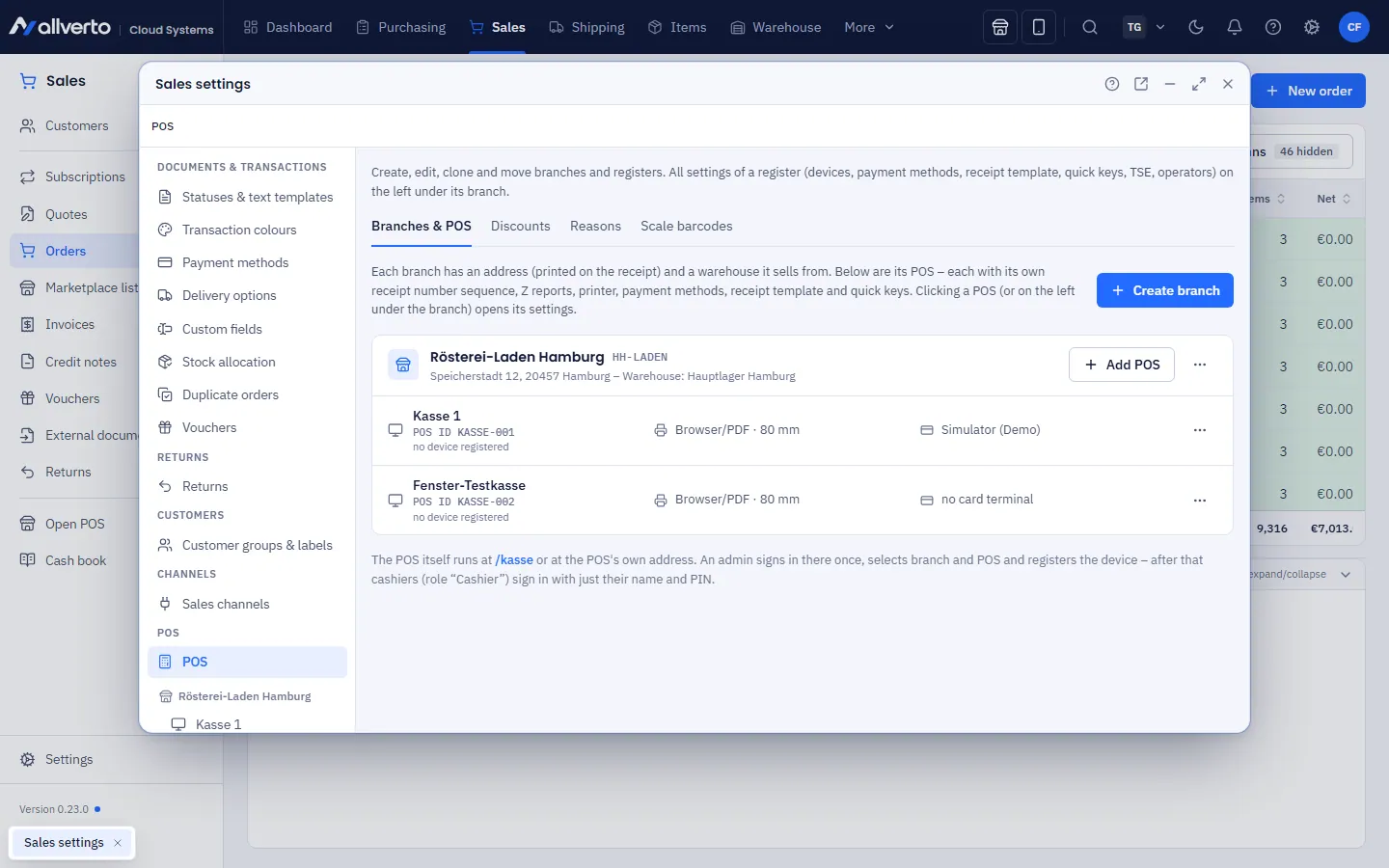
- On the left choose POS, tab Branches & POS, then Create branch: name, code, address (printed on the receipt) and Warehouse – sales book stock out of this warehouse. If empty, the company's default warehouse applies.
- At the branch, click Add POS. Each POS has its own POS ID, receipt number sequence and Z reports and registers individually with the TSE. A new POS takes over the receipt template, quick keys, payment methods and operators from another POS of the same branch.
- Via the ⋯ menu of a POS:
- Clone POS… – new POS with name and branch; takes over printers, payment methods, receipt template, quick keys and operators, but not the card terminal and not the registered device.
- Move to another branch… – the POS ID and registered device remain, existing receipts keep their branch. Without its own warehouse, the POS then sells from the new branch's warehouse; a POS bin in the previous warehouse is removed.
Branch POS settings
In the branch dialog (⋯ menu → edit), the Branch POS settings are at the bottom:
| Field | Effect |
|---|---|
| Returns warehouse | Returns at the POS are booked into this warehouse. As sale (bin of the sale) books back to the bin the item was sold from. |
| Returns bin | Only for WMS warehouses: bin for returns, e.g. an inspection bin. If empty, the warehouse's general bin. |
| Invoice printer | Printer name at the print agent. The POS then prints invoices for receipts there automatically; empty = print dialog. |
| Voucher printer | For vouchers sold at the POS; empty = print dialog. |
Settings per POS
Click the POS on the left under its branch:
| Tab | Content |
|---|---|
| General | Name, branch (Move…), different warehouse, POS bin in the WMS warehouse, Lock after … minutes of inactivity, POS active, registered device (Revoke registration…), Clone POS… |
| POS settings | Cashier view (tile size, assortment, full screen, purchase prices), customer display, additional card terminals, receipt output, sale, payment, miscellaneous keys and deposit – see POS settings |
| Devices | Receipt printer (Print method, IP address, port, Paper width), Cash drawer, address of the POS bridge and the Card terminal: create, edit, Pair reader…, Test payment (€1.00), webhook address, remove |
| Payment methods | Which payment methods this POS offers and in which order; Create payment method… (also for other POS registers), Edit (name, button colour, text colour, cash drawer), deactivate – see Payment methods |
| Receipt template | Receipt output (print, digital receipt or ask – see Digital receipt), below that logo, Header text, Footer text, optional details, receipt language and Receipt design with preview; Copy from another POS… – see Receipt template and receipt design |
| Quick keys | Groups and item keys – the Favourites area at the POS; Copy from another POS… |
| TSE | TSE client and last signed receipt of this POS, TSE provider and credentials, POS log, TSE export, failure log and ELSTER details – see TSE and TSE export and ELSTER notification |
| Operators | Operators of this POS: Add operator…, remove; the PIN is set under Settings → Users (one PIN for POS and production app) – see Signing in, locking and PIN |
Payment methods
In the Payment methods tab, you switch on per payment method whether it is offered at this POS and arrange them with the arrows. Cash, Card, Voucher and On account are built in (can be renamed, not deleted). Via Edit (or a click on the row) you change:
- Name – shown like this at the POS and on the receipt (at most 40 characters),
- Button colour, Text colour and Text alignment (Left, Centre, Right) – with a preview of how the button looks during payment; the colour swatch also appears in the list,
- Open cash drawer – after payment with this payment method, the drawer opens, even without printing a receipt (drawer on the receipt printer required). Default: only for cash,
- Payment method active and at which POS registers it is offered.
- Cashback – only for card and custom cashless payment methods: minimum purchase and minimum and maximum cash payout. It is offered at POS registers with the POS setting Cash-back service.
Custom payment methods (e.g. “PayPal QR” or “external debit card”) are non-cash payments: at the POS you only record the amount and optionally a reference. In the DSFinV-K export they appear with their name and the selected payment type. Without a card terminal, the POS records card payments “on the external device”. You set up several card terminals at one POS in the POS settings – one “Card” payment method is enough.
Receipt template and receipt design
In the Receipt template tab you define what is on the receipt: Company logo, Phone number, Header text (e.g. opening hours), Footer text (e.g. “Exchange within 14 days only with receipt.”), Operator, Customer, Item number, QR code and the Receipt language. The mandatory details under § 6 KassenSichV are always on the receipt.
In the Receipt design section:
| Setting | Effect |
|---|---|
| Alignment | Header and footer text Centred or Left |
| Header text bold | Header text in the bold style of the receipt font |
| Items | Two lines (name, below it quantity × price and amount) or Compact (quantity, name and amount on one line; unit price only for more than one piece) |
| Number of items | Line “Number of items: …” below the items |
| “You save …” | with discounts, the saving is shown in bold below the total |
| Blank lines at the end | Tear-off margin after the last text, in case the printer cuts too close |
| VAT ID and tax number | Alignment of this line at the end of the receipt |
In the header and footer text you can use the placeholders {kasse}, {filiale}, {bediener}, {bonnr} and {datum} (POS, branch, operator, receipt number, date). Blank lines are kept – also at the beginning and the end. The receipt design applies to printing, PDF, the digital receipt and the preview.
Receipt numbers
Each register has its own number range: the receipt number consists of the register's prefix and its running number, e.g. K1-000001 at register 1 and K2-000001 at register 2. This keeps every register's receipts gapless – matching its own TSE and the DSFinV-K export per register. You set each register's range – prefix, digits and next number – in the ERP under Settings → Number ranges → POS (“Receipt numbers Register 1” …); the next number may only increase. Earlier receipts keep their number (BON-…). During a sale the register shows the TSE transaction number – see Selling at the POS.
POS permissions
You assign permissions per role under Users and roles. The Cashier role only has the POS. If a permission is missing, the button at the POS is greyed out; tapping it names the missing permission.
| Permission | What for |
|---|---|
| Operate the POS (sell, cash in/out, view receipts) | Basic permission: open the POS, sell, view receipts, park |
| Give discounts at the POS | Discount on a line or receipt, Round off amount |
| Cancel receipts and book returns at the POS | Cancellation and return |
| End-of-day closing (Z report) and cash count | End-of-day closing with Z report, terminal closing at the card terminal |
| Cash book, POS reports and DSFinV-K export | Cash book in the ERP, DSFinV-K and TSE export |
| Set up the POS (branches, registers, TSE, terminals, receipt) | all POS settings |
| Enter prices at the POS (open item, override price) | open item, miscellaneous keys with price entry, changing a line's price |
| Choose the tax rate when entering prices | choose the tax rate of the open item; without this permission the standard tax rate applies |
| Show purchase prices at the POS | purchase price, avg. landed cost and margin when tapping a line; without this permission the server does not send purchase prices to the POS |
| Book deposits and change at the POS | Change float and Deposit |
| Book withdrawals at the POS | Withdrawal, including the cash withdrawal in the end-of-day closing |
| Interim report (X report) at the POS | View X report and print it |
| Show cash balance at the POS | Banknote icon with the cash balance, cash balance in the menu and expected amount in the cash count; without this permission counting is blind |
| View the POS log at the POS | Menu → POS log: view this POS's events at the POS |
| Create customers at the POS | Create customer in the POS customer dialog |
| Refund or void card payments at the terminal | when cancelling or returning to card, reverse or credit the payment right at the terminal – see Cancellation and return |
Roles that previously had Operate the POS automatically received the new permissions for prices, cash in/out, X report, cash balance, POS log and customers; Show purchase prices at the POS went to those allowed to view the cash book, and Refund or void card payments at the terminal to those allowed to cancel receipts. Remove permissions a role does not need – e.g. Show cash balance at the POS for blind counting.
Locking after inactivity
In the POS's General tab: Lock after … minutes of inactivity – off, 1, 2, 3, 5, 10 or 15 minutes. Default means: 2 minutes on POS registers with a registered device, otherwise off. Anyone allowed to Set up the POS may change it.
- When the time runs out, the Locked popup covers the POS. You unlock with your own password or your own POS PIN; via Switch user, another person signs in – see Signing in, locking and PIN.
- The current receipt is stored as a transaction on the server and is back afterwards – even if another person signs in.
- The POS does not lock during payment. The company's automatic sign-out still applies as an upper limit.
Opening the POS
The POS runs on its own address: pos. in front of your allverto address (e.g. pos.allverto.cloud). This is how you open it:
- in the ERP via the shop icon in the header (tooltip “Open POS in a new tab”),
- via Sales → Open POS in the area menu or in the left sidebar,
- or directly via the POS address, e.g. as a bookmark on the POS PC.
The POS always opens in a new tab. You sign in with email and password – also on the registered POS device. Without a registered device, you then choose the POS; deactivated POS registers are not offered there. Anyone without the permission Operate the POS (sell, cash in/out, view receipts), or whose company has not booked the POS add-on module, does not see the shop icon in the header bar. As long as no active POS has been created yet, the shop icon is missing and Open POS is greyed out – clicking it points to Sales → Sales settings → POS.
Registering the device
A registered device is permanently assigned to one POS: the browser always opens this POS, without the POS selection – even after signing out – and by default locks after 2 minutes without activity.
- Open the POS on the device (POS address
pos.…) and sign in with email and password – with the permission Set up the POS. - Choose branch and POS and click Register this device as the register – or, in the running POS, Menu → Device → Register this device as the register.
- At the start, put in the change float: Menu → Cash in and out → Change float (opening balance) – see End-of-day closing.
On the registered device, too, you sign in with email and password; the POS PIN only unlocks a locked POS – see Signing in, locking and PIN.
Full screen
On the first tap after starting, the POS switches to full screen (like F11). Whether this happens is set in the POS settings under Full screen: Choose on device (at the POS under Menu → Full screen and theme → Full screen on start), Always on or Always off.
If the POS should start on a Windows POS PC without any window frame, choose Menu → Set up full-screen shortcut at the POS:
- Right-click on the Windows desktop → New → Shortcut.
- Copy one of the lines shown – Microsoft Edge (recommended), Google Chrome or Kiosk – locked, exit only with Alt+F4 (Chrome) – and paste it as the location → Next.
- Give it a name, e.g. “POS” → Finish. From now on a double-click starts the POS in full screen – without window frame, address bar and tab bar.
- Optionally start it at boot: copy the shortcut into the shell:startup folder (Windows key + R, type “shell:startup”).
Sign-in and device registration are kept. You leave full screen with F11.
iPad and iPhone: POS as an app in full screen
On iPad and iPhone, put the POS on the Home Screen as an icon. From there it starts like its own app – without address bar and tab bar.
Chrome
- Open the POS (e.g.
pos.allverto.cloud) and wait until it has loaded. - Tap the Share icon at the top right of the address bar (square with an arrow pointing up). If it is missing: ⋯ → Share….
- Scroll down and choose Add to Home Screen.
- Enter a name, e.g. "POS", and tap Add.
Safari
- Open the POS.
- Tap the Share icon (iPad: top right, iPhone: bottom centre).
- Choose Add to Home Screen – scroll down first if needed, or use Edit Actions to add the entry.
- Enter a name and tap Add.
From then on, always start the POS from the new icon. Sign-in and device registration apply to the app window separately from the browser – sign in there once and register the device (see above).