
allverto at a glance
How allverto is structured – areas, header, sidebar, windows and settings at a glance.
allverto is your inventory management and ERP in the cloud: orders from shop, marketplace, B2B and POS, items, warehouse, shipping, purchasing, production and finance in one system. You work in the browser – on a PC, a tablet or with the mobile warehouse app on a handheld scanner.
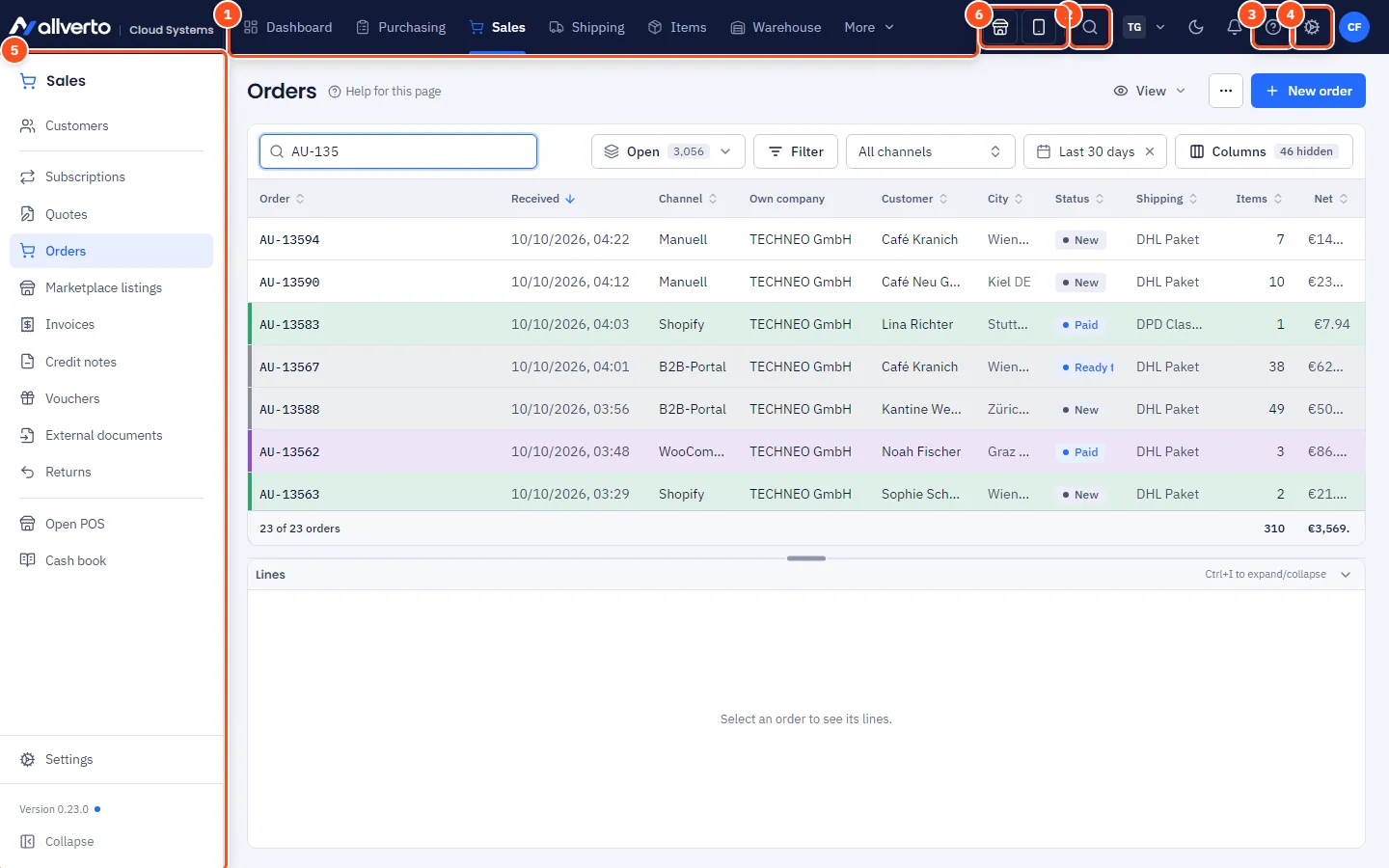
How the screen is structured
| Part | What you find there |
|---|---|
| Header (top, dark) | Logo (back to the dashboard), the areas as a menu bar, the quick launch icons POS and Warehouse app, the Search magnifier, tenant switch, bell, Team chat (with add-on), gear and your account – the menu with your name also contains Help and Theme (Light, Dark, Automatic) |
| Left sidebar | The pages of the currently selected area, at the bottom the area's Settings and Collapse |
| Content | The page itself – usually a list with filters, key figures or a form |
| Window bar (bottom) | Open windows such as orders, items or customers – including minimised ones |
The areas
- Dashboard – key figures and tasks of the day.
- Purchasing – suppliers, purchase suggestions, purchase list, requests for quotation, purchase orders, overdue deliveries, supplier returns and supplier invoices.
- Sales – customers, subscriptions, quotes, orders, marketplace listings, invoices, credit notes, vouchers, external documents, returns as well as Open POS and the Cash book.
- Shipping – shipping and labels as well as the fulfillment network.
- Items – the item overview with categories and the item window.
- Warehouse – warehouse overview, warehouses & bins, Warehouse app (mobile), stocktaking, movements, best-before date check and inventory valuation. You handle goods receipt, picking, packing and transfers in the warehouse app.
- Production – production orders, bills of materials and planning.
- Finance – payment matching, open items, supplier invoices, dunning, DATEV (German accounting export) and OSS (EU One-Stop-Shop VAT).
- Reports – ready-made reports and your own evaluations.
POS, Production, Time tracking, Payment matching, Serial numbers, batches & best-before dates and Team chat are add-ons: you book them in addition to your plan under Settings → Subscription & invoices and can try them free first – see Add-ons.
POS and warehouse app with one click
To the right of the areas there are two icons: the shop icon opens the POS, the phone icon the Warehouse app – each in a new tab on its own address. If you lack the permission Operate the POS or Use the mobile warehouse app (or the POS add-on module is not booked), the icon does not appear. You can also reach the POS via Sales → Open POS and the warehouse app via Warehouse → Warehouse app (mobile).
What you see depends on your role: allverto hides pages you don't have the right permission for.
Windows instead of page changes
Orders, quotes, invoices, customers, items and many other documents open as windows above the page. You can have several open at the same time, move them, minimise them or detach them into a separate browser window. More under Windows: move, detach, remember size.
Settings in two places
- The gear at the top right contains the administration: companies, number ranges, taxes & language, currencies, print templates, email, users, roles & permissions, security, firewall, change log, system log, import/export, moving from JTL-Wawi, automations, sync overview, API & webhooks as well as subscription & invoices.
- Everything that belongs to an area (e.g. characteristics for items, payment methods in sales) is in the area's settings window – see Settings window per area.
First steps in a new company
- Maintain the Company data with address, VAT ID or tax number, bank details and logo – without it no invoices can be created (Company data).
- Check the Number ranges (Number ranges).
- Create a Warehouse and generate storage bins (Creating warehouses).
- Create Items or import them from JTL-Wawi (Creating items, Moving from JTL-Wawi).
- Connect shop (Connecting shops and marketplaces) and Invite staff (Users and roles).