
Warehouse app: overview and getting started
The mobile warehouse app for smartphone, tablet and handheld scanner – start it, select a warehouse, scan, and an overview of all menu areas with their help pages.
The warehouse app is made for work right at the shelf: large buttons, a scan field that is always ready, and feedback via sound, vibration and colour. Goods receipt, pick lists, picking, packing, stocktake counting, stock transfers, replenishment and transfer orders run only here for all warehouses – in standard and WMS warehouses alike. In WMS warehouses it is also the only way to book stock – see WMS warehouse.
Getting started
- In the ERP you open it at the top right of the header via the Warehouse App icon (tooltip: "Open Warehouse app in a new tab") or under Warehouse → Warehouse app (mobile). It starts in a new tab and also works on the desktop. Without the permission Use the mobile warehouse app the icon is greyed out. If no warehouse has been created yet, the icon is missing and Warehouse app (mobile) is greyed out – a click refers you to Warehouse → Warehouse settings → Warehouses & WMS.
- On the device, open
/mobilon your company's warehouse subdomain (wms.…). - You sign in with your own email and your own password – there is no PIN in the warehouse app.
- Employees who only have warehouse permissions (role Warehouse staff) land in the warehouse app automatically after signing in.
- Use the browser menu or Settings → Install app to add the app to your home screen; it then starts like a normal app. On the desktop it switches to full screen on the first tap; for fixed workstations there is the full-screen shortcut.
On first start you select your warehouse. You can change it at the top of the menu or via Settings → Change warehouse. Light/Dark, Desktop, Switch, Lock and Sign out are in the menu footer – see Menu, settings and locking.
Scanning
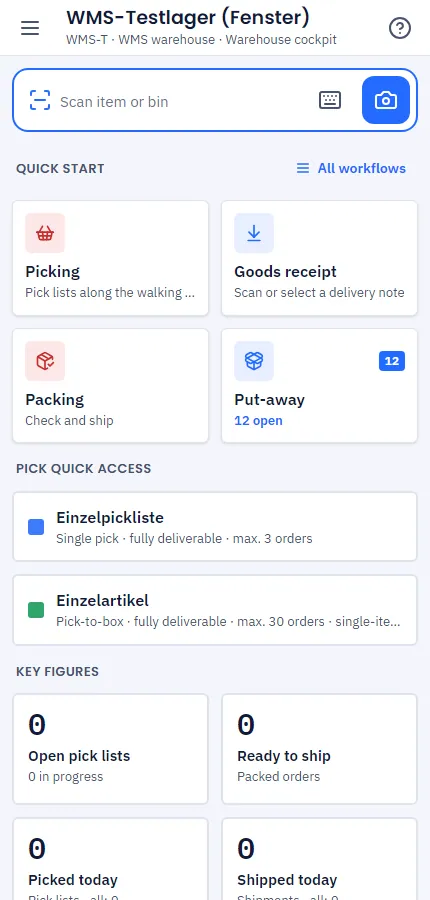
The scan field at the top always has focus – a handheld scanner (keyboard wedge scanner) simply types the code into it. On smartphones and tablets you scan with the camera via the camera icon. The app confirms success and errors with sound, vibration and a colour flash.
The app recognises items by EAN/GTIN, item number, GS1 codes (with batch, best-before date and serial number) and pack EANs – a carton then counts with its number of units right away.
Help on every screen
At the top right of every screen there is a ?. It opens the help page for the area currently open in a new tab. You reach this overview via Settings → Warehouse App help.
The areas
You find all workflows in the menu (on the left or via the menu icon) – in expandable groups and via Search process… also by keyword, e.g. "delivery note" or "serial shipping". Which workflows you may use depends on your permissions: without the permission an entry is greyed out.
Dashboard
| Area | Purpose |
|---|---|
| Warehouse cockpit | Key figures, notes and quick start |
Goods receipt – overview: Goods receipt and put-away
| Area | Purpose |
|---|---|
| Goods receipt | scan or choose expected delivery notes (supplier and transfer) |
| Free goods receipt | book goods without a delivery note |
| Put-away | bring goods from the goods receipt or clarification bin to their bin |
| Clarification cases | resolve unknown goods, over- and short deliveries |
Goods issue – overview: Picking and packing
| Area | Purpose |
|---|---|
| Picking | work through pick lists along the walking route |
| Pick list overview | all pick lists: create, print, cancel, picker and progress |
| Fill boxes | distribute batch picks into the boxes at the sorting station |
| Packing | check lines and ship |
| Identical orders | pick identical orders together and ship them as a series |
| Order overview | search orders, check status, create labels again, reprint |
| Supplier returns | pick and ship goods for the supplier |
| Transfer orders (shipping) | ship goods out to other warehouses (receipt runs in goods receipt) |
| Plan transfer orders | create, edit, cancel transfer orders; min/max per warehouse |
| Remove from stock | to another warehouse or a fulfiller via a pick list |
Internal – overview: Stocktaking and transfers
| Area | Purpose |
|---|---|
| Stock increase | increase stock with a reason |
| Stock decrease | reduce stock with a reason |
| Stock enquiry | stock per bin, bin contents |
| Stock transfer | bin → bin |
| Collective transfer | transfer several items with a cart or pallet |
| Transfers (history) | who transferred what where |
| Carriers | stock on carts, pallets and containers |
| Replenishment | reserve → picking bin |
| Stocktaking | count bins (standard warehouse: count items) |
| Change condition | new, B-stock, defective |
| Check best-before dates | block, rebook or write off expired and soon-to-expire batches |
| Provide material | bring material for production to the production workstation; production itself runs in the production app |
Returns
| Area | Purpose |
|---|---|
| Returns | inspect, restock, B-stock, clarification case |
Settings
| Area | Purpose |
|---|---|
| Pick lists | templates with filters and order |
| Replenishment rules | minimum stock and "top up to" per picking bin |
| Menu, settings and locking | change warehouse, sound, voice output, voice, lock after inactivity, device, switch user, lock, sign out |
| Full screen and full-screen shortcut | full screen on start, install app, shortcut for fixed workstations |
When packing and picking, you count large quantities with × Quantity and one scan – see Enter quantity, then scan.
Related topics
- WarehouseWMS warehouse and standard warehouse: what runs in the warehouse app
- Warehouse appWarehouse cockpit in the warehouse app
- Warehouse appGoods receipt and put-away in the warehouse app
- Warehouse appGoods issue in the warehouse app: overview
- Warehouse appInternal: stocktaking, transfers and stock in the warehouse app
- Warehouse appMenu, settings and locking in the warehouse app