
Orders at a glance
Where orders come from, which statuses there are and how to use the order list with views, search and multi-selection.
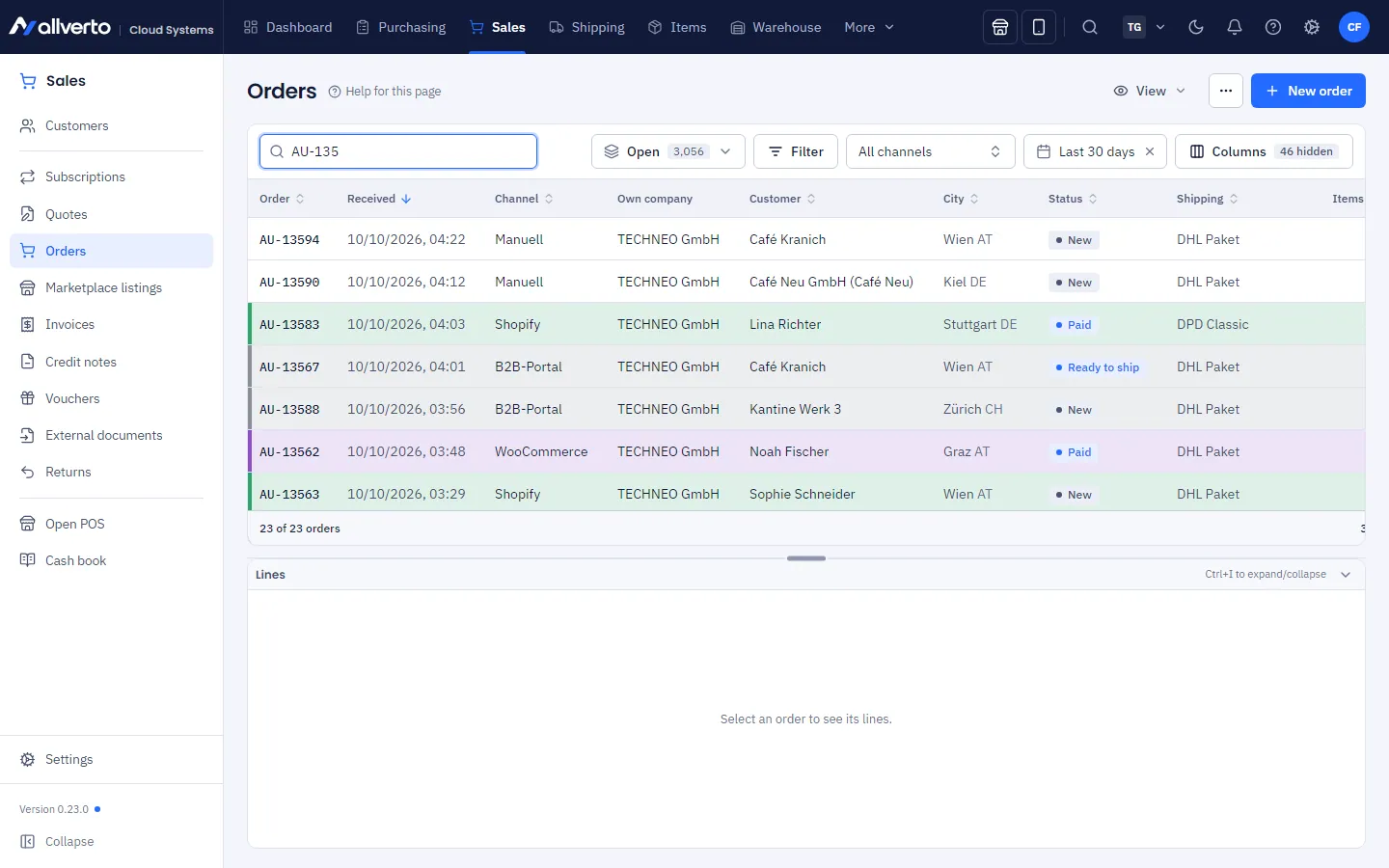
Under Sales → Orders you'll find all orders in one place – whether they come from your online shop, a marketplace, the B2B portal, a subscription or the store POS, or whether you entered them yourself.
Where orders come from
- Shops and marketplaces: connected sales channels fetch new orders automatically (see Connect shops and marketplaces).
- Manually: via New order at the top right (see Enter an order).
- From a quote: you convert an accepted quote into an order.
- From a subscription: the order is created automatically on the delivery date.
- POS: sales at the store POS also appear as orders.
- From a return: a replacement order for an exchange or replacement delivery (see Create and check a return).
- From another tenant: right-click → To another tenant → Copy… or Move… (see Copy and move between tenants).
Order status
| Status | Meaning |
|---|---|
| New | Received, not yet paid |
| Paid | Payment has been confirmed |
| Picking | On a pick list |
| Ready to ship | Picked or packed |
| Shipped | Booked as shipped, stock has been deducted |
| Cancelled | The order was cancelled |
| Return | All units have come back as a return |
The list also shows markers: a pause icon for orders on hold (with reason), an arrow for the priority, a marker for possible duplicates and, next to the status, Partially shipped if part of the order is already on its way (own partial delivery or dropshipping). The Availability column shows, based on stock allocation, Deliverable, Partial, Not deliverable or Dropshipping. The row colour comes from the sales channel (e.g. Amazon orange) or from a colour you gave the order yourself – your own colour takes precedence.
Views, search and filters
Above the list, choose the view from a drop-down, each with a count: Open, Payment open, Paid – not yet shipped, Ready to ship, On hold, Possible duplicates, Received today, Unshipped for over 3 days, International shipping, B2B, Shipped, Partially shipped, Without invoice (shipped), Cancellation & return and All. Next to it are Filter, channel, period and Columns. How to save your own views is explained in Filters and filter views.
Filters in the left sidebar: While the order list is open, the left sidebar shows the same filters as JTL-Wawi below Orders – Without invoice, With invoice (complete), With invoice (incomplete), External invoice, Paid, Not paid, Cancelled, Not delivered, Fully delivered, On hold, Faulty, Pending and Exchange orders, with a count for open work. One click opens the list with the matching view for the entire period; clicking Orders shows everything again. Greyed-out filters are not available in allverto yet – tapping one shows the reason.
The search field finds order number, customer and city. Below the table you see the total of all matches. Via … at the top right → Export as CSV you download all matches of the view with the visible columns.
Line items below the list
Below the list you see the Line items of the most recently selected transaction – without opening it: a header with number, customer, date, status and total, below that item number, description, quantity, unit, unit price, discount, VAT and amount; for orders also delivered, on pick list, open and the stock. Change the height with the divider; double-clicking the header or Ctrl+I collapses it, View → Show line items below turns the preview off completely. The same applies to quotes, invoices and credit notes.
Right-click a line item: Open item, Add to purchase list (with the open quantity; with several selected lines, all items) and Copy value. On a phone, open the line items via the eye icon in the toolbar.
Opening orders
- Double-click or Enter opens the order as a window above the list. Several orders can be open at the same time.
- Ctrl+Enter, a middle click on the order number or Open in separate window in the right-click menu opens the order in its own browser window – handy on a second screen.
More on this in Windows: move, detach, remember size.
Delivery options
In the order window, in the Details tab, Shipping section, choose Delivery options, also several: e.g. preferred date, safe-place permission, express or Saturday delivery. You maintain the catalogue under Sales settings → Delivery options (permission Manage document defaults (payment methods, process statuses, text templates, custom fields)). Deactivate options that are in use instead of deleting them. For shops and marketplaces, allverto recognises express, Saturday and safe-place requests from the shipping method and the customer note. In pick list templates you can filter by them.
Under Details → Shipping → Ship no earlier than you set the day from which the order may go to shipping. Before that it won't be put on any pick list, nor into "Identical orders" or batch shipping. The header then shows Ships from … only. From that day on it is scheduled without any further action. If the order is with a fulfiller, the date is passed on – including a later change, as long as the fulfiller hasn't started picking.
If a user creates the order, the header shows Created by …. Imported orders and orders from sales channels have no user.
Several orders at once
Select several rows with Ctrl- or Shift-click. A bar with bulk actions appears at the bottom:
- Output – print, email, save, export and preview the documents (even without write permission)
- Create labels
- Create pick list – opens the pick list overview of the warehouse app with the orders in a new tab (without the permission Create and process pick lists the button is called Pick and only sets the status)
- Ship… – dialog as in JTL: quantity and warehouse per line, partial delivery, parcels, label
- Payment … – for one order the Payments dialog, for several the bulk dialog Mark as paid (date, payment method, remark; the open amount is booked for each order)
- Create invoices – as a draft, finalized, or finalized with output (see below)
- Assign company… – only with several own companies in the tenant
- Cancel – dialog with Reason, note and the switch to report the cancellation to the shop or marketplace
You'll find all other actions by right-clicking the selection. Anything that isn't possible for an order right now stays visible in the menu and states the reason.
Creating invoices
Select one or more orders and choose Create invoices (bar at the bottom) or right-click Documents → Create invoice… (right Create invoices). In the dialog, choose under Type how the invoice is created:
- As draft – creates an invoice draft without an invoice number for each order. You edit it later under Invoices → Drafts and finalize it there.
- Create invoice – for one order, allverto creates an invoice draft and opens it right away in the invoice window – just like opening an invoice. There you check and edit the invoice and assign the sequential invoice number with Finalize. If you close the window without finalizing, the draft stays under Invoices → Drafts. For several orders, the invoices are finalized right away.
- With output – finalizes the invoices and then opens the Output dialog for all created invoices: tick Print, Email, Save and Export and run them together. Under Print template you choose beforehand which invoice template is used to create and store the PDF.
allverto remembers the type you chose last for your user in this browser.
Anything that isn't possible is skipped with a reason, e.g. because there already is an invoice or an invoice draft. Invoices that wouldn't be a valid e-invoice can be issued in the result after a confirmation with Issue anyway; with With output, you start the output of the created invoices there with Output invoices. If Invoice per delivery is set under shipping and the order has deliveries, one invoice per delivery is created which is finalized right away. Down payment and collective invoices are created as before via Documents → Down payment invoice… or Collective invoice….
Deleting orders
Right-click one or more orders → Delete (permission Delete orders). This works in any status and also for orders from a shop or marketplace, as long as there is no invoice or credit note, no payment, no return, no dropshipping and no fulfiller. A deleted shop or marketplace order does not come back with the next sync.
If the order already has a delivery note (or a delivery, a shipping label or picked goods), allverto asks “Delete with delivery note?” and shows what is attached. Without this consent the order stays. With consent, the following are deleted as well, whether or not the goods have been shipped:
- Delivery notes and deliveries
- Shipping labels – open labels are cancelled with the carrier first
- Stock movements: picked goods are booked back to the same storage bin with a counter-entry, serial numbers are back in stock
The order number is not reused. The change log keeps the order, line items, delivery notes and labels.
Recording payments
Payment … (right-click, bar at the bottom or in the order window) opens the Payments dialog – structured as in JTL-Wawi:
- Payment information on the left: order value, invoice corrections, dunning fee, cash discount, payments and the open amount.
- Record payment on the right: choose the document (the order itself or one of its invoices), enter amount, date, payment method, transaction ID, remark and posting account, then Add payment. With Distribute payment, an amount is applied to several open documents in turn.
- Down payment: payments on the order before the invoice. When the invoice is issued, they appear there as "already paid".
- Cash discount: if the payment date is within the invoice's cash discount period, allverto suggests the amount less the discount and books the discount as well.
- Fee: payment fees (e.g. PayPal) are entered separately; with the switch Amount is the payout (fee already deducted), payout plus fee is booked.
- Redeem voucher: books a voucher as a payment, also in partial amounts (see Vouchers).
- Delete: booked payments aren't deleted but cancelled with a reason (reversal entry, logged in the history).
- Only Save books everything; Cancel discards your entries. With the switch Confirm payment receipt by email now, the email goes to the customer at the same time (email template "Payment receipt").
Once nothing is outstanding (or only rounding cents within the tolerance), the order becomes Paid and triggers the "Order paid" automation. Which payment methods can be chosen in the dialog, whether they allow down payments, which details are mandatory and the posting account are set under Sales settings → Payment methods; the tolerance is set there too (see Documents, transaction colours and payment methods).