
Translation may be out of date – the German version has changed since. German version
Shipping: workstation, labels and shipping orders
The shipping workstation as in JTL-Wawi – orders by availability, delivery notes, shipments and fulfillment orders with filters and details; create and print labels and ship orders.
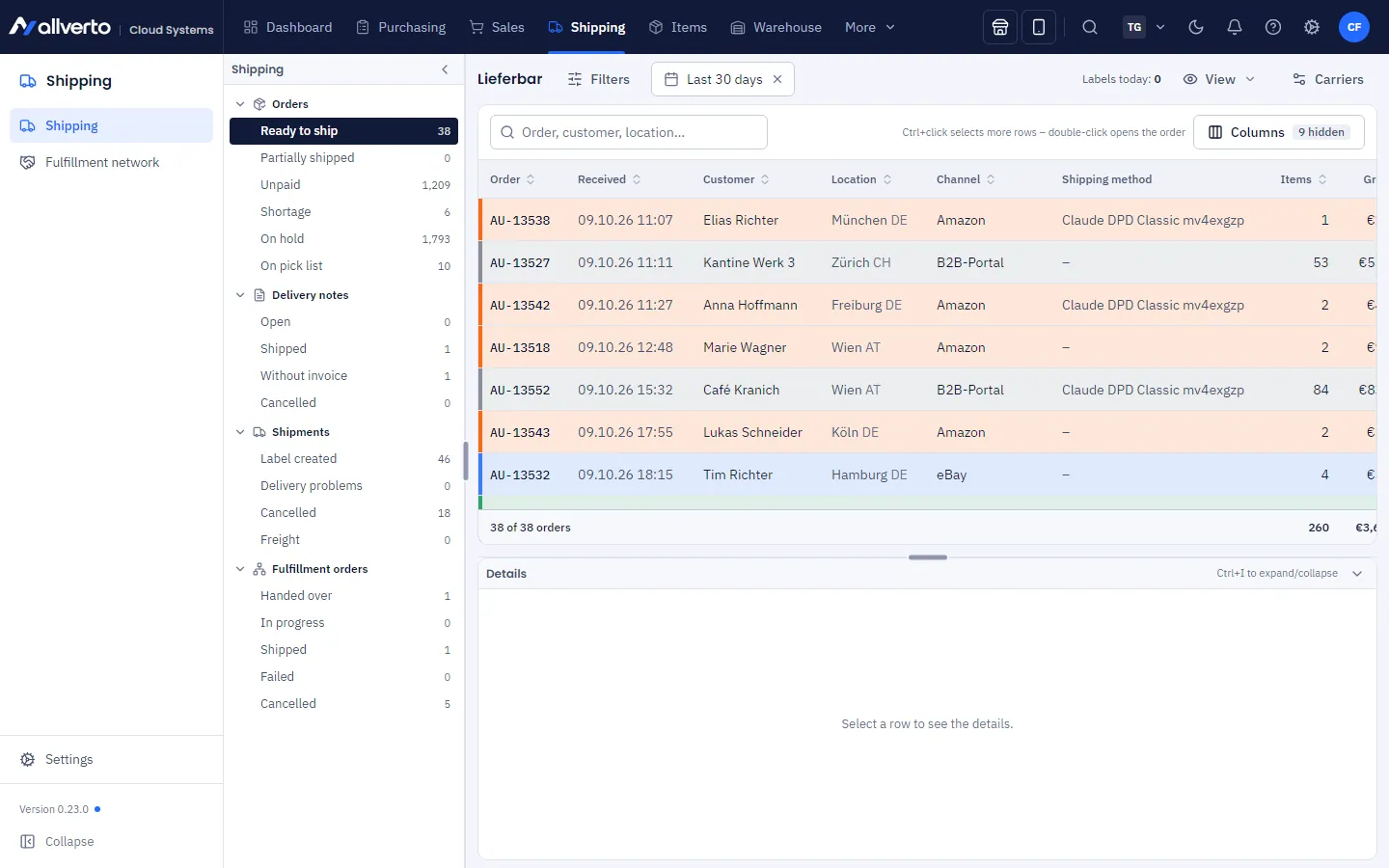
Under Shipping → Shipping & labels you process everything that needs to go out – structured like shipping in JTL-Wawi: on the left the tree with counters, at the top the filters, in the middle the list of the selected entry, below it the action bar and at the bottom the details with tabs.
The layout
Tree on the left – groups can be expanded and collapsed; the number next to each entry shows the matches with the current filters. A ≈ before the number means: estimated, because the exact count would have taken too long with very large amounts of data. The panel can be resized and collapsed.
| Group | Entries |
|---|---|
| Orders | Ready to ship, Partially shipped, Unpaid, Shortage, Drop shipment (only with drop-ship warehouse or dropshipping), On hold, On pick list |
| Delivery notes | Open (order not shipped yet), Shipped, Without invoice, Cancelled |
| Shipments | Label created, Delivery problems (from tracking), Cancelled, Freight forwarder (only with freight forwarders) |
| Fulfillment orders | Handed over, In progress, Shipped, Failed, Cancelled – only if you are connected to a fulfiller |
Pick lists are not in Shipping – you find all pick lists in the warehouse app under Pick list overview. Add to pick list on selected orders opens it in a new tab with the orders preselected (the warehouse app runs on its own address wms.…).
Every open order is in exactly one entry. allverto checks in this order: On hold (including orders handed over to a fulfiller) → Drop shipment (the order has a drop-ship warehouse or goes entirely via dropshipping) → On pick list → Partially shipped (part has already been delivered, the rest is open – the Availability column shows whether the rest can go out now) → Unpaid (no payment received, unless the payment method allows shipping before payment, e.g. invoice, cash on delivery or direct debit) → Shortage (according to stock allocation, stock is missing in the shipping warehouse for at least one line) → otherwise Ready to ship.
Filters at the top – the Filter button (only when there is something to filter) bundles, depending on the entry, Warehouse, Payment method, Company, Shipping method, Hold reason (also “Handed over to fulfiller”) and, for shipments, Delivery status and No movement for – each with multiple selection. The Period remains a separate field. allverto remembers the filters per entry, even after reloading. Reset clears them. The search above the table finds document, customer, city or tracking number.
List – columns can be moved, shown and hidden (right-click the table header). Ctrl+click selects more rows, double-click opens the document. Right-click offers the same actions as in the order list or for shipments.
Action bar – appears as soon as rows are selected. For orders: Output (print or email documents), Create labels, Freight order (for exactly one order), Add to pick list (permission “Create and process pick lists”), Payment … and Ship…. For delivery notes Output, for shipments Output: print labels, under Delivery problems Mark as done.
Details at the bottom – show the last selected row with the tabs Lines (item, quantity, delivered, on pick list, open, stock, reserved, available …), Delivery notes & shipments and History. You change the height at the divider; a double-click on the header row or Ctrl+I collapses the details. Via View → Show details below you switch them off completely. Right-click a line: Open item, Add to purchase list, Copy value.
At the top right you see the labels today per carrier; if a carrier or the sender address is missing, a setup notice appears there.
On a phone you open the tree and filters via the button at the top right; the list appears as cards and the details via the eye icon.
Before you start
- At least one carrier is connected and the Sender address is maintained. If something is missing, the page shows a notice with Set up now – see Connecting carriers.
- You need the permission for shipping (e.g. role Warehouse or Administration).
- For the weight to be correct, your items should have a weight or a shipping weight. allverto uses the shipping weight before the item weight; a bill of materials without its own weight weighs as much as its components.
Creating labels – step by step
- Open Shipping and choose Orders → Ready to ship on the left. All open orders that are paid (or on invoice) and whose items are in stock are listed there.
- Select the orders you need labels for and click Create labels at the bottom – or right-click → Create shipping label….
- If the order has a Shipping method, it determines carrier, account, product and additional services. Otherwise you choose the Carrier and the Shipping product in the dialog (e.g. DHL Paket, DHL Kleinpaket, DPD Classic). Check the Weight: it is calculated from item weights and packaging and can be adjusted.
- For a single order, you can create several parcels with their own weight under Parcels if needed (One parcel more / One parcel less) – provided the carrier supports multi-parcel shipments. Under Additional services, depending on the carrier, you find Cash on delivery, Additional insurance, Visual age check and Also print return label.
- Leave Ship directly switched on if the parcel goes out today: stock is then posted out and the shipment with tracking number is reported to the shop.
- Click Create label or Create … labels.
- In the result, click Print labels – all labels come as one PDF.
Orders for which no label could be created (e.g. because of an incomplete address) are listed with the reason in the result. If an order already has a label, the dialog offers Additional parcel: the new parcel belongs to the same delivery and is not posted as shipped again. An order never gets two labels at the same time – not even if the ERP and the warehouse app request one at the same moment.
Sender on the label, return label and manifest is the warehouse from which the order is shipped, with its address from Warehouses & bins. If this warehouse has no complete address, the sender address of the default warehouse applies. Returns therefore go back to the location that shipped.
Address check
Before every label, allverto checks the delivery address:
| Check | Result |
|---|---|
| Postcode does not match the format of the destination country (e.g. four-digit postcode to Germany) | No label – reason “Check address” in the result |
| Packstation without customer number (Postnummer) | No label – add the Postnummer in the order |
| House number missing in the street | Notice, the label is still created |
| The city contains a number (postcode twice?) | Notice, the label is still created |
For a single order, the label dialog shows the result beforehand under Address check. Correct the address in the order window and create the label again.
Shipping orders
You send pallets and general cargo with a freight order – with pallet labels, manifest and pickup request by email, see Freight forwarding: shipping pallets and general cargo.
Select the orders and choose Ship… – in the action bar, via right-click → Shipping or in the order window. JTL-Wawi users will recognise the Ship orders dialog:
- Orders on the left with traffic light: green deliverable, yellow partially, red not. For the selected row the reason is shown, e.g. “The order will not be shipped: no partial deliveries allowed.”
- Delivery options: partial delivery (No partial deliveries, Allow partial delivery, Split off rest) – default from the Delivery & partial delivery settings, changeable here per document. Under Show advanced options you set the warehouses for shipping and their order.
- Lines: per line the warehouse (or <Do not ship>), Ship now, open quantity and stock. Below that the stock per warehouse and – if required – the serial numbers (scan or type, Enter).
- Parcels: number and weight per parcel, optionally Create label directly. The label is attached to the new delivery.
Ship posts the stock out, creates the delivery with delivery note (with “Invoice per delivery” also the invoice) and reports the shipment to the shop or marketplace. Afterwards you see per order what has been shipped, what partially and what not – with the reason. Orders on hold cannot be shipped.
Completing without shipping
If an order was sent outside allverto, choose right-click → Shipping → Complete without shipping…:
- Mark as already shipped (only without delivery note or delivery): choose the shipping date, the order becomes “Shipped”, reservation and allocation are dropped. Stock remains unchanged, and no shipping notification goes to the shop or marketplace. The order window shows “Completed without shipping on … by …”.
- Release for shipping again: undoes the marking – the order is open again and gets stock allocated anew.
Automations react to this with their own trigger Order closed without shipping, not with “Order shipped”.
Shipments
Under Shipments → Label created you find all valid labels, under Cancelled the cancelled ones. A double-click prints the label again. Via right-click:
- Print label or Print labels, Download PDF / Download as one PDF,
- Track at … (e.g. Track at DHL), Copy tracking number,
- Open order …, Open order in separate window,
- Create return… (only for shipped orders),
- Cancel shipment….
Delivery problems collects shipments for which the carrier reports a problem or a return, or which haven't moved for a few days – as soon as tracking is active in the sync overview. A double-click shows the tracking; Mark as done removes the shipment from the entry.
From channel shows tracking numbers reported by the shop or marketplace – shipped in the shop, by the marketplace (e.g. Amazon FBA) or with another tool. They have no label and can neither be printed nor cancelled here; a double-click opens the tracking page. They do not count under Label created, in the end-of-day closing or in the shipping costs. More under Tracking numbers from the channel.
Claims with the carrier
If a shipment is lost, damaged or not delivered, you record the investigation in allverto: right-click the shipment → Record claim …. In the dialog you enter:
- Reason: Lost, Damaged, Not delivered, Delayed, Contents incomplete or Other,
- Claimed on and Deadline (by when the carrier must reply),
- Carrier reference (number of the investigation or damage case),
- Claimed amount and Refunded as well as a Note.
You find all claims on the left under Shipments → Claims; the number shows the cases in progress (open and submitted). Use the status to record the state: Open → Submitted → Refunded, Rejected or Closed. An exceeded deadline is marked red. Each shipment has at most one claim in progress; only open claims can be deleted.
Test mode
If a carrier is connected in Test mode, shipments carry the Test mode marker. The carrier doesn't accept such labels – use them only for trying things out.
Frequently asked questions
When is stock posted out?
When posting as shipped (shipping, label with Ship directly or packing in the warehouse app) – not when picking. If a pick list was processed beforehand, allverto posts out from the bins actually picked from.
Which carriers are available?
DHL, DPD, GLS, UPS, Hermes, Deutsche Post, DHL Express and FedEx – each with your own contract, see Connecting carriers. Pallets and general cargo go via freight forwarders.
Why doesn't a ready-to-ship order go on the pick list?
Common reasons: it's on hold, has no shipping method, is unpaid, has no stock in the template's warehouse or has a date under Ship no earlier than that hasn't been reached yet. When creating the pick list, the warehouse app names the reason per order.