
Create an invoice and send it as an e-invoice
Prepare invoices as drafts (pro forma invoice), finalise them, send them by email as a PDF with e-invoice (ZUGFeRD or XRechnung), record payments and send reminders – including down payment and collective invoices.
An invoice is created in two steps: as long as it is a Draft, you can edit, save and delete it as you like and print or email it as a Pro forma invoice. Only Finalise assigns the sequential invoice number (§ 14 (4) no. 4 UStG, the German VAT Act), generates the PDF and e-invoice (ZUGFeRD or XRechnung, depending on the company and customer settings) and makes the invoice immutable. Finalised invoices can no longer be changed or deleted – only cancelled or corrected with an invoice correction (GoBD, the German rules for proper digital bookkeeping).
| Draft | Finalised invoice | |
|---|---|---|
| Number | Draft number E-00012, no invoice number | sequential invoice number, e.g. RE-2026-00042 |
| Editing | any time | never – correction via invoice correction or cancellation |
| Deleting | yes | never |
| Output | Pro forma invoice (identifier PF-E-00012), without e-invoice | Invoice with e-invoice |
Before you start
- To finalise, your company data needs the legally required details: Company name, Address and VAT ID or tax number. If anything is missing, the dialog tells you exactly what – you can add it under Company data, logo, taxes and currency. If only details for the e-invoice are missing (e.g. contact person, phone, IBAN or the customer's Leitweg ID), allverto asks “Not a valid e-invoice – issue anyway?” and records your confirmation in the validation report. Drafts and pro forma invoices work even before that.
- You create and finalise invoices with the permission “Create invoices” (e.g. in the roles Accounting or Administration). Invoice corrections need “Create invoice corrections (credit notes)”, cancelling “Cancel invoices”, payments “Post payments for orders and invoices” and dunning “Create and send dunning letters”. Menu items your role lacks the permission for are hidden.
Step by step: invoice from orders
- Open Sales → Orders. (On the Invoices page, Create from order also takes you there.)
- Select one or more orders, e.g. via the Without invoice (shipped) template.
- Click Create invoices in the action bar at the bottom – or right-click → Documents → Create invoice….
- In the dialog, check the Document type, the VAT, optionally the Delivery/service date (if left empty, the order's shipping date, otherwise today) and the Customer reference (order number, or Leitweg ID for public-sector clients).
- Click Finalise invoice – or Save as draft if you still want to edit the invoice or send it as a pro forma invoice first.
One invoice or invoice draft is created per order. Line items, tax per rate, customer, delivery address, payment terms and cash discount are taken from the order. Orders already paid are shown as paid. Orders that already have an invoice or invoice draft are skipped, with the reason, in the Not all documents created window. Invoices skipped only because e-invoice details were missing can be issued there afterwards with Issue anyway.
You create delivery notes the same way via Documents → Create delivery note… (with the switch Create even if the order already has a delivery note). You don't need to create an order confirmation: it is the order itself – Documents → Print order confirmation or Send order confirmation… (or Output) outputs the order with the “Order confirmation” print template and the order number. Every print and send is recorded in the order's history; when sent, a copy of the PDF is stored under Attachments; the Order confirmation column in the order list shows “OC sent on …” or “OC printed on …”. Older order confirmations with their own OC number remain readable and are counted too. To send automatically on creation: under Automations, adopt the template “New order → Order confirmation by email” (use Platform to limit it to channels or manual orders).
Down payment and collective invoice
Both are also created from the order list under Documents (on the Invoices page, ⋯ → Down payment or collective invoice … reminds you of this):
- Down payment invoice… – for exactly one order without an invoice. You choose the Document title (Down payment invoice or Progress invoice), under Calculate by either Percent or Amount, and optionally the Expected delivery; the Construction work (VOB) switch creates a construction progress invoice. Create invoice on the order then becomes the final invoice and deducts all down payments.
- Collective invoice… – one invoice for at least two (at most 100) orders of the same customer with the same billing address, company, currency, tax country and tax type. Each order gets a subheading on the invoice.
Both dialogs have Pro forma preview, Save as draft and the button to finalise. Drafts are then found under Invoices → Drafts. An invoice draft for an order with a down payment invoice can also be finalised – it then becomes the final invoice and deducts the down payments.
Step by step: new invoice without an order
- Open Sales → Invoices and click New invoice.
- Select the customer and enter line items, texts and payment terms – just as for a quote. The Delivery date becomes the delivery/service date of the invoice.
- Click Save draft. The draft gets a draft number (E-…), but no invoice number yet.
- Via Pro forma you can show, print, save it as a PDF or send it by email.
- When everything is correct: click Finalise at the top and Finalise again in the confirmation dialog. The invoice gets the next invoice number and today's invoice date and then opens.
Finding, editing and deleting drafts
Under Sales → Invoices you switch at the top between Finalised and Drafts. Double-clicking opens the draft in the invoice window; via right-click you can Show pro forma invoice or Save pro forma invoice (PDF), Finalise … or Delete draft …. In the invoice window of a draft, you find Delete draft … under Actions. Invoice drafts for an order are also listed in the order under Documents.
Pro forma invoice
A pro forma invoice is a complete document with all the details of an invoice – title Pro forma invoice, its own identifier PF-… instead of an invoice number, and the note “Pro forma – not an invoice within the meaning of § 14 UStG, does not entitle to input tax deduction”. It has no e-invoice and is not posted as an invoice. Typical cases: prepayment, customs papers, quote confirmation with a payment request.
- From a draft: the Pro forma button or Actions in the invoice window, or right-click in the draft list. Identifier PF-E-00012.
- From an order without an invoice: in the order, Output → Print / Send email / Save (PDF) / Preview ▸ Pro forma invoice or right-click → Documents → Preview → Pro forma invoice. Identifier PF- plus the order number. If a finalised invoice already exists for the order, that invoice is output instead.
The pro forma invoice uses your print template for invoices – the title and identifier come from the placeholders for document type and document number.
Which e-invoice format?
You set the format per company: Settings → Companies → open the company → E-invoice tab → Format. The options are ZUGFeRD (PDF with XML) (default), XRechnung (separate XML), ZUGFeRD and XRechnung and No e-invoice (private customers only). It applies to new invoices, credit notes and cancellations.
You can deviate for a customer: in the customer window in the E-invoice block, set the Format, the Public-sector client switch, the Leitweg ID and a separate Receiving address. Without its own setting (Automatic), the rule is: private customers (B2C) only get the PDF, business customers get the company's format, public-sector clients always get an XRechnung with Leitweg ID.
Sending an invoice by email
- Open the invoice (double-click in Sales → Invoices).
- Choose Actions → Send by email … (in the list: right-click → Send by email …).
- Check the address under To. Subject and Text come from the selected Email template and can still be adjusted here; optionally enter a Copy to (CC, optional).
- Click Send.
The e-invoice states the payment method of the order or document: bank transfer with your IBAN, for direct debit the SEPA direct debit with the customer's mandate reference, your creditor identifier and the debited account (so the e-invoice does not ask the customer to transfer the money), as well as PayPal, cash, card or cash on delivery. If the customer's active mandate or the company's creditor identifier is missing for a direct debit, allverto asks before finalising.
The customer receives the PDF with the e-invoice – with ZUGFeRD it is embedded in the PDF, with XRechnung it is attached as a separate XML file. The invoice then shows “Sent to … on …”. In the invoice window, PDF downloads the PDF and E-invoice (XML) downloads the XRechnung separately – e.g. for uploading to a portal. The button with the format name (e.g. ZUGFeRD) opens the e-invoice validation report.
Recording payments and sending reminders
- Record payment …: Amount, Received on, Cash discount, Payment method and Note (optional). If the invoice's payment terms include a cash discount, the dialog pre-fills the payment amount and discount within the discount period. With Write off the remainder, a small remaining amount is written off as a bad debt. Partial payments are possible; the invoice is then set to Partly paid. Postings work as in payment matching: once nothing is open any more, the order is also set to Paid. Amounts are shown in the invoice currency. Payment postings can no longer be changed.
- Mark as paid – posts the outstanding remainder with today's date, also for several invoices at once.
- Reminder → record the next level, e.g. Record Payment reminder. The levels come from the customer's dunning group (by default payment reminder, 1st reminder, 2nd reminder); for several invoices the item is called Raise dunning level. You find the complete dunning run with PDFs under Dunning. As in the dunning run, this is not possible with a dunning block, a dunning stop for the customer, a handover to debt collection, a payment method without dunning or a submitted direct debit – the menu item then names the reason.
An invoice for 0 € (e.g. free samples or paid in full with a voucher) is set to Paid right after finalising.
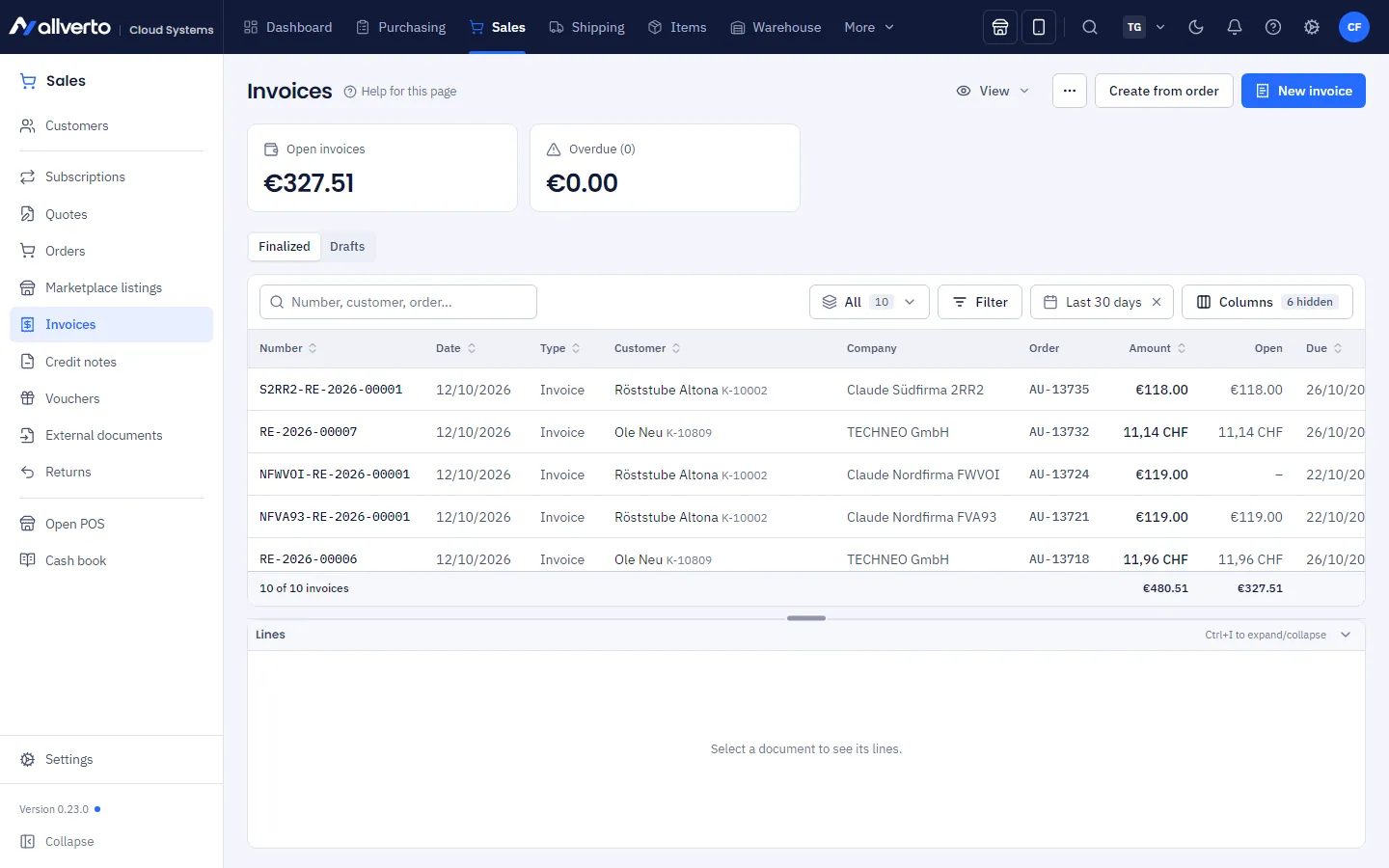
Overdue invoices appear yellow in the list, from the second dunning level (by default the 1st reminder) red; cancelled ones grey. The templates All, Open, Overdue, Reminded, Not shipped, Paid and Cancelled help you work through them. At the top, the tiles Open invoices and Overdue show the amounts – with a company selected, only that company's invoices.
Filters in the left sidebar: As in JTL-Wawi, Invoices has the filters Drafts, Not paid, Reminded, Paid, Cancelled and, under Cancellation documents, Invoice cancellations – the cancellation invoices then appear in the invoice list, and the For invoice column opens the cancelled invoice. Credit notes has Drafts, Without invoice reference, With invoice reference, Cancelled (cancelled invoice corrections) and Credit note cancellations (their cancellation documents). One click opens the list with the filter; clicking the menu item shows everything again.
Frequently asked questions
I made a mistake in the invoice – how do I correct it?
If it is still a draft, simply open and change it (or delete it). A finalised invoice cannot be changed or deleted – that's why the Edit and Delete menu items are greyed out. Create an Invoice correction (credit note) or cancel it – see Credit note and cancellation.
Does a draft already get an invoice number?
No. Invoice numbers must be sequential and unique; that's why only Finalise draws the number from the number range. Deleted drafts leave no gap.
Which date is on the invoice?
The date of finalising. The delivery/service date comes from the dialog, otherwise from the order (shipping date) or the delivery date in the invoice window.
Which e-invoice format does allverto generate?
ZUGFeRD (PDF/A-3 with embedded XML in the EN 16931 profile) and XRechnung 3.0 (UN/CEFACT CII) – which one is determined by company and customer (see above). Both formats are permitted in Germany; public-sector clients require XRechnung. Pro forma invoices have no e-invoice.
Where does the invoice number come from?
From the number range for invoices, sequential per year. You can set the prefix and format under Number ranges.