
Create and maintain customers (customer window)
How customers are created, what the customer window contains – customer data, payments, e-invoice, addresses, contacts, bank details, SEPA mandates, prices, data protection – and what the customer menu offers.
Under Sales → Customers you find all private and business customers with their revenue. Double-clicking opens the customer as a window – laid out like the customer screen in JTL-Wawi.
Customer overview below the list
When you select a customer in the list, the Customer overview area below it shows everything important at a glance – without opening the customer window. The header names the customer, e.g. “Customer overview: K-10001 – Café Kranich”. If several customers are selected, the most recently selected one applies.
| Area | Content |
|---|---|
| Customer (top left) | Name/company, customer number, customer group, address, phone, mobile, fax, email (a click opens your email program), website and flags such as Blocked, Dunning stop, POS customer and labels |
| Key figures | Last order, Customer since, Open orders and Open invoices (number and amount), Revenue (gross), Gross profit (net), Ø basket, Orders in total, Returns, Cancellations and Reminders as “x of y” with bars, Credit notes, Discount and the Latest note |
| Customer history (top right) | Orders, created and sent documents, notes and changes – searchable, with Add note |
| Tabs bottom left | Orders, Invoices, Subscriptions, Addresses, Contacts |
| Tabs bottom right | Quotes, Credit notes (incl. cancellation invoices), Items (purchased items with quantity and revenue), Parcels, Returns |
Double-clicking a row opens the matching window (order, document, subscription, return, item; for addresses and contacts the customer window). Right-click offers the same actions as in the respective lists, for addresses and contacts Edit in customer window. With Create order, Create quote and Create subscription above the tables, the customer is already filled in.
How to adjust the area:
- Drag the divider between the list and the customer overview up or down; double-clicking the divider or the header collapses and expands the area – as does Ctrl+I (Mac: ⌘+I).
- The boundary between the upper and lower half and between the left and right column can also be moved.
- allverto remembers the sizes, the collapsed state and the tabs you last selected.
- On a tablet in portrait mode, the areas are stacked; on a phone you open the customer overview via the eye icon next to the search.
How customers are created
There is no separate “New customer” button – customers are created where you need them:
- Shops and marketplaces create customers automatically when orders are fetched.
- In an order or quote, click Create new customer next to the customer search, choose Business customer (B2B) or Consumer (B2C) and enter the address.
- You can take over many customers at once via ⋯ → Import … at the top right of the customer list (see Import and export).
Every customer gets a customer number. If the Debtors number range is active, allverto also assigns the debtor number for DATEV right away (see Number ranges).
The customer window
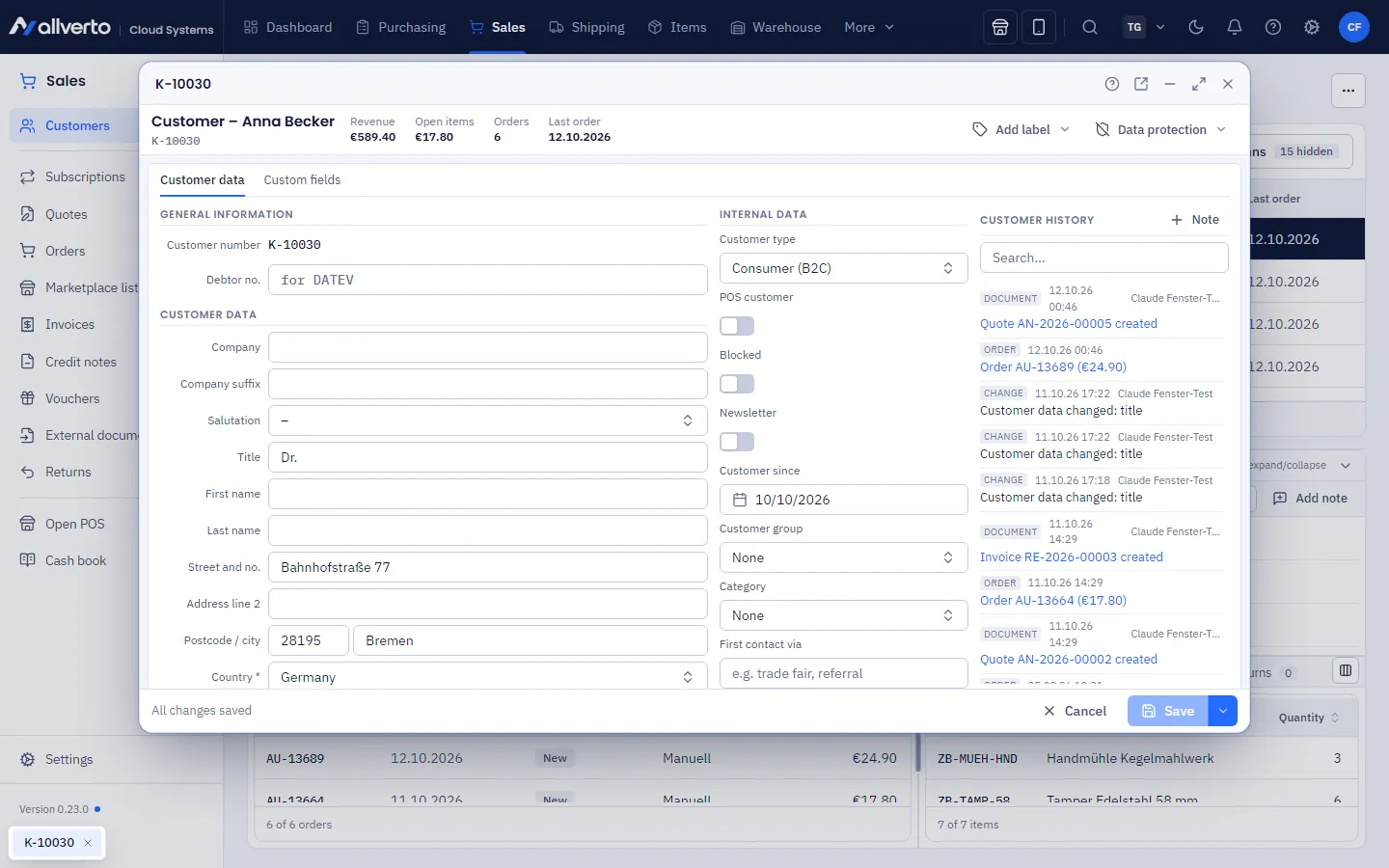
At the very top are the name, customer number and the figures Revenue, Open items (red if the credit limit is exceeded), Orders and Last order, next to them Add label and the Data protection menu.
Below are the Customer data and Custom fields tabs. The Customer data tab shows the master data in blocks:
| Block | Content |
|---|---|
| General information | Customer number, Debtor no. |
| Customer data | Company, Company suffix, Salutation, Title, First name, Last name, address with Country and State, GLN, contact (Email, Phone, Mobile, Fax, Website), Date of birth, Marketplace name, Tax number, VAT ID with Check, Company reg. no. |
| Internal data | Customer type, POS customer, Blocked, Newsletter, Customer since, Customer group, Category, First contact via, Language (document language) |
| Payments | Dunning stop, Payment terms, Discount (with Prices…), Payment method, Credit limit |
| E-invoice | Format (Automatic or a fixed format), Public-sector client, Leitweg ID, Receiving address |
| Customer history | Notes and changes, searchable, with Note |
POS customer, Blocked, Newsletter, Dunning stop and Public-sector client are switches. Check next to the VAT ID queries the EU database (VIES). If it cannot be reached, allverto at least checks the format. A Credit limit triggers a warning when a new order exceeds it. How the e-invoice format works is explained under Create an invoice.
Below follow the tabs Addresses, Contacts, Bank details, SEPA mandates, Online shop, Orders, Documents, Subscriptions, Returns, Vouchers, Prices and Data protection. Custom fields for customers appear in the Custom fields tab and, on wide screens, additionally to the right of the lower tabs (create them under Custom fields).
Editing customers
- Open the customer by double-clicking it in the list (or from within an order).
- Change the fields. The bottom left then shows “Unsaved changes”.
- Click Save (Ctrl+S) – or Save & close in the menu next to it.
Without the “Edit customers” permission, the window is view-only. You create additional addresses in the Addresses tab and use a switch to make one the Default billing address or Default delivery address. For Bank details, allverto validates the IBAN check digit; this is also where you store the SEPA mandate reference and Mandate dated. You manage direct debit mandates with direct debit type and signature date in the SEPA mandates tab with Create mandate (see Direct debits).
Customer prices
In the Prices tab (or via Prices… next to the discount) you use Add to create a fixed price or discount per item, a discount per product group or – like JTL-Wawi under Category discounts – a discount per category; a category discount also applies to all subcategories. Add From quantity (tiers) and an optional validity. Customer prices apply in orders, quotes and the POS: a fixed price replaces the customer group or tier price, a discount reduces it; rules for the item take precedence over the product group, the product group over the category. A cheaper special price still wins, and items with Ignore discounts get no discounts, only fixed prices. Price determination above the table shows the complete order. A product group or category still used in customer prices cannot be deleted.
Messages, address label and master data sheet
As in JTL-Wawi, you write to the customer directly from allverto: Send message … in the customer menu or in the Messages tab of the customer window opens a mail dialog with Template (email templates of type Other under Settings → Email templates; placeholders such as {{kunde.anrede}} are filled with the customer data), To, Cc, Subject and Message. The mail is sent via email sending in your company's layout; every message sent then appears in the Messages tab (subject, date, recipient, template, text). Under Print in the customer menu you find Print address label … (print template Address label with the billing address, also for several selected customers) and Print customer master data – a PDF with master data, terms, tax details, addresses and contacts in the interface language; in the Messages tab there is the Master data sheet button for this.
Data protection
The Data protection menu in the customer window (or the Data protection tab) offers:
- Data access report (ZIP)… – all stored data of the customer as a download,
- Find / merge duplicates… – find duplicate customers and merge them into one,
- Anonymise… – remove personal data when nothing speaks against it any more; the customer is then marked as Anonymised and is view-only.
You need the “Edit customers” permission for this. In the customer list you find the same items via right-click under Data protection, there also Merge… for several selected customers. Under Sales → Settings → Customer groups & labels, the Data protection (GDPR) area contains the switch Anonymise customers automatically with the period No order for (default 10 years), Find duplicates… across all customers and the log.
Buyer data of marketplace orders
The same area contains Buyer data of marketplace orders: for each marketplace channel the switch Anonymise buyer data after shipping with the period (switched on with 30 days for Amazon channels, otherwise off). Every night, name, address, email, phone, message texts and labels are removed from orders shipped or cancelled longer ago than the period; documents stay unchanged. A customer consisting only of such orders is anonymised completely. Details: Connect Amazon.
Right-click menu in the customer list
Open, Edit …, New order …, New quote …, New subscription …, All orders, Documents (invoices, credit notes, quotes), Subscriptions, Returns, Send message …, Send email (opens your email program, as Bcc for several customers), Copy address, Print (address label, customer master data), Data protection and – if you have set up manual automations – Run automation. Entries your role has no permission for are hidden.
You filter the list using the templates All, Business customers, Private customers, Ordered in last 30 days, Inactive for 180 days and Without order. Via ⋯ at the top right you export the view with Export as CSV or import and export customers.
Customer groups, categories and labels
You maintain this master data under Sales → Settings → Customer groups & labels (Sales settings window): Customer groups (optionally with a discount), Customer categories and coloured Labels. Customer groups control, for example, customer group prices in the item (see Prices).
Frequently asked questions
What does “Blocked” do?
The customer is clearly marked as blocked (red flag in the window), and an order for them shows a note to clarify this before shipping.
Can I delete customers?
There is no delete option in the customer menu – customers with orders and documents must be retained. Use Blocked or a label instead. You merge duplicate customers under Data protection → Find / merge duplicates…; you remove personal data with Anonymise….