
Edit, hold, split and merge orders
What you can change on an order and when, and how to hold, prioritise, colour, split or merge orders.
An order opens as a window and can be edited right there. At the top right of the window you'll find Shipping label or the next action (e.g. Payment …) and More. More contains the same menu as right-clicking in the order list. If several orders are selected, an action applies to all of them; anything that isn't possible stays visible and states the reason.
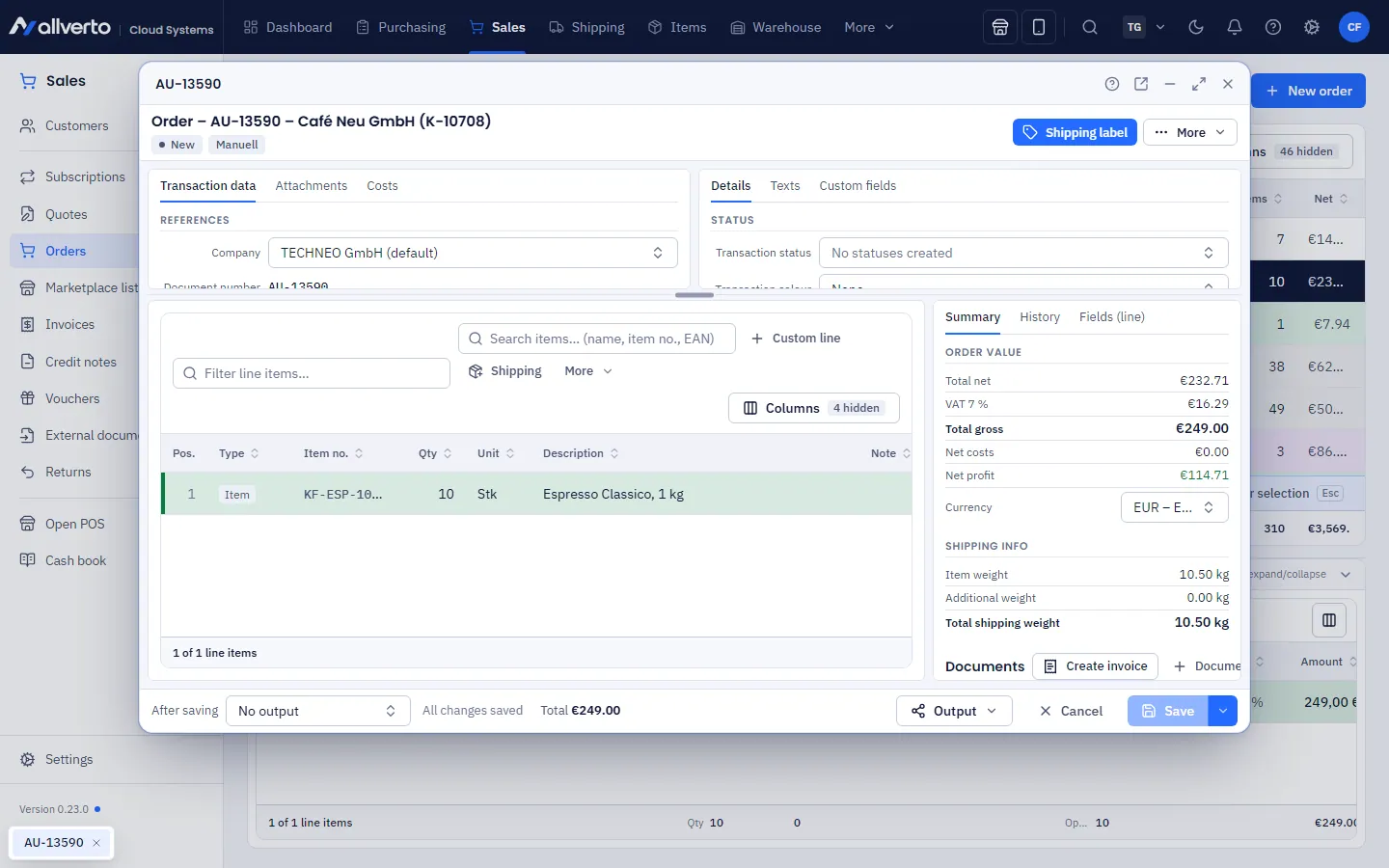
What can be changed when
| What | When it can be changed |
|---|---|
| Line items and prices | status New or Paid and no shipping label yet |
| Shipping address, shipping method | until a label has been created (also still during picking) |
| Note | always, except for cancelled orders |
Locked fields show the reason. For marketplace orders (Amazon, eBay, Kaufland, OTTO), the marketplace is in charge: line items, prices, customer, billing address, payment and tax can only be changed there. The shipping address is locked for Amazon; for the others it can only be changed by giving a reason. For shop orders, allverto points out that the shop won't learn about your change.
Change an order
- Open the order by double-clicking it.
- Change line items, addresses, shipping or the note.
- Click Save (Ctrl+S). Cancel discards your changes.
The totals are recalculated. The History shows every change with the user who made it. If someone else has saved in the meantime, allverto tells you instead of overwriting their change.
Deliver or bill regularly (subscriptions)
Above the line item table, switch from the Line items tab to the Subscriptions tab (with the permission “View subscriptions”). There you tick each article or free item and set the delivery interval, start, end, lead time and next delivery; under Creates you choose follow-up order or invoice without order. Everything is saved with the order. More under Subscriptions.
The right-click menu
| Entry | Content |
|---|---|
| Open, Open in separate window | Order as a window or in its own browser window |
| Output | Print, email, save, export, preview |
| Duplicate | Copy as a new order |
| To another tenant | Copy… or Move… (only with several tenants, see Copy and move between tenants) |
| Order | Shipping address, split, partial delivery, hold, priority, colour, return, missing quantities to purchase list |
| Duplicate check | only for possible duplicates: compare, approve, cancel, merge |
| Customer | Open customer, All orders of the customer, Email to customer |
| Documents | Invoice, down-payment and collective invoice, delivery note, order confirmation, preview |
| Merge… | several orders into one |
| Payment … | Payments dialog (see Orders at a glance) |
| Shipping | Label, additional parcel, return label, packing note, pick list, dropshipping, fulfiller, address label, packing list, Ship…, Complete without shipping…, shipping info |
| Cancellation | Cancel order…, Cancel lines…, Cancel shipment… |
Hold
Right-click → Order → Hold → Hold with reason… or Hold until date… – in the order window also under Details → Hold reason. This works for all open orders (New to Ready to ship). The reason appears in the list and in the history. An order on hold can't be shipped or put on a pick list and doesn't get a label. With a date, the hold ends automatically on that day; otherwise use Hold → Release.
Priority and colour
- Order → Priority → High, Normal, Low: high-priority orders come first on pick lists.
- Order → Give stock to this order first: the order gets stock before all others; Remove stock priority undoes this.
- Order → Colour: choose a named transaction colour (e.g. "Express"), or a colour under Colour without name or Palette, or Remove colour. You create named colours under Manage colours… (see Documents, transaction colours and payment methods).
Split an order
Right-click → Order → Split order…. For each line, choose the quantity that should move to the new order. Splitting only works with status New or Paid and without a label, pick list or invoice. The new order takes over the status, received date and flags. Splitting is locked for marketplace orders.
For partially deliverable orders, the same menu offers two shortcuts:
- Ship deliverable part… books the deliverable quantity as a delivery; the order stays open with the remainder and is Partially shipped.
- Split off missing quantities as new order… moves the missing quantities as a backorder into a new order; the old order is then deliverable.
Order → Missing quantities to purchase list puts the missing quantities of open orders on the purchase list (permission Create purchase orders).
Merge orders
Select several orders → right-click → Merge … orders…. Requirements:
- no marketplace orders (each order needs its own tracking number),
- same customer, same shipping address, same channel and same status (New or Paid),
- no label, no pick list, no invoice, not on hold,
- at most one shop order among them – it becomes the target, otherwise the oldest order does.
Identical lines are added together; the other orders are cancelled with a reference. You also need the permission Cancel orders for this.
Duplicate and cancel
- Duplicate (directly in the right-click menu) creates a new order with status New and the same lines (note "Copy of …"). Archived items are dropped; the copy of a marketplace order is a manual order with no link to the marketplace.
- Cancellation → Cancel order… opens a dialog with Reason and Note (optional). Reserved stock is released; cancelled orders can't be reopened. For orders from shops and marketplaces, allverto reports the cancellation to the channel via the Report cancellation to … switch. If you turn it off, the button is called Cancel locally only – you then cancel and refund the order there yourself. You need the permission Cancel orders for this.
- Cancellation → Cancel lines… cancels individual quantities (only with New or Paid), also reporting to the channel.
- You cancel a shipment that has already been created via Cancellation → Cancel shipment….
Frequently asked questions
Why can't I change the line items any more?
The order has already been shipped, has a label or comes from a marketplace. The field shows the exact reason.
Where can I see who changed something?
In the order window at the bottom right under History – with user and time.