
Batches, best-before dates and serial numbers
Record batches with best-before date and serial numbers, post issues automatically by FEFO, check best-before dates, block or write off batches and trace them all the way to the customer.
With batches you know for every unit which delivery or production run it came from and how long it keeps. allverto posts issues automatically by FEFO (“first expired, first out” – shortest best-before date first), warns about expiring goods and, in case of a recall, shows which customers are affected. Serial numbers are tracked per unit.
1. Set requirements per item
In the item window, Warehouse tab, card Required data when posting, you switch on what is asked for on receipt:
- Serial number
- Batch
- Best-before date (BBD)
allverto then requires this data at goods receipt in the warehouse app, for stock additions and for completion reports in production. Items without a requirement can still have batches – postings without a batch remain allowed (“no batch”).
2. Recording batches
- Goods receipt (warehouse app): for each line, the Batch & best-before date step follows with Batch number, best-before date and optionally Production date and Serial numbers. GS1 codes fill in the data right away. See Posting goods receipts and Goods receipt in the warehouse app.
- Addition without a delivery (e.g. opening stock or a found item): item window → Warehouse tab → card Stock per batch → Receipt with batch (standard warehouses only). For WMS warehouses, use the plus posting in the warehouse app.
- Production: batch and best-before date are stored on the production order; the completion report takes them over.
3. Issuing by FEFO – automatically
You don't have to choose a batch when shipping, at the till or when issuing material. allverto distributes issues across the batches in the storage bin – those with the shortest best-before date first. Blocked and expired batches come last and do not count as available for shipping. In the warehouse app, picking shows the right batch (“Take batch (shortest best-before date first)”), and when packing you record serial numbers by scan.
Delivery note and invoice automatically show batch and best-before date or serial numbers per line.
4. Checking best-before dates
Under Warehouse → Check best-before dates you see all batches with stock per storage bin, with a traffic light: Expired, Expiring soon, OK, No best-before date.
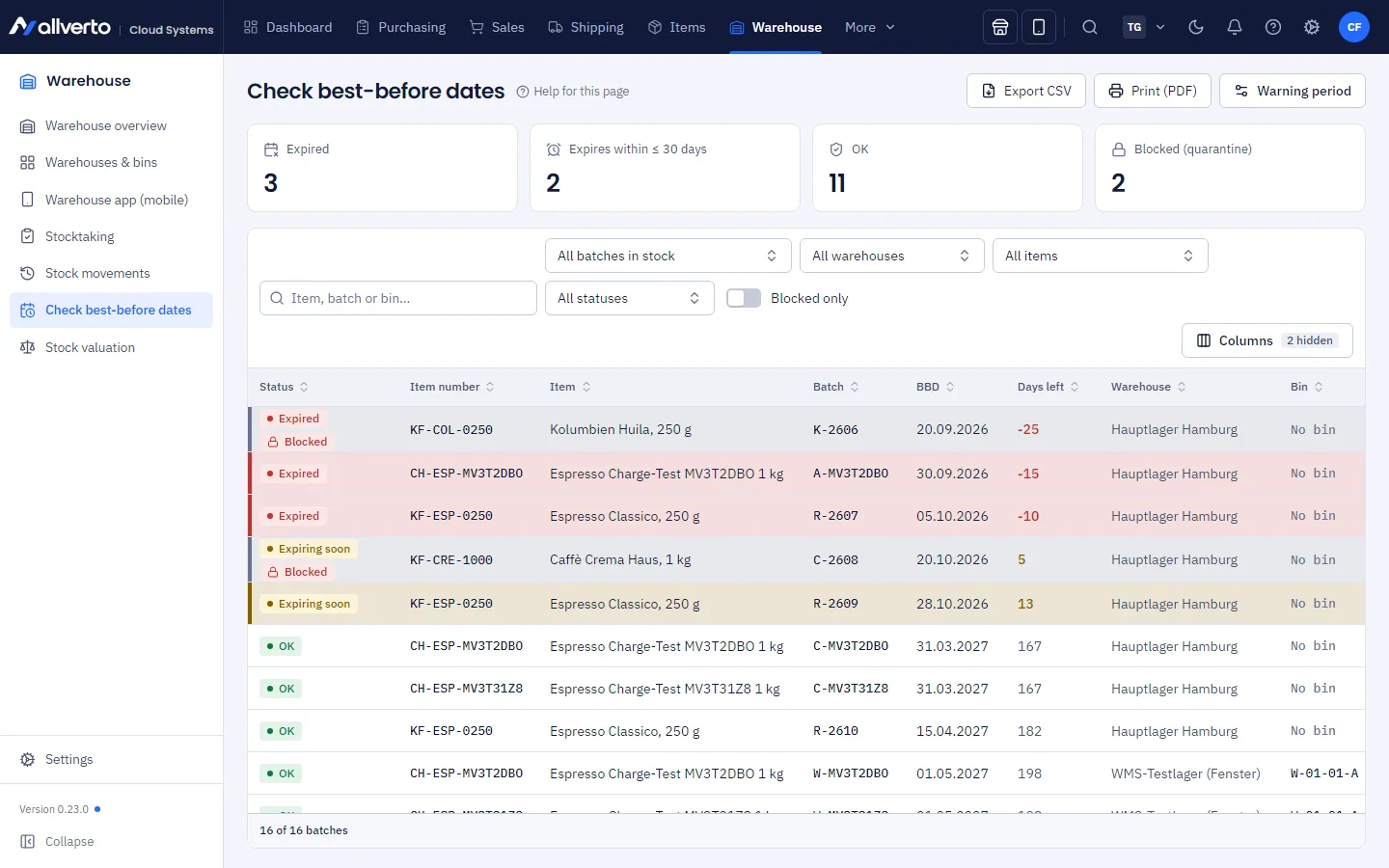
- Choose the period (e.g. BBD within the next 7 days, … 30 days or BBD up to today (expired)), the warehouse, the item and the status. Blocked only shows quarantine.
- Right-click a row (also for several):
- Block (quarantine) … – with a reason, e.g. quality inspection or recall. Blocked goods are not shipped. Unblock lifts the block.
- Rebook … – to another storage bin (WMS warehouses only; the posting is done in the warehouse app, in the ERP the entry is greyed out).
- Write off … – post stock out (reason “Best-before date expired”). In the ERP this only works in standard warehouses.
- Open batch, Copy batch number.
- Export CSV or Print (PDF) for checking at the shelf.
At the shelf you can also do this in the warehouse app under Internal → Check best-before dates – scanning item, batch or bin, and there also rebook and write off in WMS warehouses. See Checking best-before dates in the warehouse app.
From when a batch is “expiring soon” is set with the Warning period button at the top right or under Warehouse → Settings → Batches & best-before dates (1 to 730 days, default 30). The tiles at the top count expired, soon-expiring, OK and blocked batches. The dashboard widget Stock with best-before date shows the same list on the start page.
5. Traceability in the batch window
Double-clicking a batch opens the batch window – movable and detachable like every window.
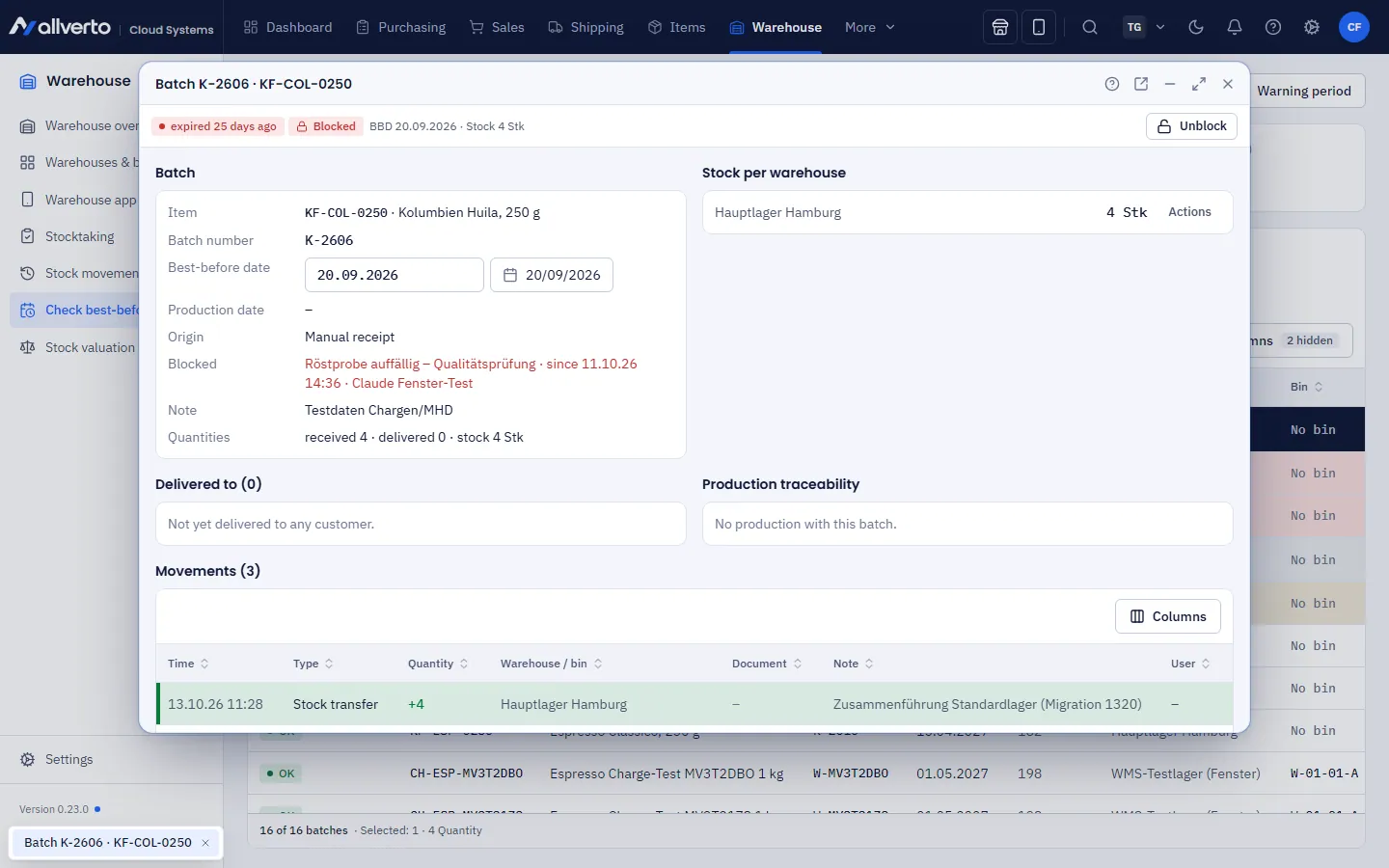
- Origin: goods receipt, supplier or production order, production date, best-before date, note, block.
- Stock per storage bin and all Movements.
- Delivered to: all customers and orders that received goods from this batch – you can copy the email addresses for a recall.
- Production traceability: which raw material batches are contained in a product and where a raw material batch was processed further.
- Serial numbers of the batch.
In the item window, Warehouse tab, Stock per batch shows the stock by warehouse, bin and batch.
Permissions
Viewing requires View stock. Blocking, unblocking, writing off and additions require Post stock movements, rebooking requires Transfer stock and maintain replenishment. The warning period can be changed by anyone allowed to Set up warehouses and storage bins. This applies equally in the ERP and in the warehouse app.