
Pick lists and picking
Pick lists only exist in the warehouse app – create, print, process, cancel and delete them in the pick list overview. From the ERP, “Create pick list” opens the warehouse app with the selected orders.
A pick list guides you along the shortest route through the warehouse to all the items needed for your orders. Pick lists only exist in the warehouse app – for standard and WMS warehouses. In the ERP there are no more pick lists under Warehouse and Shipping; the former page “Warehouse → Pick lists” redirects to the warehouse app.
Before you start
Owner, Administration and Warehouse may create and process pick lists (permission Create and process pick lists). For the warehouse app you need Use the mobile warehouse app. For the route in a WMS warehouse to be right, your bins should have a walking route.
Where do I find what?
| Task | In the warehouse app |
|---|---|
| View, print, cancel, delete all pick lists | Goods issue → Pick list overview |
| Create a pick list (manually or from a template) | Pick list overview → Create pick list |
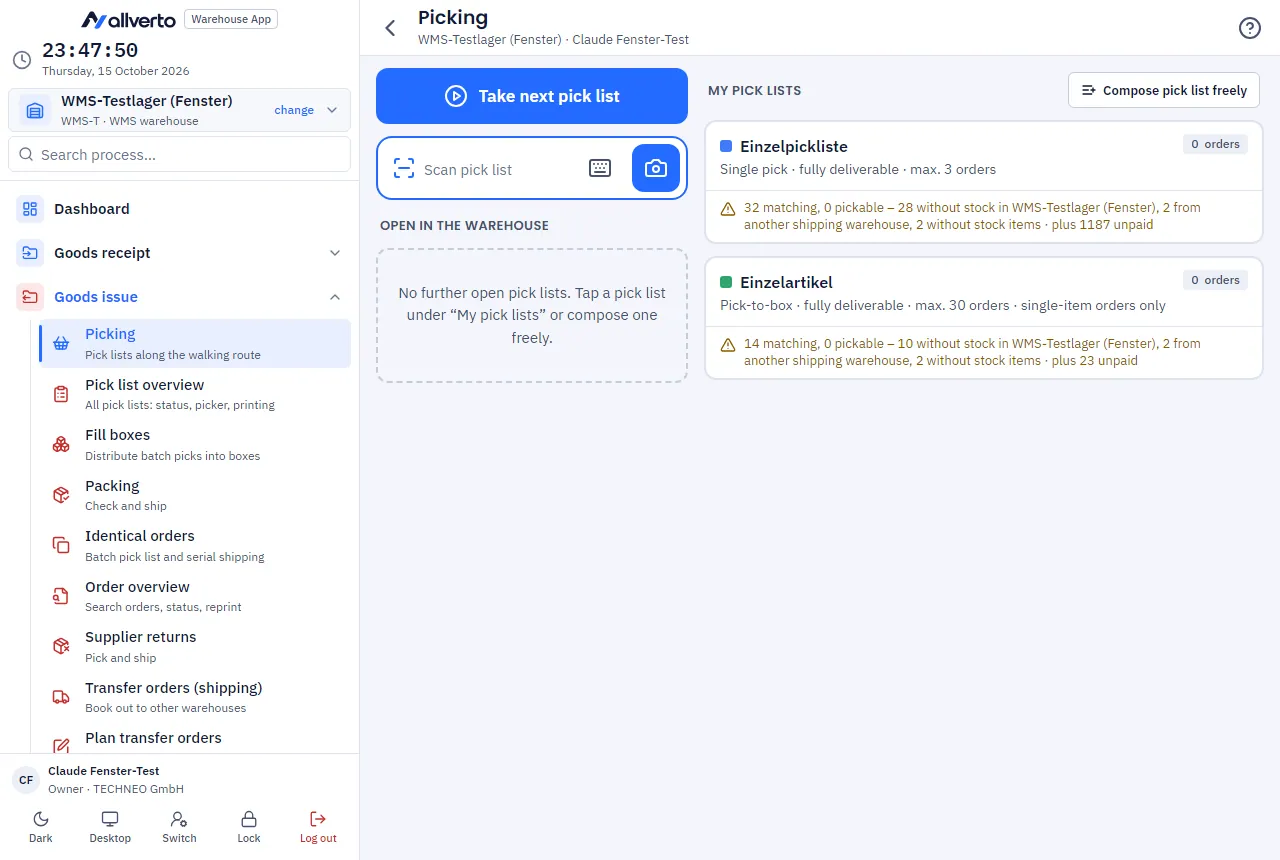
| Process a pick list | Goods issue → Picking |
| Arrange pick list templates | Settings → Pick lists |
| Pick waves | Pick list overview → Pick waves |
You open the warehouse app from the ERP via the Warehouse app icon at the top right of the header or under Warehouse → Warehouse app (mobile) – it starts in a new tab and also works on the desktop.
Creating a pick list from the ERP
Select orders in the order list or in Shipping and choose Create pick list (or Add to pick list). On the dashboard there is Create pick list for all paid. In all cases, the pick list overview of the warehouse app opens in a new tab – with the orders preselected. There you choose the type (single order or batch pick list), check the preview and create the list.
The orders are then set to “Picking”. allverto skips orders without sufficient stock and gives the reason (older orders come first). Orders with a later Ship no earlier than date only go on a pick list from that day on.
Settings in the ERP
Pick list templates, shipping boxes and carts, warehouse devices and the other warehouse settings are maintained in the ERP under Warehouse → Settings – see Pick list templates. You can also edit the templates and their order for “My pick lists” directly in the warehouse app under Settings → Pick lists.
Which bins are used?
Picking bins first, reserve last, each in walking-route order. Pick list templates can have their own reservation order, e.g. FEFO or fixed bins first. Blocked bins and returns bins never. Held orders do not appear; orders with high priority come first.