
Create warehouses and generate storage bins
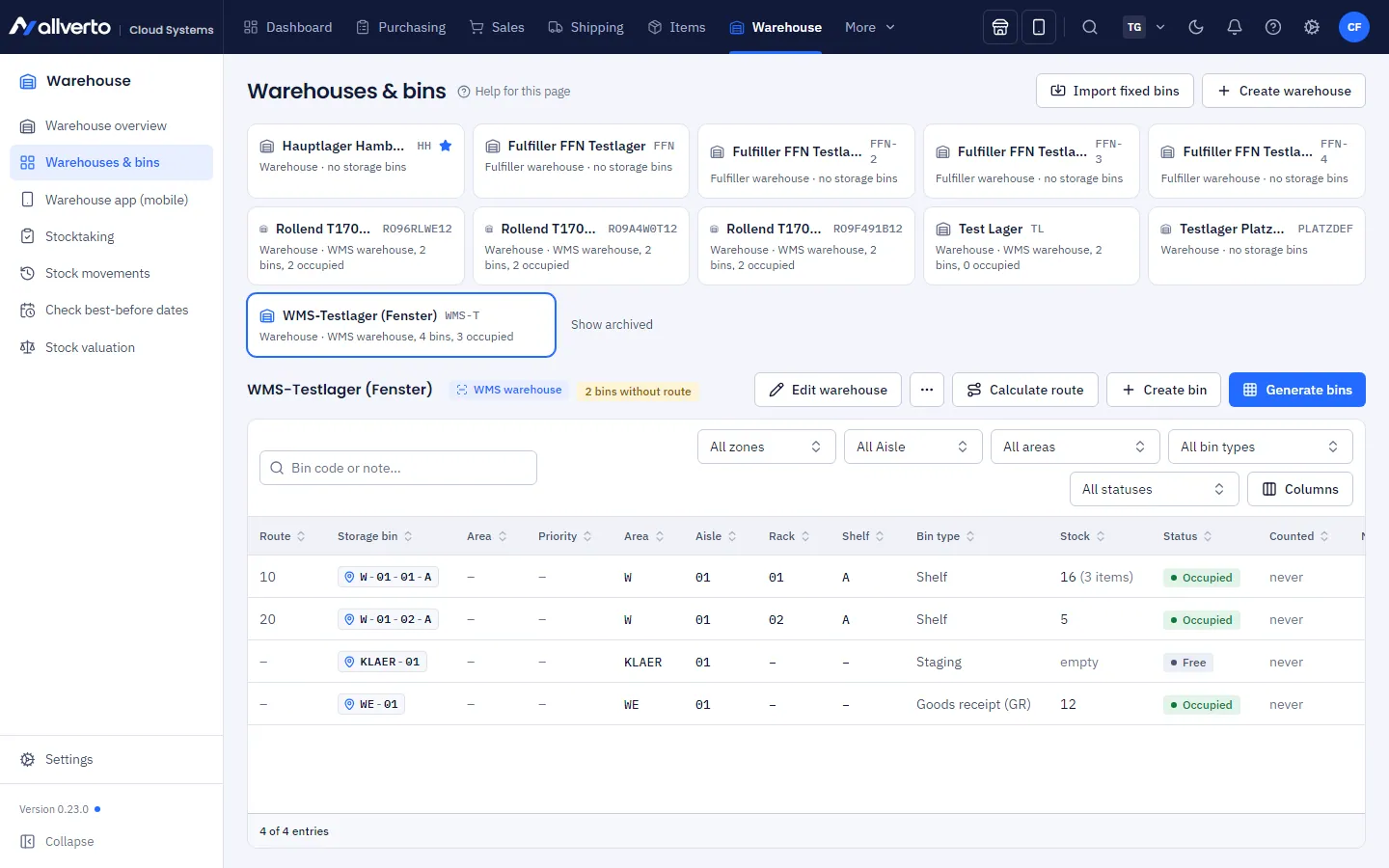
Create warehouses, set the default warehouse, generate storage bins with the generator, assign bin types, lock bins, maintain fixed bins and calculate the walking route.
Before you post goods into stock, you need at least one warehouse. Storage bins are optional, but they pay off as soon as several people pick: allverto then plans the shortest route through the warehouse.
Before you start
Owner and Administration may set up warehouses and bins. Anyone with warehouse permissions can view them.
Creating a warehouse
- Open Warehouse → Warehouses & bins.
- Click Create warehouse.
- Enter Name and Code and choose the Warehouse type:
- Default warehouse – your normal warehouse
- Returns warehouse – only for returned goods
- External warehouse / service provider – goods are stored with an external partner
- Choose the Warehouse management: standard (stock per warehouse, without storage bins) or WMS warehouse (every movement with bin and scan). In both cases, goods receipt, picking, packing and stocktaking counts run in the warehouse app. More under WMS warehouse.
- Save. Via the … menu you can Set as default warehouse – goods receipts without a warehouse go there.
The address of a warehouse is the sender on shipping labels, return labels and manifests for orders shipped from this warehouse. If the shipping warehouse has no complete address, the address of the default warehouse applies.
You can Archive empty warehouses and Restore them later.
Generating storage bins
Bins have a code according to the warehouse's storage bin definition, by default Area-Aisle-Rack-Compartment, e.g. A-02-04-B. In lists and windows the code appears as a neutral tag with a blue location icon.
- Select the warehouse and click Generate bins.
- Enter the values for each level, e.g. area
A, aisle1-4, rack1-10, compartmentA-D. - Choose the Bin type for all new bins.
- Check the preview: it shows how many bins will be created and which already exist.
- Confirm. Existing bins remain unchanged.
You create individual bins with Create bin.
Bin types
| Bin type | Purpose |
|---|---|
| Picking bin | Visited first when picking |
| Shelf, pallet location, floor storage | Normal storage bins |
| Reserve | Used last when picking, source for replenishment |
| Returns bin | B-stock from returns – never picked from |
| Staging | Area for prepared goods |
You change the bin type by right-clicking → Change bin type, also for several bins at once.
Blocking bins
Right-click one or more bins → Block …. In the dialog you choose the lock types – they can be combined –, a Lock reason and optionally a Note:
| Lock type | Effect |
|---|---|
| No put-away | No goods receipt, no transfer and no return onto this bin – the database also rejects such postings |
| No withdrawal/reservation | No picking, no transfer out, no reservation for orders |
| Not available for sale | The stock does not count towards available stock (shops, allocation) |
Locked bins show their locks as a tag in the bin list. Unblock removes all locks. Bins that already have postings can only be blocked, not deleted.
In addition there is the automatic stocktaking lock: if Bins in open stocktaking is set to Lock bins in the WMS warehouse, the bins of an open stocktaking count as locked until it is posted or discarded – no put-away, no withdrawal, no transfer.
You maintain the lock reasons (e.g. Damaged, Conversion / maintenance, Quality inspection) and the stocktaking lock under Warehouse settings → Put-away & bin locks. Inactive reasons are not offered when locking; a reason in use on locked bins can only be deactivated.
Fixed bins
A fixed bin is the permanent bin of an item in a WMS warehouse, e.g. its picking bin. An item can have several fixed bins per warehouse (priority 1 = first fixed bin). With minimum quantity and maximum quantity, the fixed bin is also the replenishment rule of the bin.
- You maintain individual fixed bins in the item under Warehouse in the item.
- You import many at once here with Import fixed bins: one line per fixed bin with item number; warehouse code; bin; priority; minimum quantity; maximum quantity (semicolon or tab, e.g. copied from Excel). Add keeps existing fixed bins, Replace keeps only the lines of the file per item and warehouse.
Fixed bins are the first source of bin suggestions when putting away (put-away strategy under Warehouse settings → Put-away & bin locks).
Calculating the walking route
The walking route defines the order in which bins are visited when picking. Click Calculate walking route and choose:
- S-shape – up one aisle, down the next
- One-way – all aisles in the same direction
allverto assigns numbers in steps of 10. This lets you insert individual bins in between later via Set route number …. Lower numbers are visited earlier.
Storage bin priority
Each bin can have a Storage bin priority from 1 (highest) to 99. You set it in the bin editor or directly in the Priority column of the bin list. Empty means: no priority. In the pick list template it is a reservation criterion: Highest priority first or Lowest priority first. Bins without priority come last in both directions. Changing it requires the permission Set up warehouse.