
Create and report production orders
Create a production order from a bill of materials, release it, issue material and report the produced quantity with batch and best-before date.
A production order says: “Make this quantity of this product by this date.” allverto takes the material and operations from the bill of materials.
Process and status
| Status | Meaning |
|---|---|
| Planned | Created, nothing reserved yet. Can be deleted. |
| Released | The material is reserved and no longer available to other orders. |
| In progress | Production is running. |
| Completed | Closed. |
| Cancelled | Cancelled from “Planned” or “Released”; reservations are freed. |
Before you start
Anyone with the permission “Plan production and report progress” can plan and report production orders – e.g. Administration and the Production role.
Step by step
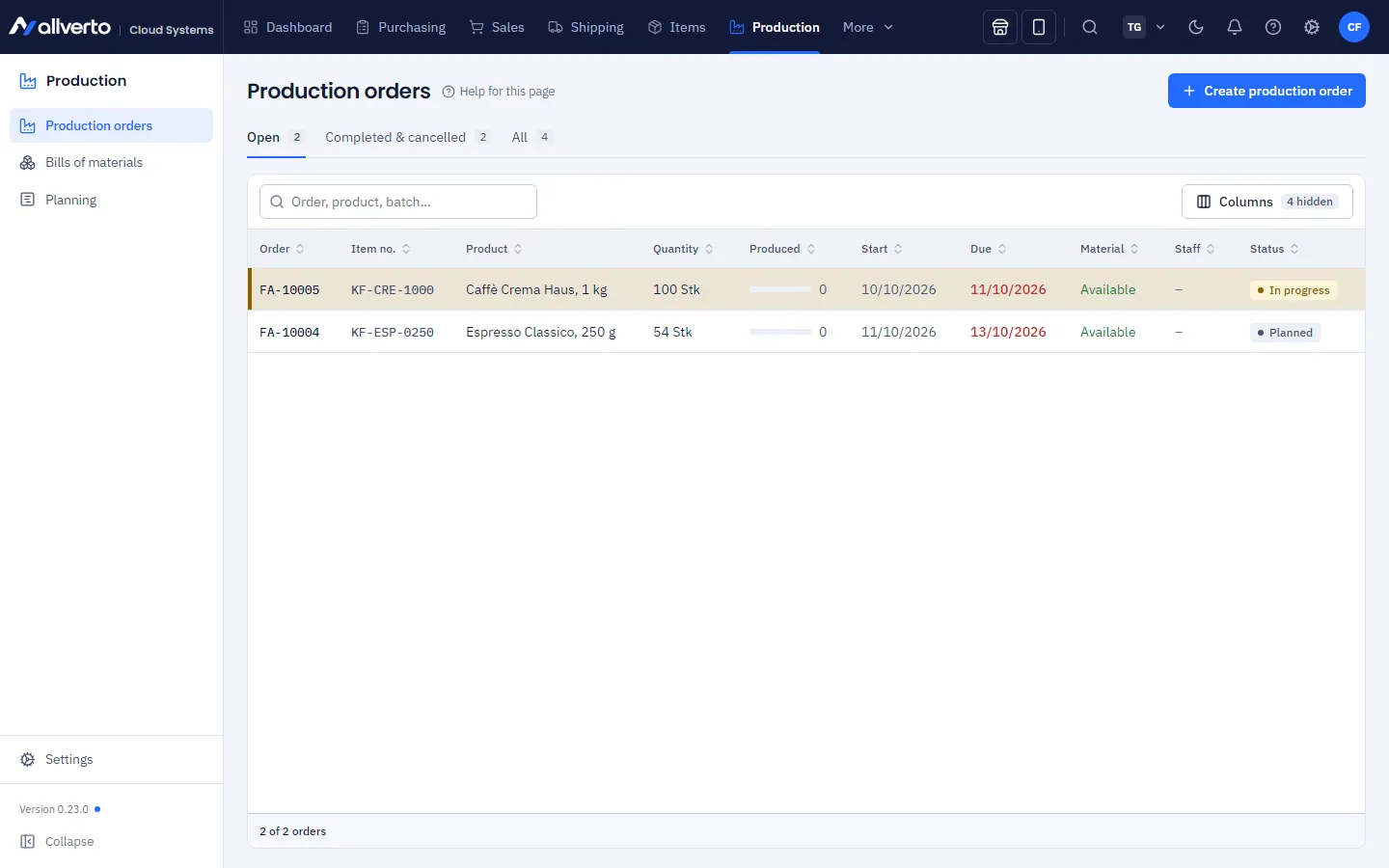
- Open Production → Production orders and click New production order (also via Production → Create new).
- Choose the Product (only items with a bill of materials), the Bill of materials or recipe, the Quantity, Planned start and Due (not before the start), and the Warehouse (empty = default warehouse). Standard and WMS warehouses can be chosen, not returns, fulfiller or drop-shipping warehouses. Material is taken from there and the product is put away there. Optionally enter a Batch and Best-before date and choose a Sales order (see Make-to-order production).
- Create order – the order is now Planned.
- Open the order and click Release. The material is now reserved. Revoke release takes it back to “Planned”.
- Optionally Start production – status In progress.
- Issue material posts the required material out of the standard warehouse. In a WMS warehouse this button does not exist – there the warehouse stages the material in the warehouse app or the confirmation backflushes it (see below).
- Report: enter the Good quantity and Scrap, if needed the Batch and Best-before date of this confirmation and – only in a WMS warehouse – the Storage bin (empty = default bin or existing bin). Batch and best-before date are pre-filled from the order or the best-before rule of the bill of materials and are posted exactly like this on the receipt – partial quantities can have their own batches. With Backflush material, allverto posts the material for the good and scrap quantity, as far as it has not been issued yet. With Complete order afterwards, the order also ends with less than the order quantity. Choose Report partial quantity or Report completion.
- Once everything has been produced – or the rest is no longer needed – Complete order. Material that has not been issued is then no longer reserved. Open mandatory checks and failed checks prevent completion (see below).
Partial quantities (kg, l, m)
For products and components with a divisible unit (kg, g, l, ml, m, m² …), the order quantity, the material issue, the confirmation (good and scrap) and backflushing accept up to three decimal places – e.g. 12.5 kg of dough or 0.75 kg of flour. The required material of divisible components is calculated to 0.001, items counted in pieces are rounded up to whole units. For items counted in pieces, allverto rejects a partial quantity with a message. In the warehouse app and the production app, the number pad has a decimal key for divisible units.
Staging material in the warehouse app
In a WMS warehouse, nobody has to click Issue material at the desktop:
- Production supply on the pick list: A pick list template with the document type Production supply order (tab Advanced filters, Document types) includes the material staging for released production orders in its planning. In the warehouse app, these steps are marked Production FA-…. The scan posts immediately: material to the production order or to the staging bin of the work centre.
- Production transfer: If the material is in a different warehouse than production, the template plans a transfer order into the warehouse with production – with source and target warehouse.
- Material by scan: issue it at the operation in the production app; the warehouse brings it to the production station in the warehouse app under Provide material.
If the work centre has a Staging bin (under Work centres & machines, WMS warehouses only), the warehouse app brings the components there, and production takes them from there.
Checks before completion
Checks from the routing are recorded in the production app. As long as a mandatory check has no result, the operation cannot be reported as finished and the order cannot be completed. A failed check (measured value outside the tolerance, “not OK”) blocks as well – unless Release by authorised person is selected in the production app settings: then a person with “Plan and confirm production” releases the completion in the production order after a confirmation prompt. The order window shows open and failed checks on the operation.
Printing the routing card and material slip
In the order window (menu) and in the list (right-click) you print the routing card – key data, order number as a barcode, operations with planned time, checks to tick off and fields for good, scrap and initials, plus the required material with storage bins – or only the material slip; intended for companies without terminals on the shop floor. Both appear in the language of the person printing.
- Print routing card or Print material slip sends the document via the print agent to the printer set up at your workplace for Production order / routing card or Material slip; without the agent the browser's print dialog opens.
- Routing card as PDF or Material slip as PDF shows the document in the PDF viewer.
- You design the layout under Settings → Print templates with the template types Production order / routing card and Material slip (starter templates “Routing card (standard)” and “Material slip (standard)”, placeholders such as
fa.nummer, info block with key data). If there is a default template, allverto prints with it; otherwise the built-in layout is used.
Make-to-order production
A production order can belong to a sales order: choose it when creating the order in the Sales order field (open orders containing this product, permission “View orders”) or create the production order from the sales order by right-clicking the line and choosing Create production order… – product, quantity and line are then pre-filled. The link is shown in the order window (with a link to the sales order) and in the list in the Sales order column.
The sales order window also lists the linked production orders under Summary → Production orders with progress, due date and status (only with the permission “View production”).
As soon as produced goods are reported, allverto sets Give stock to this order first (high priority) on the open sales order: the stock allocation gives the produced quantity to this order first, even if older orders are waiting for the same item. The note appears in the order history and can be removed there by right-clicking.
By-products
If production creates further usable items (co-products, e.g. whey when making cheese or bran when milling), enter them in the bill of materials on the By-products tab. The production order takes them over with a planned quantity; every completion books them in proportion to the reported good quantity (stock movement “Completion” linked to the order) – to their default bin or a bin with stock, otherwise to the bin of the product. The order window shows the planned and booked quantity per by-product.
Unbuild
With an unbuild you break a product back down into the components of its bill of materials – for example after a faulty production run or a take-back. This is how it works:
- Open Production → Production orders, tab Unbuilds, and click New unbuild – or choose Unbuild… in the production order (menu or right-click in the list); product, quantity, warehouse and bill of materials are then pre-filled.
- Check Product, Quantity, Warehouse and Bill of materials. allverto shows the recovered components with quantity and transferred value as well as the available stock of the product.
- Click Unbuild. It is booked immediately: the product is booked out and the components are booked in (stock movement “Unbuild”, number “DM-…”).
The value of the product (average cost, otherwise the manufacturing costs from the bill of materials) is distributed to the components by value share and flows into their average cost. From a production order you can unbuild at most the produced quantity not yet unbuilt; batch-tracked components return to the batches issued in the order. Scrap from the bill of materials does not come back – what is booked back is what the product contains.
List of production orders
The list loads up to 500 orders per tab, earliest dates first; Load more fetches the next ones (up to 5,000). The numbers on the tabs count all orders with the same filter.
Staff per operation
In the order window you assign Staff to each operation. The employees of the work centre are suggested; anyone not registered there is marked “Not at work centre”. For operations without a work centre, all users of the company can be selected. At the operation you can also see who is currently booking time on it. The actual costs are the booked minutes × cost rate of the work centre. More under Staff and working times.
What the order window shows
- Material – required, Issued, Open and In warehouse per component; via Columns also Bins, issued Batches, Scrap %, Unit cost and Issued value.
- Operations with target and actual time and the assigned staff (actual times come from production on the tablet).
- By-products with planned and booked quantity, and unbuilds from this order.
- Confirmations and Stock movements.
- Costing – target and actual compared. Actual material uses the cost at the time of issue (average cost of the stock valuation), not today's purchase price – completed orders no longer change afterwards.
Frequently asked questions
Can orders be created automatically?
Yes – the MRP run under Planning suggests production orders and creates them if you want.
Where can I find the product's batch again later?
Each completion report posts its batch and best-before date on the receipt – without an entry the order's batch or a batch with the production order number. Batch and best-before date appear in the confirmation and on the batch. See Batches and best-before dates.