
Create and test an automation
Automate recurring tasks – with a "When … and only if … then …" flow, a test run on real data and a log.
Automations do routine work for you: when something happens (e.g. an order is paid) and certain conditions apply (e.g. delivery country is not Germany), allverto carries out actions (e.g. set the shipping method to DHL Express and notify the warehouse). If you know JTL-Wawi: this corresponds to the workflows.
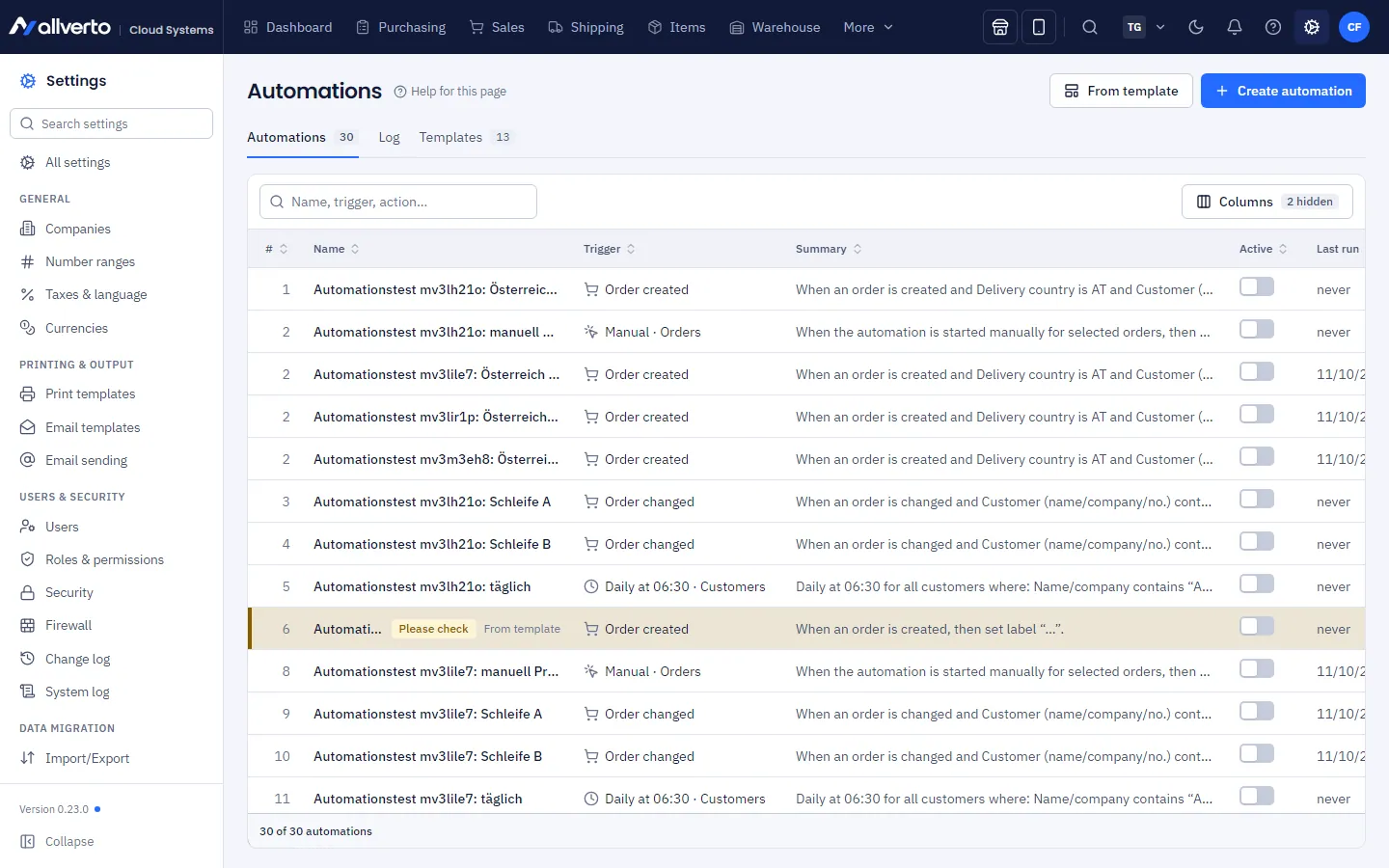
You'll find automations under Settings → Automations (group Automation).
Before you start
- Creating and changing requires the permission Create, change, activate and delete automations (Owner, Administration).
- Sales has View automations and their log and Run manual automations from lists – so it may view, test and run manually.
- Think of the flow as one sentence: "When an order is paid and the delivery country is not Germany, then set the shipping method to DHL Express and notify the warehouse."
The list
For each automation, the table shows the Name, Trigger, a plain-language Summary, whether it is active, the last run with its result, and the runs and errors of the last 24 hours. Rows with errors are marked red.
Double-clicking opens the automation in its own window. In the right-click menu you'll also find Test …, Duplicate, Activate/Deactivate, Move up/down, View log and Delete ….
Step by step
- Click Create automation – or From template and choose a ready-made automation (e.g. "Paid international orders by express", "Shipped → thank-you email", "New order → order confirmation by email", "Daily dunning run"). You can also see all templates in the Templates tab (Use template). A window opens; like item or order windows, you can move it, enlarge it or detach it into its own browser window.
- Header: enter a Name and choose the Area (orders, customers, items …). Below it there is always the Summary – this is how your automation reads as one sentence. If the sentence is right, the automation is right.
- Step 1 – When: click Change trigger. The list is grouped by area and searchable; each trigger says when it fires. For Scheduled you also choose the Repeat interval (daily, weekly, monthly) and the Time.
- Step 2 – And only if: define conditions, each as a row field – comparison – value. Depending on the field, you choose from a list (status, channel, country …), enter a number or pick a date in the calendar. Link them with All (AND) or At least one (OR); groups allow mixed rules. Use the arrows to change the order. Without a condition, the automation applies to every object.
- Step 3 – Then: click Add action and search e.g. for Set shipping method or Send email. The actions are numbered and run in this order – drag a card by the handle on the left to move it. In texts (email, note, notification) you insert placeholders such as
{{auftrag.nummer}}via { }. Each action can also have its own condition (Only if …). - Test the automation on the right in the Test run (see below).
- Click Save and activate – or just Save (Ctrl+S) if it shouldn't run yet. You can flip the Active switch at the top of the window at any time.
If you close the window with unsaved changes, allverto asks you first.
Test run: does the automation do what I want?
The test run shows on a real object what would happen – without changing or sending anything. It even works before you save.
- Click Test at the top of the window (or Test … in the list's right-click menu).
- Under Matching you'll find the newest objects your conditions apply to – Test with the newest match takes the top one. Under All you can search for any object (number, name).
- Click an object. The result shows:
- whether the automation would apply,
- for each condition, met (green) or not met (red) with the actual value on the object, e.g. "Delivery country is not Germany – actual: Austria". The same check marks also appear directly below the conditions in the editor,
- for each action, whether it would run, would be skipped (e.g. shipping method already set) or would fail – with the reason,
- changed values as before → after (e.g. shipping method DPD → DHL Express),
- for emails, the recipient, subject and text with the placeholders filled in.
- If you change something in the automation afterwards, click Test again.
Really run for one object
If the result fits, you can run the saved automation immediately for exactly this one object with Really run for this object … – after a confirmation, even if it is not active yet. This really saves and sends. You must save any unsaved changes first. The run appears in the log as Manual.
Settings
At the bottom of the window you expand Settings:
- Description – what the automation is for.
- Each object only once (scheduled only) – e.g. one reminder per customer instead of again on every run.
- No further automations afterwards – if this automation applies, no further automations run for the same event. The order corresponds to the list (Move up / Move down in the right-click menu).
There is no delay ("only after 2 days"); instead use the Scheduled trigger with a suitable condition (e.g. "Paid on is more than 2 days ago").
Run manually
You start automations with the trigger Manually from a list yourself: select entries in the order, customer or item list, right-click → Run automation and choose the automation. Afterwards allverto reports how many entries were processed, how many had no match and where errors occurred.
Log
On the right of the window, Recent runs shows this automation's runs over the last 30 days; a click expands a run with the result for each condition (with the actual value) and each action (with before → after). In the list's Log tab you see all runs of all automations with their result (Done, Partial, Error, Condition not met, Aborted). With Also without match, cases where the conditions did not apply are shown too. The log is kept for 90 days, runs without a match for 7 days.
When scheduled automations last ran and will run next is shown together with all other automatic syncs under Settings → Sync overview (see Sync overview).
Frequently asked questions
The automation didn't apply – why?
Test it with the test run on exactly this object: the condition marked red shows what caused it, including the actual value. Is the automation active? Did an earlier one stop processing with No further automations afterwards?
Are emails sent when testing?
No. In the test run you only see to whom and with which text the email would go. Only Really run or normal operation actually sends.
Can automations trigger each other?
Yes, an action can trigger a new event (e.g. "Order changed"). To prevent an endless loop, allverto stops after a few passes and notes this in the log.
My old links to an automation no longer work?
They do: a link like /automationen/<id> opens the list with the automation's window.
Are my JTL workflows available here too?
The triggers largely correspond to the workflow events of JTL-Wawi (e.g. "Auftrag: Erstellt" (Order: Created) = Order created). Automatic import of workflows from JTL-Wawi is planned but not yet available – please create the automations anew.