
Open items
Who still owes you money? Open invoices with ageing, cash discount deadlines, payments, cash discount, write-offs and dunning blocks.
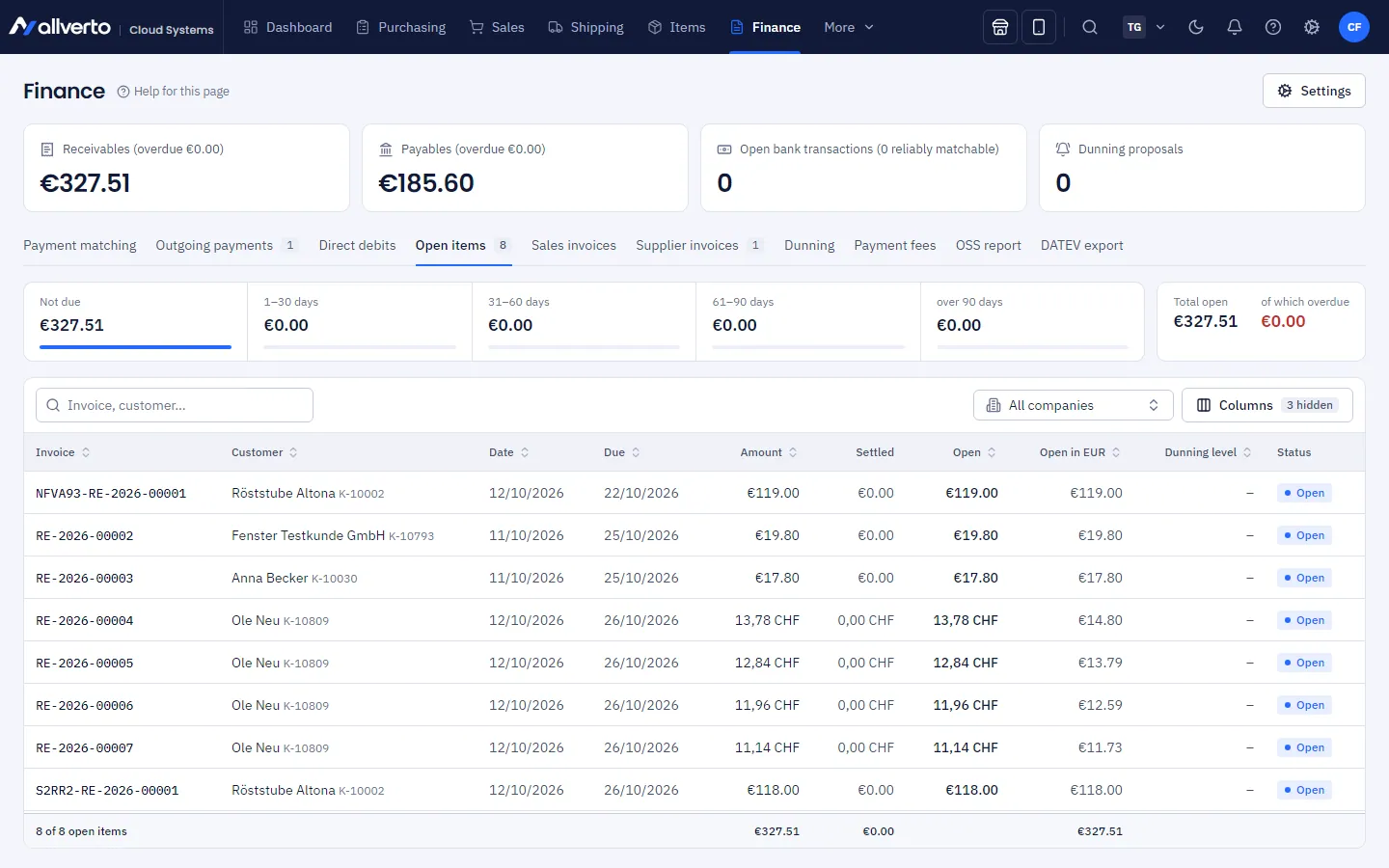
Under Finance → Open items you see all invoices that have not yet been paid in full – i.e. your receivables from customers (debtors). This is where you record payments, post cash discounts, write off remaining amounts and set dunning blocks.
Before you start
- Viewing requires the View financial data permission (e.g. owner, Administration, Accounting; the Purchasing manager can only view).
- Recording payments, cash discounts and write-offs requires the Post payments, match bank statements, send reminders and record supplier invoices permission (owner, Administration, Accounting).
What you see at the top
| Metric | Meaning |
|---|---|
| Total open | Sum of all open amounts |
| of which overdue | The part whose due date has passed |
| Customer credit | Credit notes after a payment – the customer has a credit balance with you |
| Ageing | Open amounts by how overdue they are: Not due, 1–30 days, 31–60 days, 61–90 days, over 90 days |
The list only shows invoices with an open amount (or a credit balance). The search finds invoice number and customer; if you work with several companies, you can limit the list to one Company in the toolbar. Besides Amount, Settled and Open, the table shows the Dunning level, Cash discount until and – for invoices in a foreign currency – Open in EUR. You can show further columns such as Order or Debtor via Columns. Rows that are more than 30 days overdue and have neither a dunning block nor a dunning stop are highlighted in red.
Status of a row
| Status | Meaning |
|---|---|
| Open | Nothing paid yet, not overdue |
| Partly paid | Part of it has been paid |
| Overdue (X d) | Due date passed X days ago |
| Dunning block | Overdue but blocked – does not appear in the dunning proposal |
| Credit | Negative item: the customer has a credit balance |
Record a payment, cash discount or write-off
- Right-click the invoice.
- Choose Record payment, Post cash discount or Write off.
- Enter the Amount, Date and, for payments, the Payment method, optionally a note. Under Posting type you can still switch between Payment, Cash discount and Write off (remaining amount/bad debt) in the same window.
- Confirm. The invoice's status and remaining amount update immediately – in the invoice list and in the customer window too.
Use Write off for remaining amounts or a bad debt. The Cash discount until column shows you until when the customer may deduct a cash discount according to the payment terms.
Invoice details
Double-click (or Open details) opens the open item as a window. There you see the invoice date, due date, dunning level, what was Paid with order, Cash discount possible until, all Postings, Credit notes and previous Reminders. You undo an incorrect posting with Cancel posting – it isn't deleted but cancelled out by a reversing entry.
Set a dunning block
If an invoice is currently being clarified (e.g. a complaint), it shouldn't be dunned:
- Right-click the invoice → Set dunning block.
- Under Applies to, choose only this invoice or all invoices of the customer.
- Optionally Blocked until (empty = until lifted) and a Reason, e.g. "Complaint being clarified".
You can lift the block under Finance → Dunning in the Dunning blocks area.
Frequently asked questions
Why can't I delete a posting?
Postings are unchangeable for reasons of proper bookkeeping (GoBD, the German principles for proper bookkeeping). Corrections are made via Cancel posting in the open item window.
Where does a negative item come from?
If a customer has paid and you then issue a credit note, a credit balance arises. It appears as a negative amount with the status Credit.