
Prices: sales, purchase, tiered and special prices
Maintain the gross/net sales price, RRP, margin as well as customer group, tiered, special and channel prices, and check the applicable price.
In the Prices tab of the item window you specify what an item costs – for all customers, for certain customer groups, from a certain quantity, during a period or per sales channel.
Before you start
Only people whose role has the permission Change prices may change prices. Without this permission, all price fields are read-only and a note appears at the top.
Sales price
- Open the item and switch to the Prices tab.
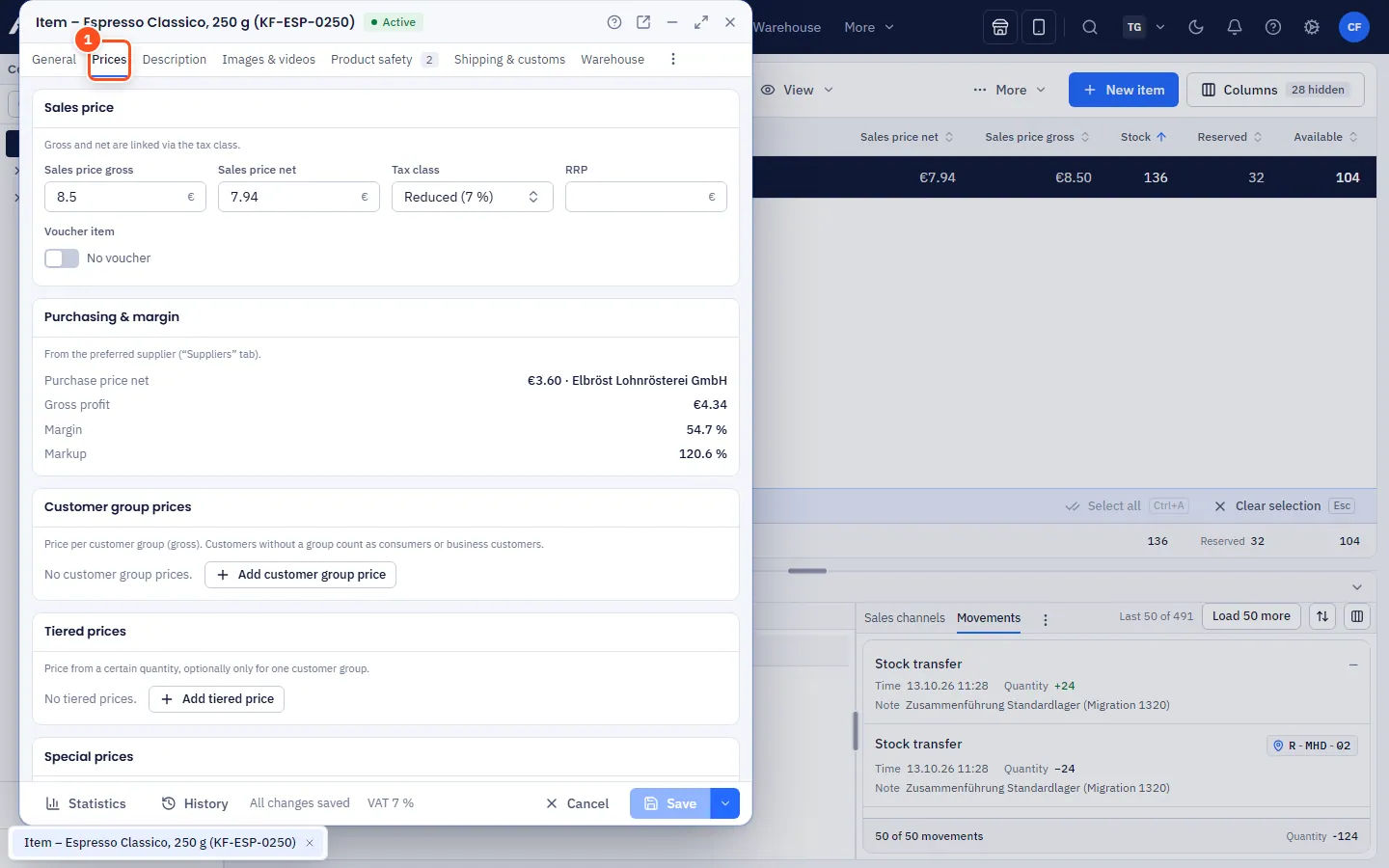
- In the Sales price card, enter the Sales price gross. allverto calculates the Sales price net using the Tax class – you can also enter the net price, and the gross price is then calculated.
- Optional: RRP (recommended retail price).
- Save with Ctrl+S.
Voucher item
With the Voucher item switch in the Sales price card you turn the item into a multi-purpose voucher. allverto sets the tax class to tax-exempt and switches off stock keeping. Every invoice and every POS receipt with this item creates one voucher per piece (Vouchers area). The voucher is not taxable when sold – tax is only applied when it is redeemed in an order or at the POS.
The Purchasing & margin card shows the net purchase price of the preferred supplier, Gross profit, Margin and Markup. You maintain the purchase price in the Suppliers tab (see Suppliers). Only people with insight into purchasing can see this card.
Ignore discounts
With the Ignore discounts switch in the Sales price card you exclude the item – as in JTL-Wawi – from all percentage discounts: customer discounts and category discounts per customer, product group discounts and, at the POS, the automatic discounts (customer discount from the customer master data, customer group, category and item discounts). Fixed customer prices, customer group, tier and special prices still apply, as do discounts you enter manually on a line. Typical for books with fixed prices, deposits, vouchers or tobacco.
Price rules
You enter all rules gross; the net price is shown next to it. Each card has Add or "Add …". Right-click a row: Duplicate or Remove.
| Card | Purpose | Fields |
|---|---|---|
| Customer group prices | Separate price per customer group (e.g. resellers) | Customer group, price |
| Tiered prices | Cheaper from a certain quantity | Customer group (or all), from quantity, price |
| Special prices | Promotion during a period – only applies if it is cheaper than the otherwise applicable price | Customer group, from quantity, period, price |
| Channel prices | Different price per sales channel | Channel, price |
Customer group prices require existing customer groups, channel prices a connected sales channel. You can also enter the channel price in the Sales channels tab – it's the same value.
Which price applies? – "Check price"
In the Check price card you choose Customer group, Quantity, Channel and Date. allverto immediately shows the applicable gross and net price and names the rule it comes from. This lets you test tiers and promotions before a customer orders. allverto uses the same price determination when you add an item to an order or a quote. If Ignore discounts is switched on, the card points this out.
Changing prices for many items
In the item list, select several items and choose Calculate prices… in the right-click menu.
Frequently asked questions
Why does "Purchasing & margin" show "No supplier assigned"?
No supplier item with a purchase price has been created for the item yet. Add it in the Suppliers tab.
Where can I see when a price was changed?
Via the History button at the bottom of the item window – price changes are listed there with time and user.