
Direct debits – collecting invoices by SEPA direct debit
Collect invoices and orders with the direct debit payment method as a SEPA direct debit batch (pain.008) – with mandate, pre-notification, execution and returned debits.
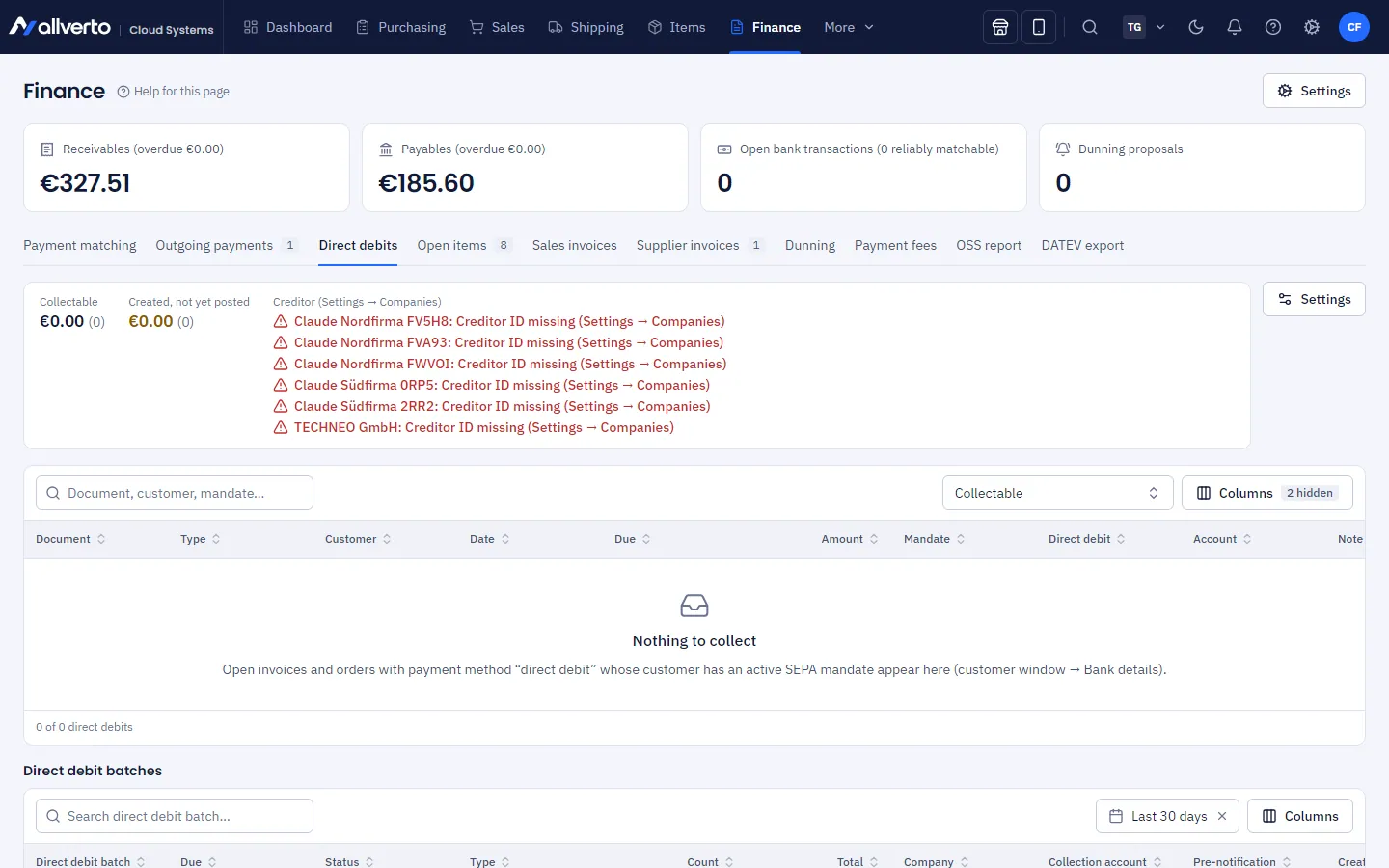
Under Direct debits you collect open invoices and orders with the Direct debit payment method in one go: allverto generates a SEPA direct debit batch (pain.008.001.08) that you upload in online banking, sends the pre-notifications if you wish and posts the payments as soon as the money has arrived.
You'll find it under Finance → Direct debits.
Before you start
- Viewing requires the View financial data permission. Creating, executing and cancelling direct debit batches and recording returned debits requires Release supplier invoices for payment and create outgoing payments (SEPA transfers) (owner, Administration, Accounting).
- The company (Settings → Companies, see Multiple companies) contains the Creditor ID (Tax & register tab) and the Collection account (Bank tab). At the top of the direct debits page, under Creditor, you can see for each company whether everything is there – if something is missing, the row is red.
- The customer needs a signed SEPA mandate in the customer window, SEPA mandates tab (mandate reference, date of signature, IBAN, direct debit type Core or B2B). With Copy from bank account you take over a stored IBAN.
- The invoice or order has the Direct debit payment method (see Payment methods).
Step by step
- Open Finance → Direct debits. The list shows all open invoices and orders you can collect – with Document, Customer, Due, Amount, Mandate and whether it is a first or recurring direct debit. With Show → All (including without mandate) you also see documents where something is missing; the Note tells you what.
- Select the documents and right-click → Create direct debit batch (…)….
- Choose Due on (collection). allverto suggests the earliest possible bank business day (taking lead time and pre-notification period into account) and moves to the next bank business day for weekends and bank holidays.
- Leave Send pre-notification by email now on if customers should receive the notification with the Direct debit pre-notification email template.
- Choose Batch booking if a single credit for the whole file should appear on the bank statement. Without batch booking there is one credit per direct debit – which makes payment matching easier.
- Click Create SEPA file. The file is downloaded – a separate one for each company and direct debit type (Core/B2B). Upload it in online banking as a SEPA direct debit file and authorise it there.
The direct debits are then set to Expected, the direct debit batch to Created.
Post the execution
A direct debit is paid as soon as the credit has been posted:
- Automatically: Payment matching recognises the credits by the end-to-end reference and posts them as payments (per direct debit for single booking).
- Manually: right-click the direct debit batch → Mark as executed… (from the due date). All direct debits still expected are posted as payments on the due date; optionally you choose the matching Bank transaction, which then counts as matched in payment matching.
Manage direct debit batches
At the bottom are the Direct debit batches in the selected period (default: last 30 days, open ones always) with Due, Status, Count, Total, Collection account and the status of the Pre-notification. Via right-click:
| Action | Effect |
|---|---|
| Show direct debits | All direct debits of the file with status, mandate, reference and return reason |
| Download SEPA file | Download the file again – exactly as it was generated |
| Send pre-notification (missing) | Notifications to customers who haven't received one yet |
| Cancel… | Only if the file was not submitted or the bank rejected it. The documents are back in the list; first direct debits remain first direct debits |
Record a returned debit
If the bank returns a direct debit, open the direct debit batch (Show direct debits) and choose Record returned debit… for that direct debit:
- Choose the Reason (SEPA return reason) and the Date.
- Optional: Charge fee to customer – it is added to the order as a line (without VAT). You set the default in the settings.
- Optional: choose the Chargeback on bank statement so that it is matched in payment matching.
- Switch on Revoke mandate if the account has been closed or there is no valid mandate.
The payment is cancelled and the invoice or order is open again. If a first direct debit was returned, the next direct debit with this mandate is a first direct debit again.
Settings
Via Settings at the top right you define:
| Setting | Meaning |
|---|---|
| Lead time core direct debit | Bank business days between submission and due date (rulebook: 1) |
| Lead time B2B direct debit | Bank business days (rulebook: 1) |
| Pre-notification period | Calendar days before the due date (rulebook: 14, shorter only by agreement) |
| Returned debit fee (default) | As a line in the order; 0 = none |
| Send pre-notification by email | Default when creating |
| Batch booking | Default: one credit per file |