
Purchase list
Collect items to reorder on a shared list – by scanning, from purchase suggestions, the item list or from missing quantities of orders – and create purchase orders per supplier from it.
The Purchase list is a shared collective list for everything that needs to be reordered – as in JTL-Wawi (the German merchandise management software). Anyone in the team can put items on it; purchasing turns it into purchase orders per supplier with one click. You'll find it under Purchasing → Purchase list.
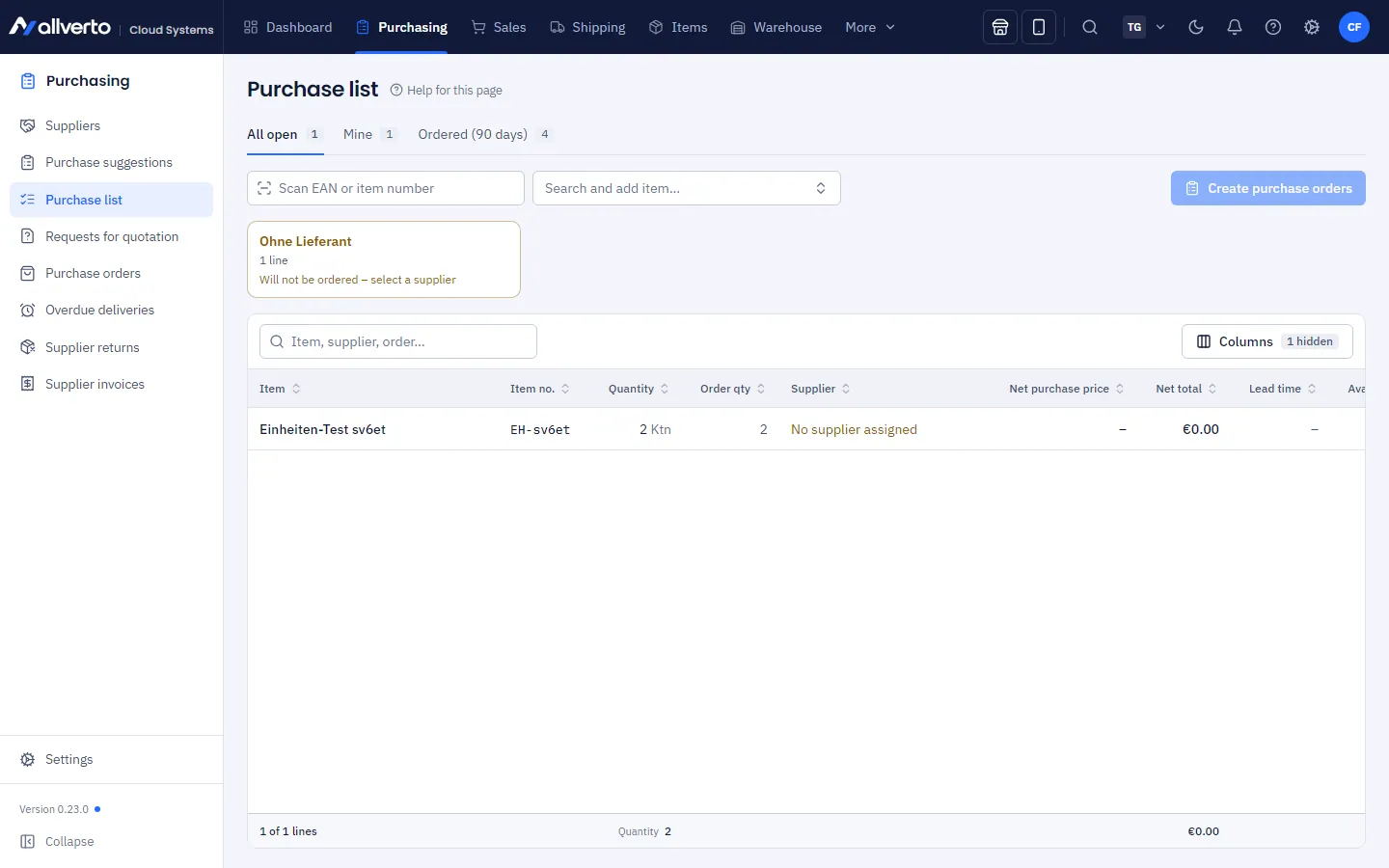
Views
- All open – everything that still needs to be ordered.
- Mine – lines you created yourself.
- Ordered (90 days) – completed lines with Purchase order and Ordered on.
Columns: Item, Item no., Quantity, Order qty (rounded to minimum quantity and packaging unit), Supplier, Net purchase price, Net total, Lead time, Available, Target warehouse, Note, Source (manual, purchase suggestion or order) and Editor; you can show Added via Columns. Lines without a supplier are highlighted in colour. The Net purchase price follows the supplier's purchase price tiers for the order quantity – without your own purchase price, the tiers also apply in the purchase order created.
Above the list there is a tile per supplier with the number of lines, total and status towards the minimum order value ("Minimum order value … reached" or "Still … to …"). Clicking a tile filters the list to that supplier; clicking again removes the filter.
Put items on the list
- Scan or search: scan the EAN or item number in the "Scan EAN or item number" field or search for the item next to it under "Search and add item…".
- From purchase suggestions: under Purchase suggestions select items → Add to purchase list (also via right-click).
- From the item list: right-click one or more items → Add to purchase list.
- From orders: in the order list or order window right-click → Order → Missing quantities to purchase list – also for several orders. allverto calculates the missing quantity: what is reserved but not available, minus open purchase orders and missing quantities already listed.
- From lines: in the line preview below the order or purchase order list, right-click → Add to purchase list.
The same item, same supplier and same warehouse increase the existing line. The missing quantity of an order replaces its previous line.
Supplier, warehouse and quantity
- Supplier: the preferred supplier is preselected, otherwise the cheapest one. Change it via the pencil in the Supplier column or via right-click → Change supplier – there you see all suppliers of the item with purchase price, lead time, minimum quantity and packaging unit, searchable under Search supplier … with the labels Preferred and Cheapest. Only suppliers with a supplier item for this item can be selected.
- Target warehouse: empty means default warehouse. Goods receipt runs for each warehouse in the warehouse app.
- You change Quantity, Target warehouse and Note directly in the row.
Right-clicking a line also offers Order this line… (with several, Create purchase orders from … lines…), Open item, Open order …, Open purchase order … and Remove. If you select several lines, Order… and Remove are available at the bottom.
Step by step: create purchase orders
- Select lines and click Order… at the bottom – or, without a selection, click Create purchase orders at the top; then the whole view applies (all open or "Mine"). The button shows for how many suppliers orders will be placed.
- The Create purchase orders preview shows one purchase order per supplier and target warehouse with delivery date, total and minimum order value. Discount, small quantity surcharge and freight from the supplier's conditions are included. Identical items are combined and rounded up to minimum quantity and packaging unit.
- Confirm with Create 1 purchase order or Create … purchase orders. allverto creates the purchase orders as Draft (number BE-…), with the delivery date based on the longest lead time and the order numbers in the note.
- Open the drafts (notice at the top or Open in the message), check them and send them to the supplier – see Create and send a purchase order. If a purchase order needs approval, submit it first.
Anything that cannot be ordered remains on the list and is shown in the preview under "Remain on the list" with a reason – e.g. no supplier selected, item not (or no longer) stored for the supplier, supplier set to Block for purchase list, or target warehouse archived. The rest moves to the Ordered (90 days) view.
Permissions
Anyone with the View purchasing, suppliers and purchase orders permission may view it. Creating, changing and removing lines and creating purchase orders requires Create purchase orders (owner, Administration, Purchasing manager).