
Assign characteristics
Create characteristics with fixed values, translations, display and images, organise them in characteristic groups and assign them to items – individually or to many items at once.
Characteristics are fixed properties with a list of values – for example Roast level: light, medium, dark or Colour: black, red. Shops use them for filters and product details, marketplaces as item characteristics. Unlike attributes, characteristics have predefined values – structured like "Merkmale und Merkmalswerte" (characteristics and characteristic values) in JTL-Wawi.
Maintaining characteristics
You'll find them under Items → Settings → Characteristics. The page has three parts:
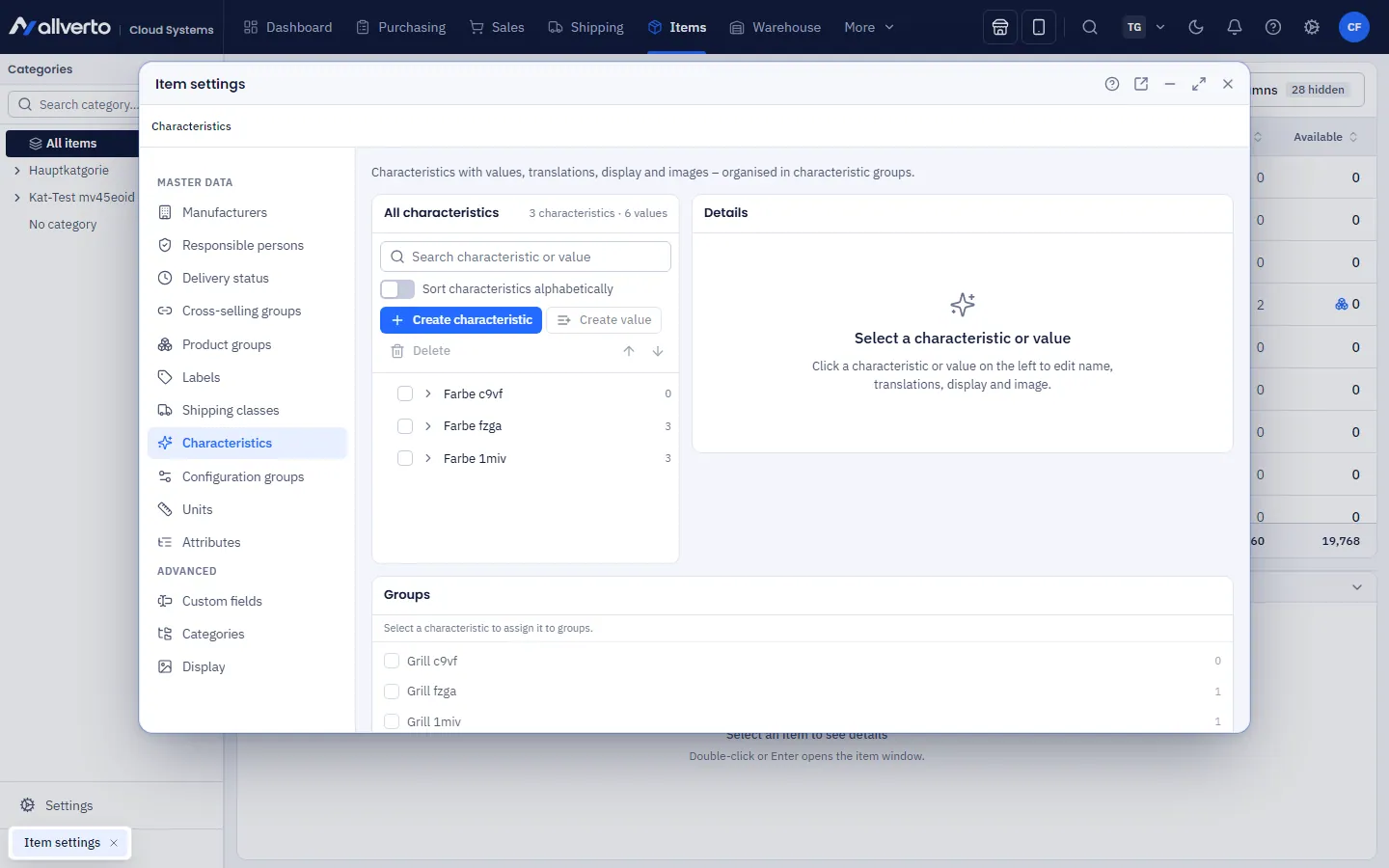
| Area | Content |
|---|---|
| All characteristics (left) | Tree with characteristics and their values, search, order by dragging or arrows. A dot marks missing translations. |
| Details (right) | Name in German and the languages for item texts, type, display, image – for the selected characteristic or value |
| Groups (below) | Which characteristic groups the characteristic belongs to; Manage characteristic groups… |
Creating, sorting, deleting and images take effect immediately. You save changes in Details and Groups with Save.
Step by step: create a characteristic
- Click Create characteristic and enter the name (e.g. "Colour", "Material", "Roast level").
- Select the characteristic on the left and click Create value. You can enter several values at once – one per line.
- In the characteristic's Details you set:
- Multiple selection – an item can have several values (e.g. colour: black and red).
- Sort values alphabetically – otherwise the order in the tree applies.
- Use as item characteristic in the online shop or … on marketplaces (e.g. eBay).
- Show values as – text, image, image and text, dropdown list or colour.
- Translations of the name and a Characteristic image (JPG, PNG or WebP, max. 8 MB).
- Select a value to maintain its translations, a Colour (from the palette or as
#rrggbb) and a Value image. - Click Save.
Besides the fixed value catalogue, there are characteristics with free input (type text, number, yes/no or date) – for these you type the value directly in the item.
Characteristic groups
Groups bundle characteristics, e.g. "Coffee" or "Accessories". A characteristic can belong to several groups. Via Manage characteristic groups… you create, rename, sort and delete groups. Under Groups you tick where the selected characteristic belongs.
Deleting
If you delete a characteristic or a value, allverto first shows how many items use it. When you delete it, the value is also removed from those items.
Assigning characteristics to an item
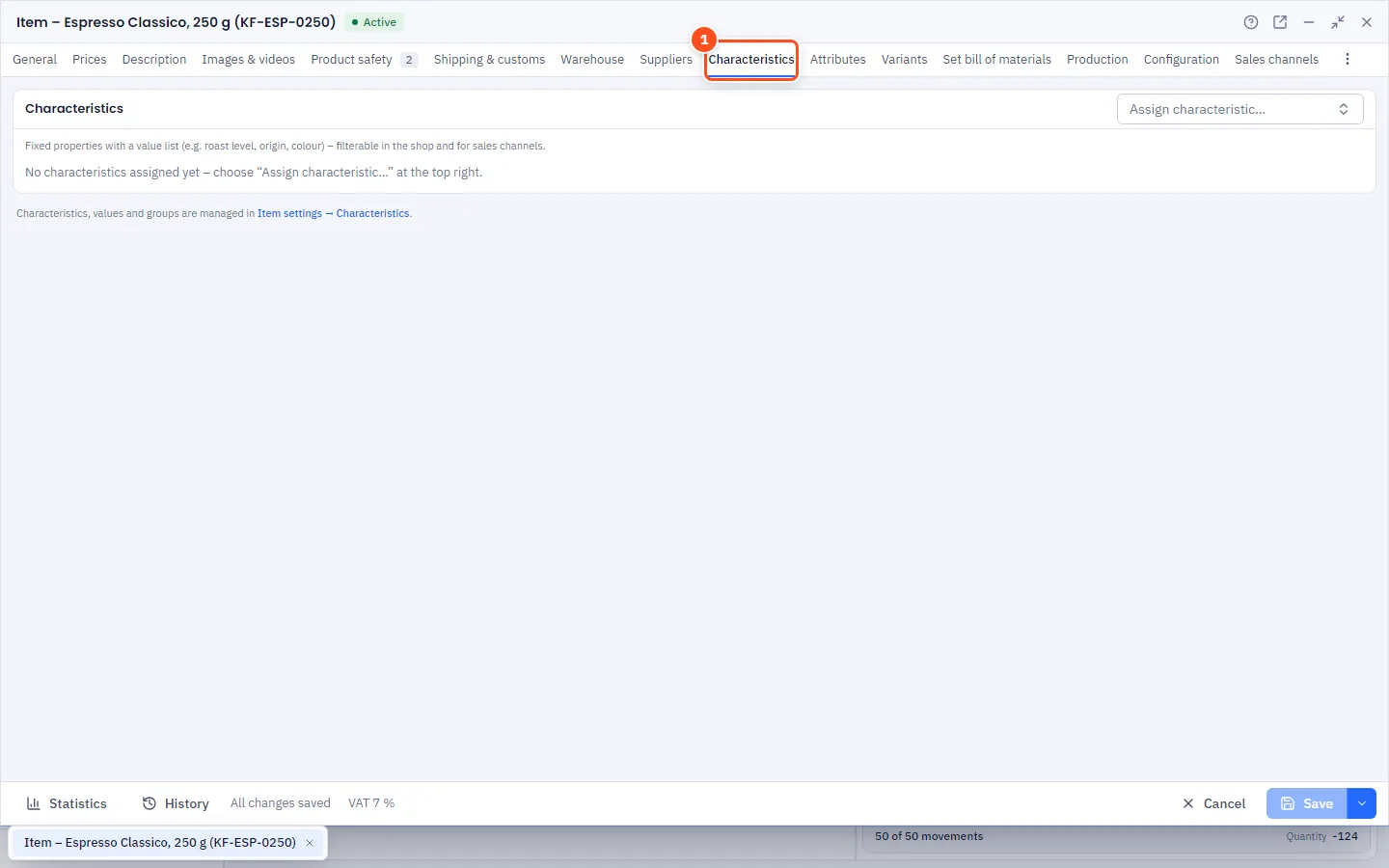
- Open the item and switch to the Characteristics tab.
- At the top right of the Characteristics card, choose a characteristic via Assign characteristic… (the list is searchable and shows the group). It appears under its group ("No group" for all others).
- Choose the value – for characteristics marked "(multiple)" you can choose several via Select values. As long as no value is selected, allverto points this out: without a value, the characteristic isn't saved.
- The × on the right removes an assignment.
- Save with Ctrl+S.
When all characteristics are assigned, the selection field shows All characteristics assigned. If there are no characteristics yet, the Create characteristics link takes you straight to the settings.
Assigning to many items at once
- Select all the items you want in the Item list.
- Right-click → Assign characteristics…
- Set the values. Only the characteristics you change are applied.
Automations can also set characteristics with the "Set field" action.
Frequently asked questions
Characteristic or attribute – which do I use?
A characteristic if there is a fixed list of values that customers filter by. An attribute if you need free text or technical details for shops.
Are characteristics carried over from JTL-Wawi?
Yes. The JTL migration imports characteristics with values, translations and multiple values.