
Images and videos
GuideNewLast checked on 15/10/2026
Upload and sort images, videos and YouTube/Vimeo links on an item, set the main image and maintain title, alt text and thumbnail.
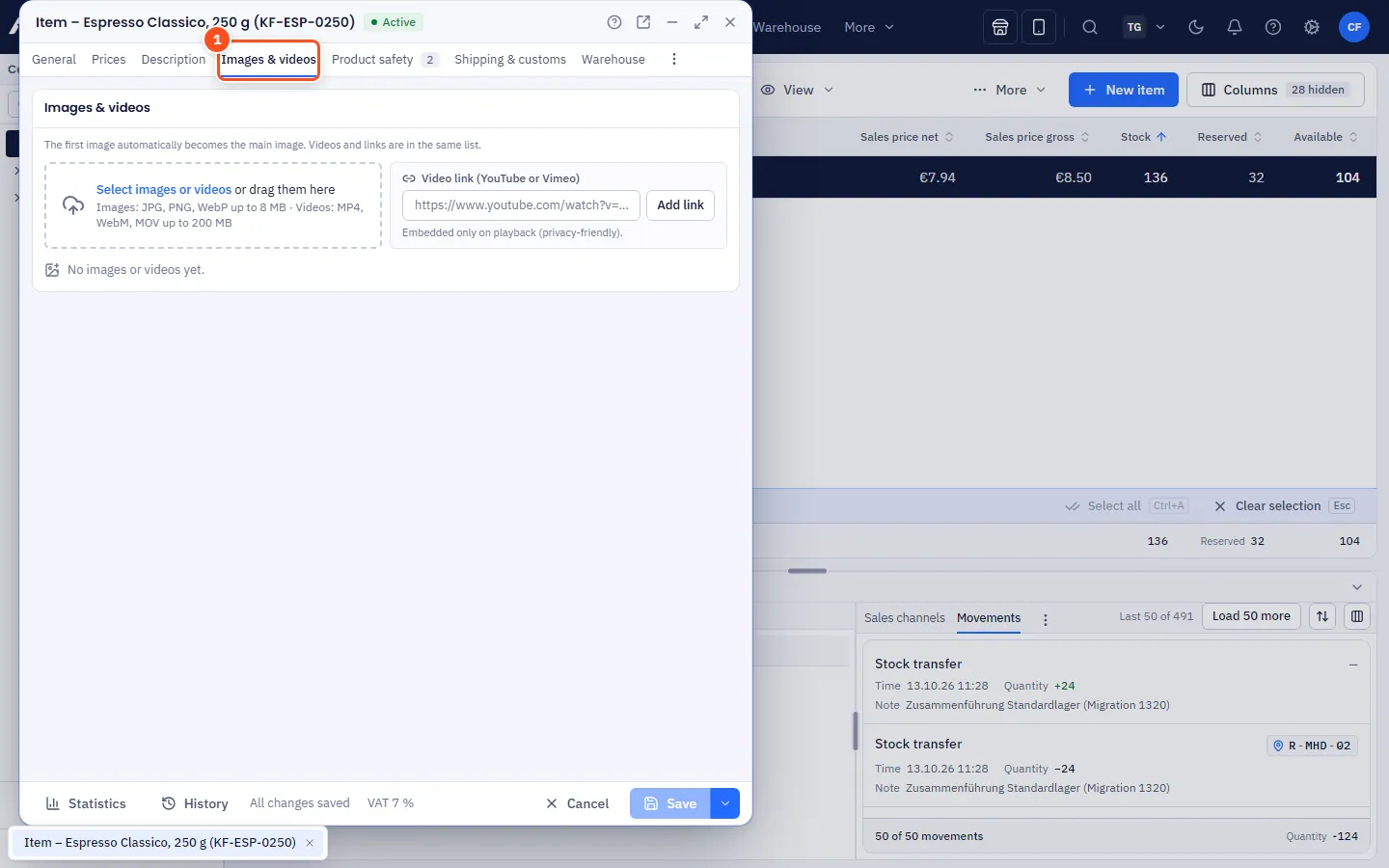
In the Images & videos tab you maintain all media of an item in one shared, sortable list: images, uploaded videos and links to YouTube or Vimeo.
What's possible?
| Type | Formats and limits |
|---|---|
| Images | JPG, PNG, WebP up to 8 MB |
| Videos | MP4, WebM, MOV (the limit is shown in the upload area, 200 MB by default) |
| Video links | YouTube (including Shorts and Live) and Vimeo |
An item can have up to 100 media. allverto checks the format by the file content, not by the extension.
Step by step
- Save a new item first – media are only available after that.
- Open the Images & videos tab. Click Select images or videos or drag files into the area. Images and videos can be mixed. A progress bar shows each upload, and you can cancel it.
- For a video on YouTube or Vimeo, paste the link into the field (e.g.
https://www.youtube.com/watch?v=…) and click Add link. allverto fetches the title, duration and thumbnail itself. - To sort, drag a tile to its new position (mouse: just drag; touch: press briefly, then drag; Esc cancels). With the keyboard use Alt+← / Alt+→, via right-click Move forward / Move back.
- Set as main image moves an image to the front. The first image in the list is always the main image – a video can't be the main image.
- Maintain a Title and Alt text for each medium (important for accessibility and search engines).
- Delete… removes a medium after a confirmation.
Video thumbnail
When uploading, allverto generates a thumbnail from second 1 and stores the duration and resolution. You can change it on the stage or via right-click:
- Choose image as preview… – upload your own image, or
- Current frame as preview – play the video to the desired point and use that still frame.
Data protection with YouTube and Vimeo
Until someone clicks "Play", the browser loads nothing from the provider – the thumbnail is stored at allverto. The video is only embedded when it is played, for YouTube via the privacy-friendly variant without cookies.
Where do the media appear?
- In the item overview as a preview on hover (for items without an image, the video thumbnail with a play icon) and in the "Images & videos" tab of the preview at the bottom.
- The main image in the General tab ("Main image" card).