
Staff and working times in production
Assign staff to work centres, maintain daily capacity and absences, assign operations and evaluate the booked times (shop floor data collection).
In production, people work at work centres. allverto knows who can work at which work centre, how much time someone has per day and who is absent when. This feeds the staff figures in capacity planning, the assignment per operation and the evaluation of booked times.
Before you start
- Staff are Users of your company (see Users and roles). To work on the shop floor they need the production app (sign-in at the terminal with badge or PIN) and the permission Plan production and report progress (e.g. role Production).
- Work centres and staff are maintained by anyone with the permission Maintain bills of materials, routings and work centres.
Assigning staff to a work centre
- Open Production → Bills of materials, tab Work centres & machines, and open the work centre.
- Switch to the Staff tab and click Add person….
- Choose the Qualification for each person – Operator, Setter or Inspector – and tick Primary staff if needed.
- Save.
The Staff column in the list of work centres shows who is assigned. Each person sees their work centres in their Profile under Production work centres.
Daily capacity and absences
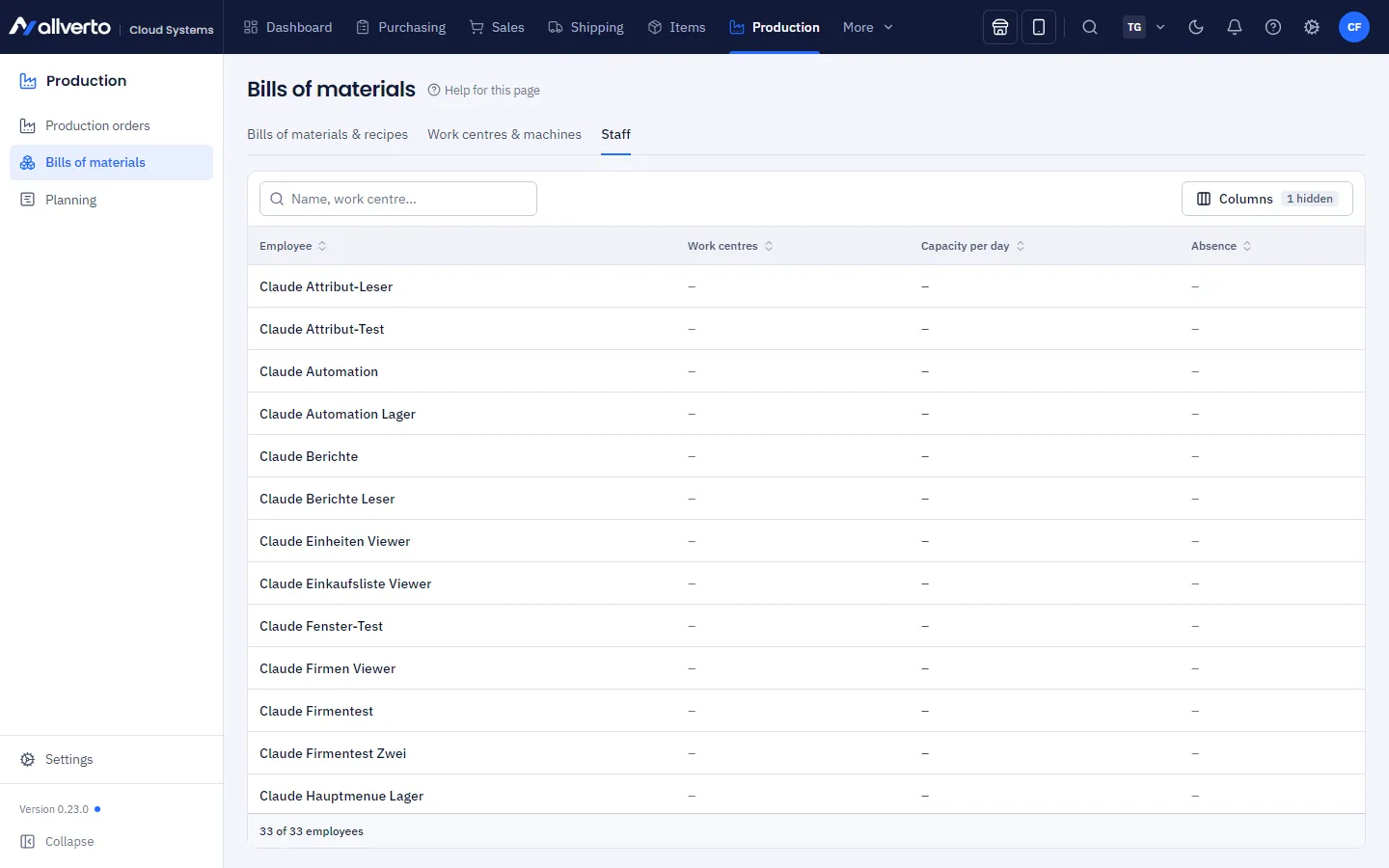
- Open Production → Bills of materials, tab Staff (or Production → Settings → Staff).
- Open the person and enter the Capacity per working day (Mon–Fri, without public holidays). If the person works at several work centres, the capacity is split equally across them. Empty means: the person is not counted in capacity.
- Under Absences you enter periods with a Reason, e.g. holiday, sickness or training.
- With the Time tracking add-on module, approved absences from there count automatically (vacation, sick leave etc., without type – only “absent”). You see them in the dialog under Absent according to time tracking and do not have to enter them twice.
The capacity view shows per work centre and day how much staff time is available – and warns when the planned operations need more time. Without assigned staff it shows No staff.
Assigning operations
In the production order you assign staff to each operation. The employees of the work centre are offered; other people are marked “Not at work centre”. For operations without a work centre, all users of the company can be selected. The Staff column in the list of production orders shows the assignments.
Booking time
Time is booked in the production app: the work queue lists the operations of the work centre, and Mine shows those you are currently booking or that are assigned to you. Start setup, Start production, Pause and Stop create a time booking per person – setup and production time separately. Several people can book on the same operation in parallel, but each person has at most one running booking. Details: Production on the tablet.
Evaluating working times
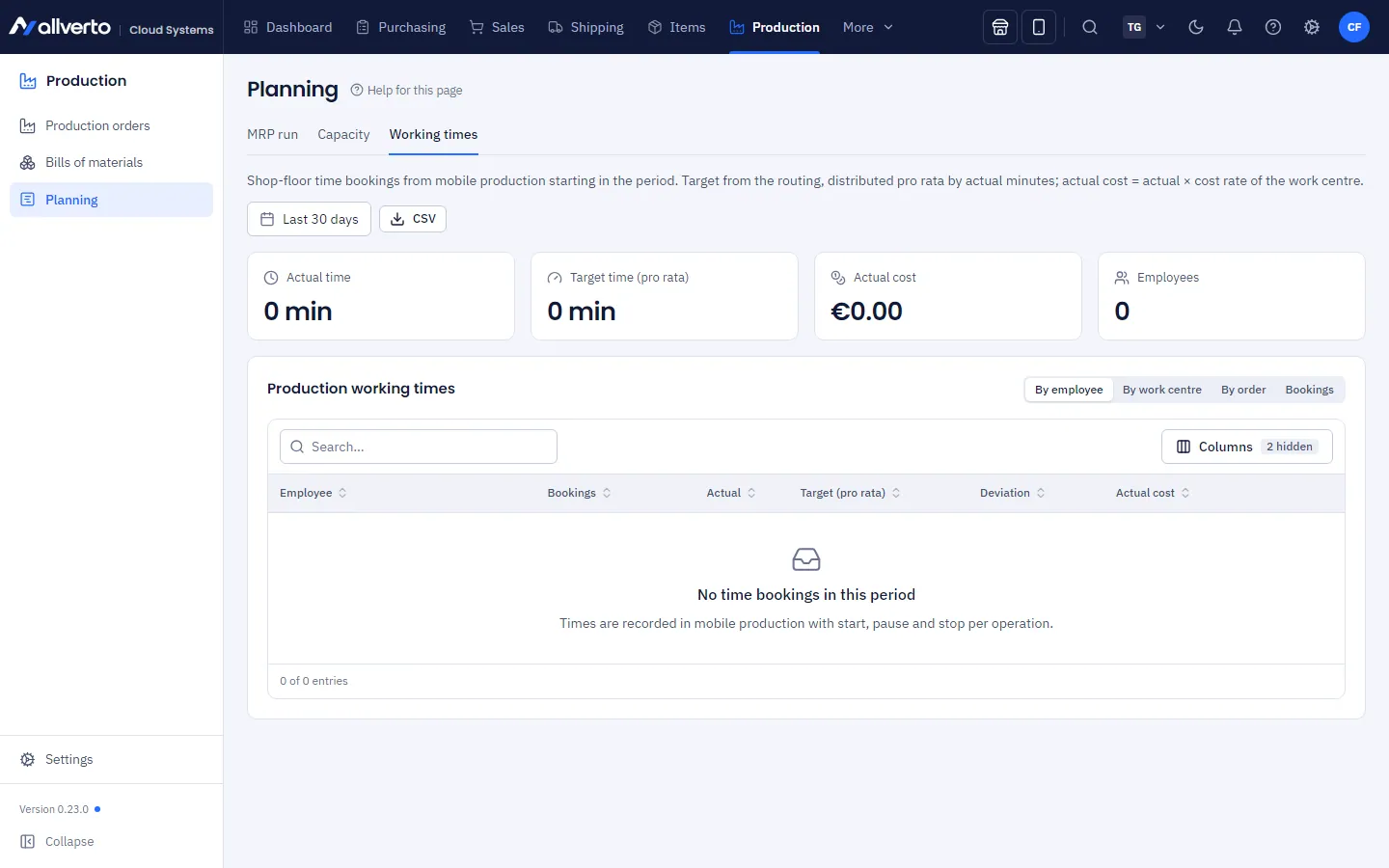
Under Production → Planning (MRP), tab Working times, you see for a Period the actual time, pro-rata target time, deviation, good and scrap quantity and Actual cost (booked minutes × cost rate of the work centre). Grouping switches between By employee, By work centre, By order and the individual Bookings. The actual costs also flow into the costing of the production order.