
Discounts and prices at the POS
Discount on a line in percent or euros, receipt discount and rounding off the amount, entering a price manually, automatic discounts (item, category, customer, customer group, receipt from a minimum amount) and customer discount from the customer master data.
There are two ways to give discounts at the POS: manually by the cashier and automatically via rules you set up once in the ERP. Changing prices manually is a separate permission.
Discount on a line
- In the cart, tap the line.
- At the top choose Discount and then Percent (%) or Amount (€).
- Enter the discount on the keypad or tap a preset (5% to 50%).
- Tap Apply. The discount appears in green on the line.
This requires the permission Give discounts at the POS. A manual discount replaces an automatic discount on this line. Miscellaneous keys with Discountable switched off get no line discount.
Receipt discount and rounding off the amount
Below the total, tap Discount (window Receipt discount):
- Percent or Amount (€) – discount on the whole receipt.
- Round off amount – enter a round amount under New total, e.g. €20 instead of €20.80. The difference becomes a receipt discount. How far this may go is set by Maximum rounding-off in % in the POS settings (default 5%).
- Remove discount removes the receipt discount again.
Returned items on the receipt (exchange via Return) get no receipt discount.
This also requires the permission Give discounts at the POS.
Manual price
- Tap the line, choose Price at the top.
- Enter the New unit price and tap Apply.
The line then shows Manual price. Use item price … restores the list price. The permission for this is called Enter prices at the POS (open item, override price) – it also applies to the Open item and to miscellaneous keys with price entry.
| What | Permission needed? |
|---|---|
| Change a line's price | Enter prices at the POS (open item, override price) |
| Open item | the same permission; choosing the tax rate only with Choose the tax rate when entering prices, otherwise the standard tax rate |
| Miscellaneous key with price entry | Enter prices at the POS (open item, override price); the price must lie between the key's minimum and maximum price (the server checks this too) |
| Miscellaneous key with fixed price | no special permission |
| Price from a scale barcode | no special permission |
| Deposit and deposit return with the POS's deposit amounts | no special permission |
Tax rates for open items and miscellaneous keys always come from your tax master data – see Taxes.
Creating automatic discounts
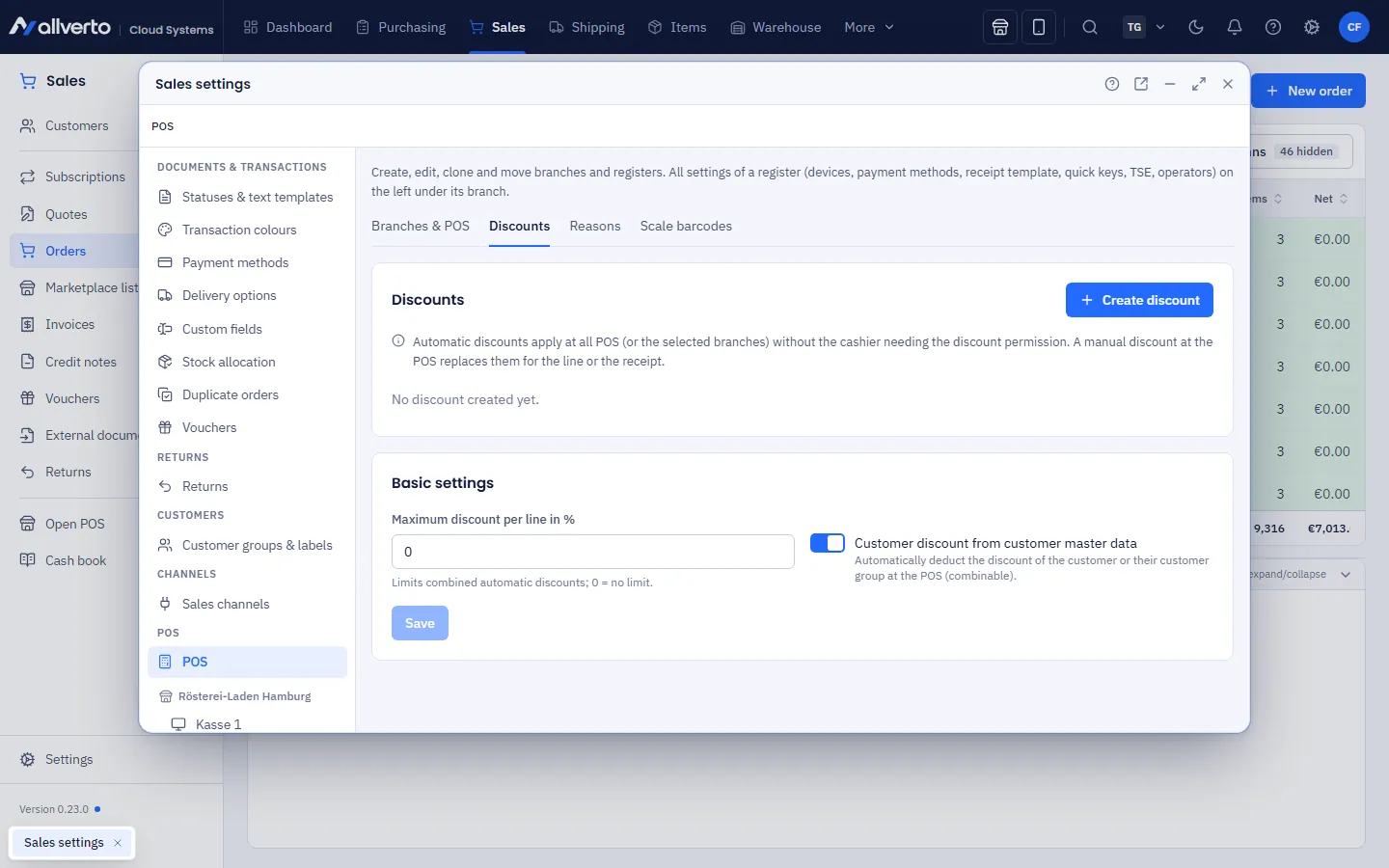
Automatic discounts apply at all POS registers (or at the selected branches) – even if the cashier has no discount permission.
- Sales → Settings → POS, Discounts tab.
- Create discount and fill in:
- Name – shown at the POS next to the discount, e.g. “Happy hour drinks”.
- Type – Item discount, Category discount (including subcategories), Customer discount, Customer group discount or Receipt discount.
- Discount in % and, for Receipt discount, optionally From receipt total (€).
- The items, categories, customers or customer groups it applies to.
- Valid from, Valid until, Weekdays and Time from/Time to (also past midnight, e.g. 22:00 to 02:00).
- Branches – no selection = all branches.
- Define how it interacts with other discounts:
- Combinable with other discounts – combinable discounts are added together; otherwise the higher one applies.
- Ignore other discounts – if this discount applies, only it counts (no customer discount either).
- Save. With the switch in the list you deactivate a discount without deleting it.
Under Basic settings you find:
- Maximum discount per line in % – limits combined automatic discounts; 0 = no limit.
- Customer discount from customer master data – automatically deducts the discount of the customer or their customer group at the POS (combinable).
How automatic discounts appear at the POS
- The discount's name appears in green on the line, and in the line dialog “Automatic discount: …”.
- Receipt discounts appear above the total as Discounts (incl. …).
- With the customer in the cart, “Customer discount … %” is shown.
Deleted or changed discounts only affect new receipts; posted receipts remain unchanged.