
Translation may be out of date – the German version has changed since. German version
Payment and receipts at the POS
Combine cash with cash keys and rounding to €0.05, card with terminal selection, voucher, on account and custom payment methods, record tips, exchange and payout, complete the receipt and print it from the receipt dialog, or output it as PDF, digitally or by email.
In the cart, tap Pay …. At the top you see the Amount due and – as soon as something has been recorded – what is still outstanding. On the right are the recorded Payments, with Outstanding or Change below them.
Choosing a payment method
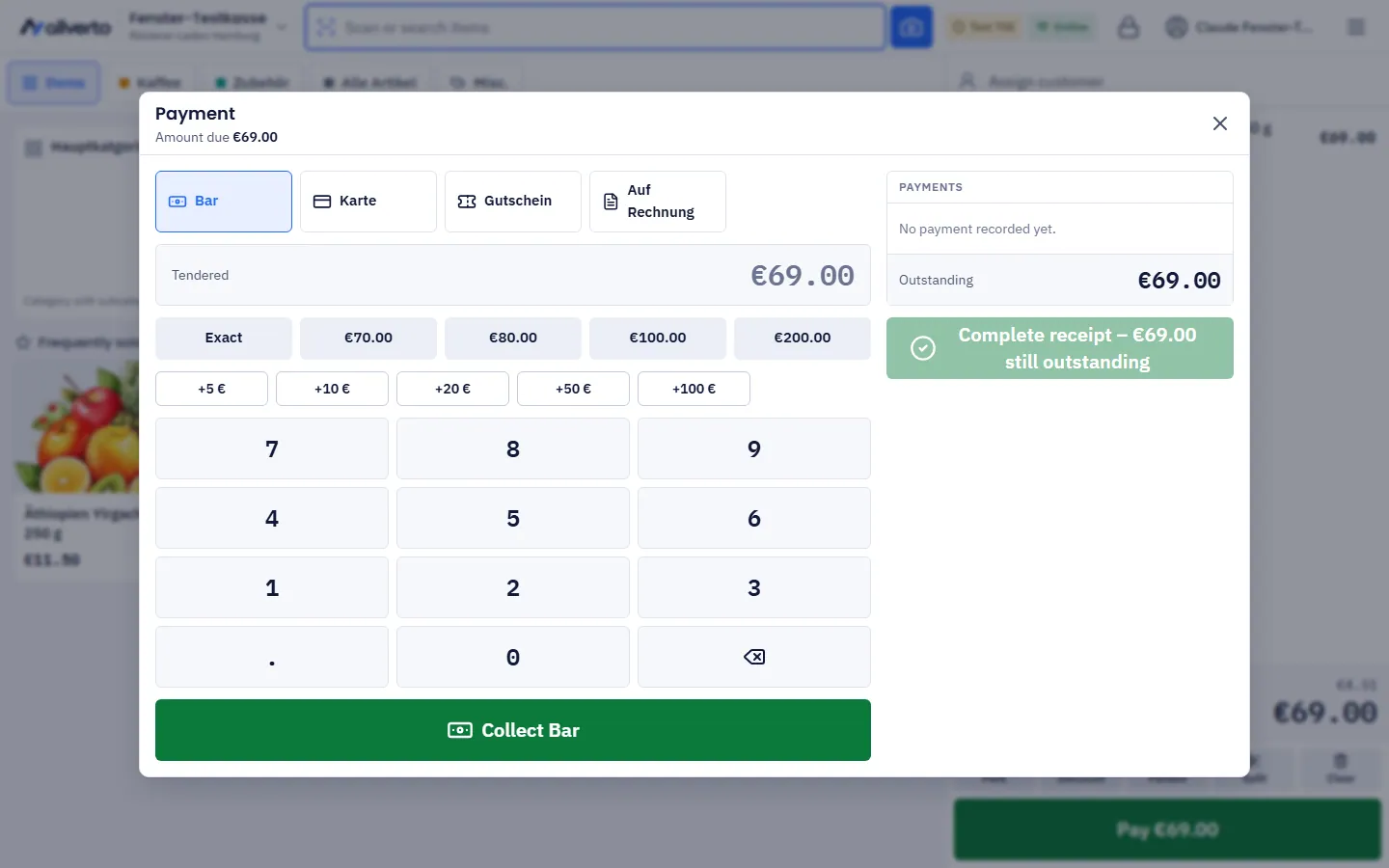
The POS's payment methods appear as tiles in the order and colours from the Payment methods tab (you set the button colour and text colour there per payment method – see Setting up the POS). You can combine them freely (split payment, “split”): first part by voucher, then the rest in cash or by card. To remove a recorded payment, use the trash can in the Payments list (except for approved card payments). Card, voucher and custom payment methods always suggest the remaining amount – if the customer pays e.g. €50 cash of €64.80, card shows €14.80.
Cash
- Choose Cash.
- Type the amount tendered on the keypad, use a suggestion (Exact, the next round amounts) or add up with the cash keys (+€5, +€10 …).
- Tap Collect Cash. If more was tendered than is outstanding, the POS shows the Change including the denominations (e.g. 1 × €5, 2 × €1).
You set the cash keys per POS. If Round cash payment to €0.05 is switched on, the POS rounds down to 5 cents for pure cash payments and shows “Rounding to €0.05: −… (as receipt discount “Rounding”)”. This does not apply with a tip, with another payment method or if another receipt discount is already on the receipt – see POS settings.
Card
- Choose the card payment, optionally type a partial amount.
- If the POS has several card terminals, choose the device under Card terminal. The device remembers the last choice – if a terminal fails, simply take the other one. One “Card” payment method is enough for all terminals.
- With a terminal: Pay at terminal. The POS shows the status (“Connecting to the terminal …”) and takes over the payment as soon as it is approved. Cancel card payment aborts.
- Without a connected terminal: carry out the payment on the external device and take it over with Record card payment.
Receipts paid via the terminal can be refunded at the terminal when you cancel them or book a return – see Cancellation and return.
Voucher
- Choose Voucher, enter or scan the Voucher code and tap Check.
- The POS shows the status, validity and Remaining balance and suggests the amount; you can enter less on the keypad.
- Redeem voucher. Partial amounts are possible; the amount is only deducted when the receipt is completed.
More under Vouchers.
On account
This requires a customer with an address to be assigned. The POS takes over the outstanding amount; it then appears under invoices and open items.
Independently of this, for a customer with an address you can switch on Create invoice for receipt – the invoice is then treated as paid at the POS. With the setting Create invoice automatically, the switch is already on.
The customer pays an existing sales order from the ERP via the Order button on the receipt – see Paying an order at the POS.
Custom payment methods
Payment methods such as “PayPal QR” run outside the POS. You only record the amount and optionally a Reference (optional), e.g. the transaction number.
Tip
If Tips is switched on in the POS settings, Tip appears on the right during payment:
- Tap Add – this only works before any payment has been recorded.
- Type the amount or choose 5%, 10%, 15% or None.
- Apply tip. The Amount due increases by the tip.
The tip appears on the receipt as a separate line without VAT (DSFinV-K: tip to employees).
Completing the receipt
Complete receipt is always visible. As long as something is still outstanding, it reads “Complete receipt – … still outstanding”. Once everything is covered, the POS posts the receipt, assigns the receipt number from the POS receipts number range, has it signed by the TSE and opens the receipt dialog. If a payment covers the remainder (e.g. Collect Cash with enough money, an approved card payment or On account), the POS completes the receipt right away with that payment.
If a cash drawer is connected, it opens after payment depending on the payment method – even without printing a receipt. The default is cash; you set this for each payment method in the Payment methods tab under Open cash drawer.
If the TSE fails, the receipt is still created – with the note “TSE failure”. Without internet the POS does not post; the cart is kept.
Receipt dialog
After completion, the receipt dialog shows the receipt, the Change in large print and the buttons below. If a customer display is running, the customer sees the payments, the change and the QR code of the digital receipt there.
| Button | Effect |
|---|---|
| Open the receipt as PDF | |
| Digital receipt | Show a QR code to retrieve it with a phone – see Digital receipt |
| Send the receipt to the customer's email address | |
| Invoice | Create an invoice for the receipt afterwards (only with a customer) |
| Print the receipt (again) | |
| New receipt | Close the dialog and keep selling |
What happens automatically after the sale is determined by the POS's Receipt output: print, show the digital receipt or ask “How would the customer like the receipt?” (Printed, Digital (QR code), By email). Further automations from the settings:
- Automatically go to next receipt – the button counts down (“New receipt (5 s)”); any tap stops the countdown.
- Print internal receipt – a second copy for filing.
- The branch's Invoice printer and Voucher printer – the invoice for the receipt and sold vouchers are printed there; otherwise via Print invoice or Print voucher in the dialog.