
Translation may be out of date – the German version has changed since. German version
Selling at the POS
Header with name dropdown and menu, the Favourites, Items, Misc. and Deposit tabs, item info, scanning and quick entry quantity*code, assigning customers, transaction and receipt number, parking, splitting and clearing receipts, exchange on the receipt and the cash balance at a glance.
This is how a sale works at the POS – from the first item to payment. You open the POS in the ERP via the shop icon in the header or via Sales → Open POS; it runs in its own tab on its address pos.… – see Setting up and opening the POS. You sign in with email and password – see Signing in, locking and PIN. Anyone whose role has the permission Operate the POS (sell, cash in/out, view receipts) may sell.
The screen
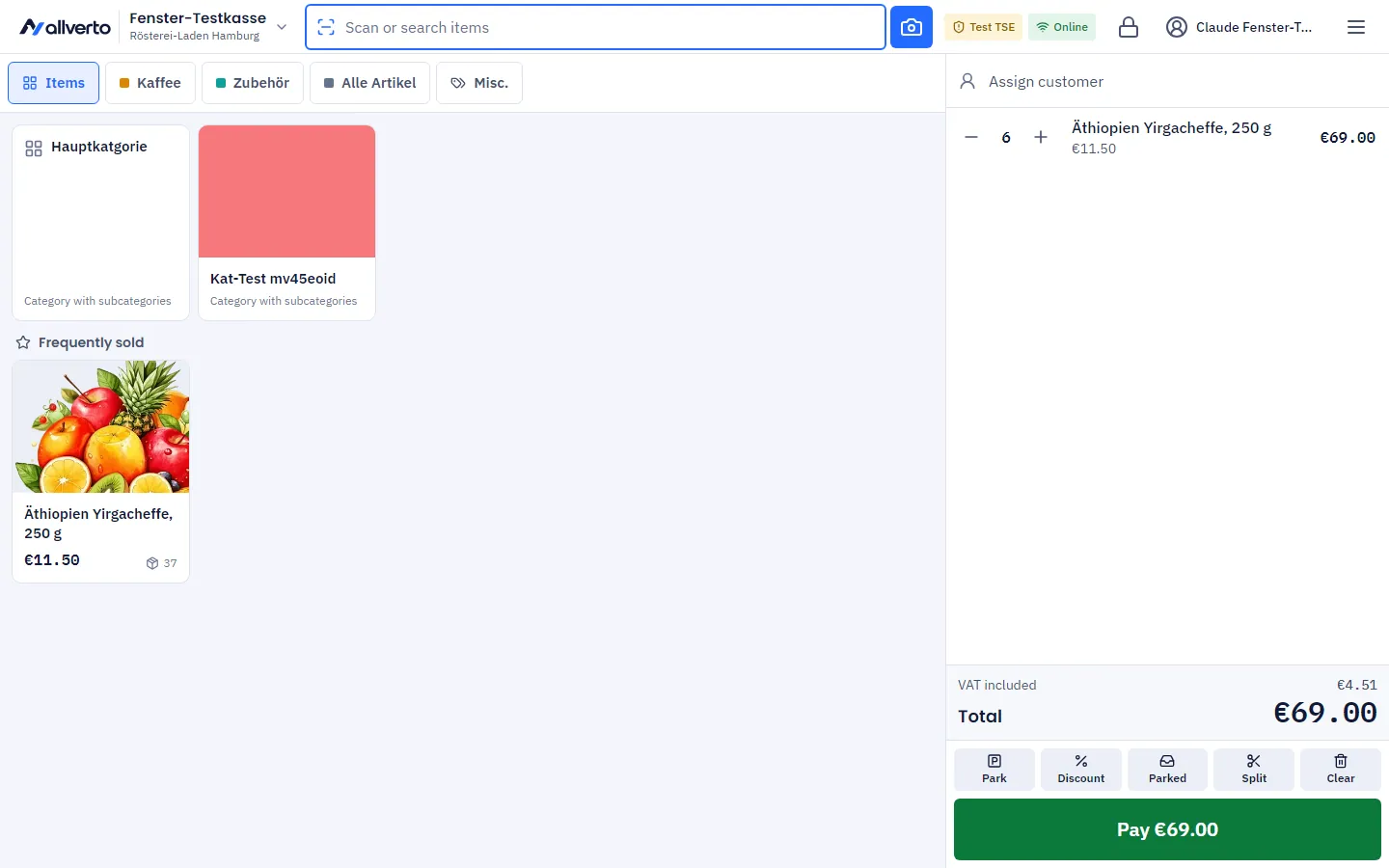
Header from left to right:
- POS name and branch – without a registered device, a tap opens the POS selection (Switch POS), otherwise the menu.
- the dot Test TSE (only without a real TSE) and the connection button Online/Offline – red without a connection, with the number of waiting receipts, see Selling without internet,
- the banknote icon – cash balance at a glance, only with the permission Show cash balance at the POS,
- the padlock – lock the POS immediately,
- your name – a click opens a dropdown with Lock, Choose another POS (only without a registered device), Change my PIN and Sign out,
- Menu (☰) – everything else, see The POS menu.
Below, the screen is split into Items and Receipt. Above the items is the toolbar: on the left the Scan or search items field with the camera button inside the field, on the right the tabs with the areas. The receipt shows the customer row with the Order button at the top, below it the transaction number, lines, total, the quick actions and Pay.
Each operator chooses whether the receipt is on the left or the right: register menu → Full screen and theme → Receipt position (saved per person on this device – handy for left- and right-handers). On smartphones and tablets in portrait mode, you switch between Items and Receipt at the top; Pay is then at the bottom.
Start view (cashier view)
The tabs above the items switch between up to four areas:
- Favourites – this POS's quick keys. If there are several groups (e.g. coffee, drinks), they appear as a second row below. Favourites show the image, customer price and stock in the POS warehouse. The area appears as soon as quick keys are set up.
- Items – the categories as tiles with images. A tap opens the category; the path (Overview › category › subcategory) takes you back. Without a selected category, this POS's top sellers are shown below under Frequently sold.
- Misc. – the POS's miscellaneous keys and the Open item tile. The area appears if miscellaneous keys are set up or you may enter prices.
- Deposit – the POS's deposit amounts, at the top for charging, at the bottom for returns. Only if deposit amounts are set up.
The tabs stay visible while searching; tapping an area ends the search. Which area appears at start, how large the tiles are (small, medium, large), whether images are shown and which assortment the POS shows at all is set in the POS settings.
Item info
Before an item goes onto the receipt, you can take a closer look at it – handy when a customer asks:
- Tap the i on the tile or long-press the tile.
- The item info shows images, price (incl. VAT), RRP, the Stock in this register’s warehouse and in All warehouses, SKU, GTIN/EAN, Manufacturer, Categories and the full short and long description (scrollable).
- Choose the quantity with plus and minus and tap Add to receipt.
If Show purchase prices is switched on at the POS and your role has the permission Show purchase prices at the POS, purchase price and margin are also shown here. If a customer display is running, the customer sees the item's image, price and description there.
Adding items
- Scan the item with the hand scanner or tap the camera button in the search field and scan with the camera.
- Or enter a name, item number or EAN in the Scan or search items field. The results appear as tiles with price and stock; Back to start view takes you back.
- Or tap a tile in the start view.
For variant items you then choose the variant. Configurable items are sold in a sales order or quote, not at the POS.
The scan field keeps the focus. A hand scanner that works like a keyboard therefore always works as long as no dialog is open.
Miscellaneous keys and open item
- Tap a miscellaneous key: if it has a fixed price, it goes straight into the cart – with its fixed quantity, otherwise quantity 1. With price entry, the POS asks for the price (possibly with a minimum and maximum price), with a quantity prompt for the quantity. If Name editable is set, you can overwrite the text for the receipt.
- Open item: enter Description, price, quantity and Tax rate and take it over with Add …. This requires the permission Enter prices at the POS (open item, override price); only those with Choose the tax rate when entering prices may choose the tax rate – otherwise the standard tax rate applies.
How miscellaneous keys are set up is described under POS settings, prices and permissions under Discounts and prices.
Deposit and deposit return
The Deposit area shows the POS's deposit amounts (set up in the POS settings):
- Under Charge deposit, each tap adds one unit of deposit to the receipt, e.g. “Deposit Returnable” +€0.15.
- Under Deposit return, each tap deducts one unit, e.g. “Deposit return Returnable” −€0.15. If the customer brings 20 bottles, tap the key 20 times or tap the line and enter the quantity.
Deposit and deposit return appear as separate lines on the receipt and go into the DSFinV-K export as the business transactions Pfand (deposit) and PfandRueckzahlung (deposit refund). Discounts do not apply to them; only the quantity can be changed on the line.
If the deposit return is higher than the purchase (or the customer only returns empties), the button is called Pay out deposit …. After the confirmation, the POS posts the receipt and you pay out the amount in cash – the Cash payment method must be active at the POS for this.
Quantities in the cart
- Plus and minus on the row change the quantity by 1. At quantity 1, minus becomes the trash can and removes the line.
- Tapping the row opens the line with a keypad: Quantity, Discount (in % or €) and Price. Apply saves, Remove line deletes it.
- Divisible items (unit kg, g, l, m etc.) ask for the quantity right when added – up to three decimal places, e.g. 0.375 kg. Each scan gets its own line.
- Scale barcodes with weight or price create the line with the quantity or price from the barcode.
- If the stock in the POS warehouse is insufficient, the POS warns – or blocks, if the POS is configured that way. If a stock level still becomes negative through the sale, allverto automatically corrects it to 0 (can be switched off), see POS settings.
- With the permission Show purchase prices at the POS – and if Show purchase prices is switched on at the POS – the opened line shows under Purchasing (net) the purchase price from the preferred supplier, the avg. landed cost, the price of the last goods receipt and the Margin per unit. Otherwise the POS gets no purchase prices from the server at all.
Automatic discounts appear in green on the line or under Discounts above the total – see Discounts and prices.
Assigning or creating a customer
- At the top of the receipt, tap Assign customer.
- Search by name, customer number, email or phone (from two characters). Badges show blocked, … % discount and no address.
- Tap the customer. The POS shows the address, customer group, customer discount and the Comment from the customer master data. Assign adds them to the receipt.
Further buttons in the customer dialog:
- Sell without customer – receipt without a customer.
- Create customer – salutation, name, company, email, phone, address and a comment; Create and assign. This requires the permission Create customers at the POS.
- Edit – change customer data and add a new comment; requires the permission Edit customers.
- Remove customer – also via the X next to the customer on the receipt.
On the right of the customer row is the Order button – with it the customer pays an ERP sales order at the POS, see Paying an order at the POS.
Transaction number and receipt number
Above the lines, during the sale, you see Transaction no. … · receipt number on payment – the number of the transaction at the TSE, which starts with the first item (see TSE). The actual receipt number is only assigned by the POS on payment, from the POS receipts number range. This way, cleared or parked receipts leave no gaps. You set the number range in the ERP under Settings → Number ranges → POS.
On the right of the same row is Last receipt BON-… – a tap opens the most recently posted receipt, e.g. to print it again.
Quick actions on the receipt
Below the total there are six buttons:
| Button | Effect |
|---|---|
| Park | Set the receipt aside and start a new one |
| Discount | Discount on the whole receipt or Round off amount (permission Give discounts at the POS) |
| Parked | The branch's parked receipts; the number shows how many there are |
| Split | Move part of the receipt onto a new receipt |
| Return | Take back items from an earlier receipt – exchange or money back (permission Cancel receipts and book returns at the POS) |
| Clear | Discard the receipt (aborted receipt) |
Parking and resuming a receipt
Park stores the receipt as a transaction on the server – with an optional note (e.g. “Mr Meier – fetching wallet”) so you can find it again; without a note the customer name or the time is shown. Parked receipts are visible at all POS registers of the branch: via Parked, Menu → Parked receipts or in All receipts with the Parked filter. A tap resumes the receipt; a receipt in progress is parked first so nothing gets lost. The trash can deletes a parked receipt – this is an aborted receipt with a reason.
Splitting a receipt
Split opens Split receipt: use plus and minus to choose which quantities go onto the new receipt, then tap Collect new receipt for …. The new receipt is immediately ready for payment; the rest is parked as “Rest …”. At least one line must remain on the original receipt.
Exchange and return on the receipt
Return opens Return – find receipt: scan or type in the receipt number (the customer name works too), choose lines and quantities and tap Add to receipt. The returned items appear in red as minus lines on the receipt and are offset against new items on payment. Everything else under Cancellation and return.
Duplicating a receipt
In All receipts, choose a receipt and tap Duplicate. Its items go into the cart as a new receipt; prices and discounts are recalculated. The POS does not take over tips.
Clearing a receipt (aborted receipt)
Clear opens Discard receipt. Choose a reason (required as soon as reasons for aborted receipts are maintained under Reasons) and confirm with Discard receipt. Because the TSE already starts with the first item, the POS logs every discarded receipt as an aborted receipt – see TSE.
Cash balance at a glance
The banknote icon at the top of the header (or Menu → Show cash balance) shows directly:
- the Cash balance (cash),
- Sales since closing and Receipts since closing,
- the number of the last Z report.
Below, Cash in and out and X report lead straight on – see End-of-day closing. The icon and the menu entry are only available with the permission Show cash balance at the POS; without the permission, employees count blind.
Payment
Tap Pay … – everything else is under Payment and receipts.
The POS menu
Menu (☰) at the top right opens the POS menu in two groups – with time tracking booked, a third one for starting work, break and finishing work is added. The header shows the POS, the branch and you as operator; at the bottom, the number of receipts since the last closing, the last Z report, the cash balance (only with the permission) and the Desktop app button (back to the ERP). Dialogs such as All receipts or X report open above the menu; after closing them, you are back in the menu.
| Group | Entry | What for |
|---|---|---|
| Transactions | All receipts | Search, view, print, issue digitally, duplicate receipts – see Cancellation and return |
| Cancellation and return | Cancel or take back a receipt | |
| Show cash balance | Cash balance, sales and receipts since closing (only with the permission) | |
| Cash in and out | Change float, deposit, withdrawal – see End-of-day closing | |
| Parked receipts (…) | The branch's parked receipts | |
| X report (interim report) | Cash count and X report without closing | |
| End-of-day closing | Cash count, cash withdrawal, terminal closing and Z report | |
| POS log | This POS's events, default the last 30 days – see End-of-day closing | |
| Device | Printer and POS bridge | This device's bridge token, receipt printer, cash drawer, terminal and warehouse |
| Printer management | Printers of the print agent on this PC | |
| Terminal closing | only with a connected card terminal – see End-of-day closing | |
| Open cash drawer | only with a cash drawer set up | |
| Open customer display | second window for the customer screen – see Customer display | |
| Full screen and theme | Full screen on start and Dark theme – apply to this device only | |
| Set up full-screen shortcut | Desktop shortcut that starts the POS without a window frame | |
| Language | Interface language for you | |
| Register this device as the register | only without a registered device and with the permission Set up POS | |
| Unregister device | only on the registered device with the right permission |
Lock, Choose another POS, Change my PIN and Sign out are in the dropdown under your name. If you lack a permission, the entry is greyed out; tapping names the permission. You change the POS settings in the ERP under Sales → Settings.
If a fixed Full screen is set in the POS settings (always on or always off), Full screen on start cannot be switched on the device.
Signing in, locking and switching operators
The padlock icon locks the POS immediately; without activity, it locks by itself after the set time. The receipt is kept. You unlock with your password or your own POS PIN; via Switch user, another person signs in. Everything about this under Signing in, locking and PIN.
Without internet and during updates
The current receipt is saved on the server and additionally cached on the device. If the network fails, the POS keeps selling on a registered register device: receipts are created on the device with reserved receipt numbers and transferred as soon as the connection is back – all details in Selling without internet.
If there is a new version of allverto, the POS does not reload in the middle of work: as long as a receipt is in progress or a dialog, cash count or end-of-day closing is open, only a notice with Reload now appears.
Related topics
- POSPayment and receipts at the POS
- POSAnmelden, sperren und PIN an der Kasse
- POSDiscounts and prices at the POS
- POSAll receipts, cancellations and returns at the POS
- POSCash in and out, end-of-day closing, X and Z reports, cash book
- POSPOS settings, reasons and scale barcodes
- POSSelling without internet (offline sales)