
Purchase suggestions
How allverto calculates purchase suggestions from stock, reservations, open purchase orders, minimum stock and sales, and how you create purchase orders from them.
Under Purchasing → Purchase suggestions, allverto shows all items that should be reordered – like the Bestellvorschläge (purchase suggestions) in JTL-Wawi: a table with stock, demand and a ready-to-use order quantity per item, sorted by supplier.
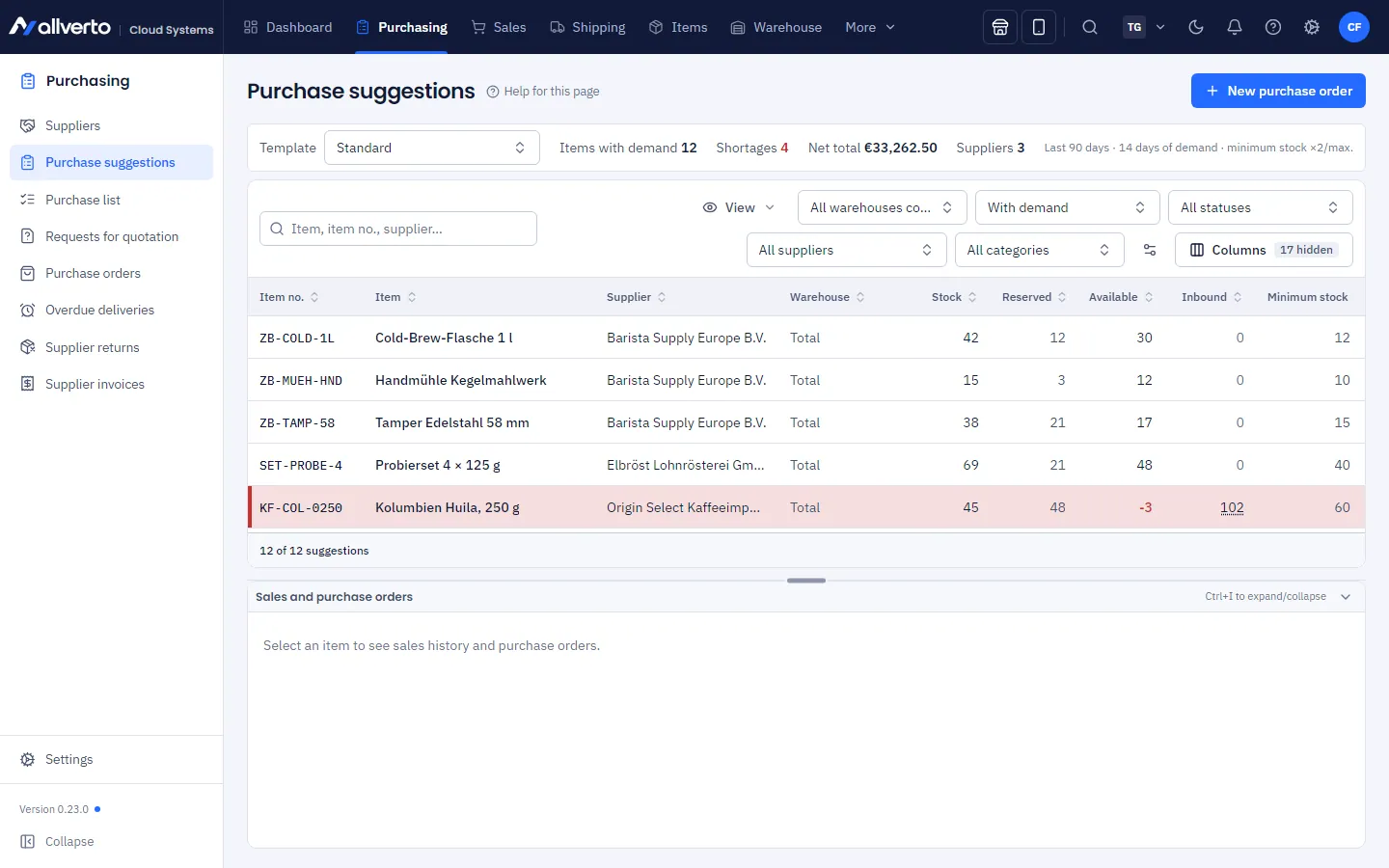
The figures per item
| Column | Meaning |
|---|---|
| Stock | Saleable stock in the warehouses taken into account – which bins count (blocked, returns, clarification bins) is defined by the template |
| Reserved | Quantity from open orders that counts as demand according to the template; bill-of-materials sets count as their components |
| Available | Stock − reserved. Negative = Shortage |
| Inbound | Quantity not yet delivered from ordered and partially delivered purchase orders, optionally also from drafts (the tooltip shows both separately) |
| Minimum stock | Reorder point from the item (Warehouse tab) |
| Sales 30 d | Quantity sold in the last 30 days: orders (excluding cancellations), POS sales and consumption in production |
| Coverage | How many days the available stock lasts at the current daily sales – red if shorter than the lead time |
| Lead time | Lead time of the selected supplier (from the supplier item, otherwise from the supplier) |
| Suggestion | Calculated quantity, rounded to minimum order quantity and packaging unit |
| Order qty | What will be ordered – prefilled with the suggestion, changeable by double-click |
You can show further columns (ordered, in drafts, on the purchase list, sales in the period under review, daily sales, minimum order quantity, packaging unit, product group, calculation …) via the column editor.
How is the quantity calculated?
Available + inbound is compared with a reorder point. If the value is below it – or a shortage remains despite open purchase orders – allverto suggests the quantity up to the target stock:
- Minimum stock ("Fill quantity up to minimum stock" switch): reorder point = minimum stock, target = double the minimum stock or the warehouse's maximum stock – or exactly the minimum stock.
- Sales forecast (reference period selected): daily sales = sales in the reference period ÷ days. Reorder point = daily sales × (lead time + safety days), target = daily sales × (lead time + safety days + demand days).
- Both (default): the higher value applies in each case.
Suggestion = target − (available + inbound), at least the supplier's minimum order quantity and rounded up to full packaging units (can be switched off in the template). If you change the supplier, the quantity is rounded again using that supplier's terms. The Calculation column shows how the figure was calculated.
Status
- Shortage (red): available is negative.
- Below minimum stock (yellow): available is below the minimum stock.
- Demand based on sales: sales up to the next purchase order are not covered.
- Covered: there would be demand, but open purchase orders cover it (only with the "Including covered" filter).
Which items?
Only active stock items. Bill-of-materials sets are ordered via their components (whose demand includes the set sales), parent items via their variants. Manufactured products with a bill of materials from production are marked Production and have an order quantity of 0 – their replenishment comes via Production → Planning (MRP).
Which supplier?
allverto picks the supplier for each row according to the supplier selection under Purchasing → Settings → Suppliers: by default the cheapest supplier for the suggested quantity – minimum quantity, pack size and purchase price tiers included –, alternatively the preferred supplier or the shortest lead time. Items with Always use preferred supplier always get the preferred one. Hover over the supplier to see the reason (e.g. "Cheapest for 100 pcs – €2.00 each"). You can change the supplier in the table; the quantity is then rounded to its minimum quantity and pack size, and the purchase price follows its tiers. Details: Supplier stock and supplier selection.
The tier purchase price also applies in the purchase order created: without your own purchase price, the purchase order takes the tier price for the order quantity.
Combined or per warehouse
At the top of the table you choose All warehouses combined or Per warehouse. Per warehouse, stock, orders (shipping warehouse of the order, otherwise default warehouse), sales and open purchase orders (target warehouse) are counted separately; the minimum stock then applies to the main warehouse. Orders are placed per supplier and warehouse.
Your own warehouses (standard and WMS warehouses, external warehouses) are taken into account. Drop-shipping warehouses (no own stock), fulfiller warehouses (replenishment via the fulfilment network) and returns warehouses never count.
Templates
As in JTL-Wawi, you calculate purchase suggestions with templates – saved sets of settings, e.g. "Standard", "Seasonal goods" or "Supplier X only". At the top left of the purchase suggestions, choose under Template what to calculate with. allverto remembers your choice; it is set again the next time you open the page. Anyone who hasn't chosen anything calculates with the Default template.
Manage templates… (last entry in the selection, the gear icon in the table or Purchasing → Settings → Purchase suggestions) shows the list with name, default and comment. There you create templates new, edit, duplicate and delete them, or set one as default. The default template cannot be deleted – first set another one as default. Anyone with write access in purchasing may make changes; without this permission the buttons are greyed out.
In the editor, the settings are arranged on five tabs. At the bottom, allverto continuously shows how many items the template would currently suggest.
Delivery locations/quantities
- Request from: all suppliers or specific ones – then only items stored with these suppliers.
- Calculate demand for: the warehouses taken into account (empty = all own warehouses).
- Deliver to: all warehouses (per warehouse or default warehouse) or a fixed target warehouse for all purchase orders and purchase list lines.
- Default view: combined or per warehouse.
- Do not exceed supplier stock: at most as much as the supplier has according to the stock synchronisation.
- Respect order quantities from the item's supplier settings: round to minimum order quantity and packaging unit.
- Also calculate items without a supplier, Do not exceed maximum stock levels, Fill up global minimum stock (minimum stock from the item; off = only minimum stocks per warehouse) and Fill quantity up to minimum stock – up to double the minimum stock or the maximum stock, or exactly up to the minimum stock.
Demand forecast
- Reference period: Do not calculate (only current shortages and minimum stocks), the last 30, 60, 90, 180 or 365 days or the same period of the previous year (for seasonal goods).
- Calculate demand for the next X days (how long a purchase order should last) and Safety days.
- Exclude orders with quantities above X % of the order average: bulk purchases don't distort the daily sales.
- Only consider days with stock: sold-out days don't count.
- Deduct returns in the demand period from demand.
With Do not calculate, the dependent options are disabled.
Count towards stock
- Stock from undelivered purchase orders (incoming) – optionally all assigned to one warehouse.
- Approved purchase orders and Draft purchase orders without approval.
- Exclude purchase orders with expected delivery date from X days.
- Treat supplier stock as own stock (in the main warehouse).
- Quantities on purchase list.
- Incoming transfers (not yet shipped) and the quantity in the drop-shipping warehouse (already shipped, on the transit bin).
- Bins blocked for available stock (sales block), bins blocked for deliverable stock (picking/stocktaking block), stock on returns bins and on clarification bins.
Undelivered orders
Which open orders count as demand: paid orders (or already in picking/shipping), partially paid, unpaid with "Delivery before payment", unpaid and held orders. Exclude orders with expected delivery date from X days takes the delivery date and "Ship no earlier than" into account. Treat transfers like orders: transfer orders not yet shipped (manual and/or from replenishment suggestions) are demand in the source warehouse.
Availability requests from the shop and Orders from sales channels that have not yet been imported are disabled: allverto has no availability requests, and channel orders become orders immediately when fetched.
Manual adjustments
- Percentage surcharge on order quantity – before rounding, e.g. for a promotion.
- Activate manual demand planning with buffer X days: plans in this many days of additional sales (requires a reference period).
Order
- Select the desired rows. You change order quantity and supplier directly in the table (double-click or F2 key).
- Click Create purchase order in the selection bar. One purchase order is created as a Draft per supplier (and warehouse); allverto suggests the delivery date based on the lead time. Purchase order approval applies as always.
- The notice at the bottom right opens the drafts directly.
Further actions for the selection: Add to purchase list (see Purchase list), Change supplier and Ignore until … – the suggestion is deferred until that date and only appears under Show → Deferred, where you can also reinstate it.
Context menu and preview
Right-click a row: order, add to purchase list, change supplier, reset to suggestion, ignore, Open item, Edit supplier item data (purchase price, minimum order quantity, packaging unit, lead time) and Order history and open purchase orders. "Copy value" copies the cell value.
At the bottom, the Preview for the selected item shows the sales of the last 12 weeks, open and the most recent purchase orders. Press Ctrl+I to expand and collapse it.