
Price requests
Request prices, lead times and minimum quantities from several suppliers, compare the replies and turn the best reply directly into a purchase order draft.
With a price request you ask one or more suppliers for price, lead time and minimum quantity for specific items. You record the replies in allverto, compare them side by side and turn the best reply into a purchase order with one click. You'll find the list under Purchasing → Requests for quotation.
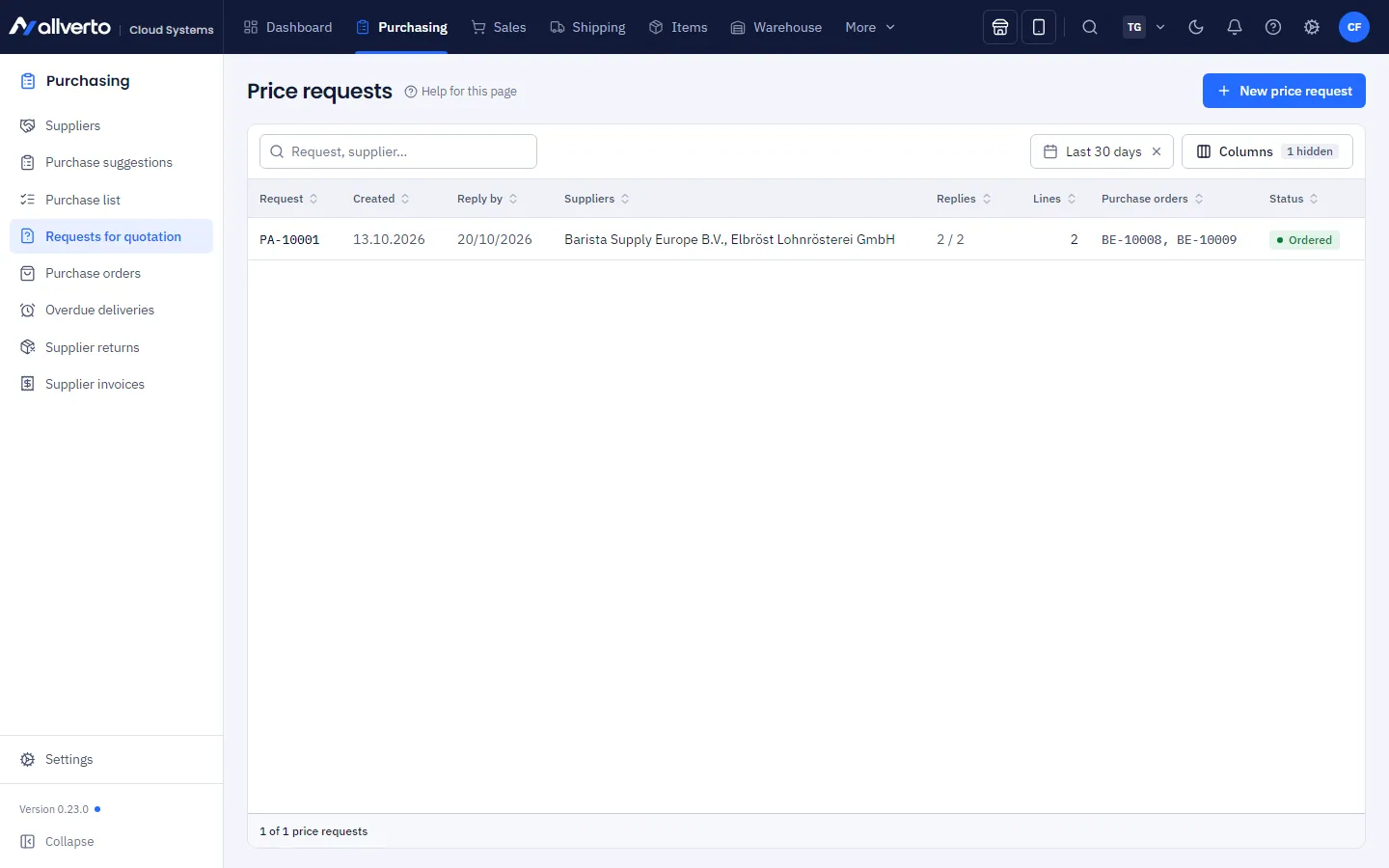
The list
By default the list shows the requests of the Last 30 days (Period filter). Double-click or right-click → Open opens a request.
| Column | Content |
|---|---|
| Request | Number of the price request (PA-…). |
| Created | Date of creation. |
| Reply by | Deadline by which the suppliers should reply. |
| Suppliers | All suppliers asked. |
| Replies | How many suppliers have already replied, e.g. "1 / 3". |
| Lines | Number of items requested. |
| Purchase orders | Purchase orders that resulted from the request. |
| Status | See below. |
| Created by | Hidden; can be shown via the column selection. |
Right-clicking also offers Show PDF and Delete. Deleting is only possible as long as nothing has been ordered from the request – otherwise you close it.
Status
| Status | Meaning |
|---|---|
| Draft | Created, but not yet sent to any supplier. |
| Requested | At least one supplier has received the request. |
| Answered | At least one supplier has replied or declined. |
| Ordered | All lines have been ordered. |
| Closed | Closed manually – no more replies and purchase orders. |
For each supplier, the request additionally shows Not sent, Requested, Replied or Rejected.
Step by step: create a price request
- Under Purchasing → Requests for quotation, click New price request.
- Under Suppliers, choose one or more suppliers (at most 20). Archived suppliers are not available.
- Set the deadline Reply requested by (prefilled: in 7 days, empty = "No deadline") and the warehouse under Deliver to (empty = default warehouse).
- Add the items via Add item… and enter the Quantity and optionally a note for each line.
- Optional: write a Note to the suppliers, e.g. about tiered prices or delivery terms. It appears on the request.
- Click Create. The request opens as a popup.
Request from purchase suggestions
Under Purchase suggestions you select items and choose Price request (or right-click → Create price request …). allverto takes over the items with their order quantity (at least 1) and suggests all suppliers for whom the items are stored as supplier items. You check the create popup and click Create.
Send the request to the suppliers
In the request popup, all suppliers asked are listed under Suppliers with status, email address and date sent. For each supplier there is:
- PDF – the request for this supplier as a PDF.
- Send by email (or Resend) – opens a popup with recipient To, subject and text. Subject and text come from the "Price request" email template, the PDF from the print template.
- Mark as requested – if you sent the request another way, e.g. by phone or as a PDF you sent yourself.
Record replies
- Click Record reply for the supplier.
- For each item, enter the Net purchase price (per unit), Lead time (days) and Minimum quantity. Empty fields mean "not specified".
- If the supplier cannot deliver an item, switch off Available.
- Optional: a note per item (e.g. "tiered from 100") and a Note on the reply, such as quote number or validity.
- Click Save reply. If the supplier didn't make an offer at all, click Supplier declined instead.
A reply can be reopened and corrected at any time as long as the request isn't closed.
Compare replies and order
The Replies compared area shows the offers of all suppliers side by side for each item – price, lead time and minimum quantity (MQ). Green is the best reply: the lowest total price for the requested quantity, where a higher minimum quantity increases the quantity; in the event of a tie, the shorter lead time wins.
- In the Award column, the best reply is preselected for each item. You can choose another supplier or Do not order.
- Leave the Apply purchase price, lead time and minimum quantity to the supplier items switch on if the values from the reply should be taken over into the supplier items. If a supplier item is missing, allverto creates it.
- Click Create purchase order (with several suppliers, Create … purchase orders).
A purchase order draft is created for each supplier with the purchase price from the reply and the warehouse of the request. The quantity is at least the minimum quantity, the delivery date results from the longest lead time, and the note says "Aus Preisanfrage PA-…" (from price request PA-…). The purchase order number then appears in the Award column; one click opens the purchase order. Check the drafts and send them – see Create and send a purchase order.
Edit and close
- Edit reopens the create popup. If something has already been ordered from the request, only Reply requested by, Deliver to and the note can still be changed.
- Close ends the request: after that, no more replies can be recorded and no more purchase orders created. You undo this with Reopen.
Permissions
Anyone with the View purchasing, suppliers and purchase orders permission may view the list and the requests. Creating, sending, recording replies, ordering and closing requires the Create purchase orders permission.