
Customise the dashboard
Build your dashboard from more than 40 widget types – move, resize and configure them, create several dashboards and set defaults per role.
The dashboard is your home page in allverto. You build it from widgets – small tiles with key figures, lists and charts, e.g. "Open orders", "Below minimum stock" or "Stock with best-before date". Every person has their own dashboard; the company can set defaults per role.
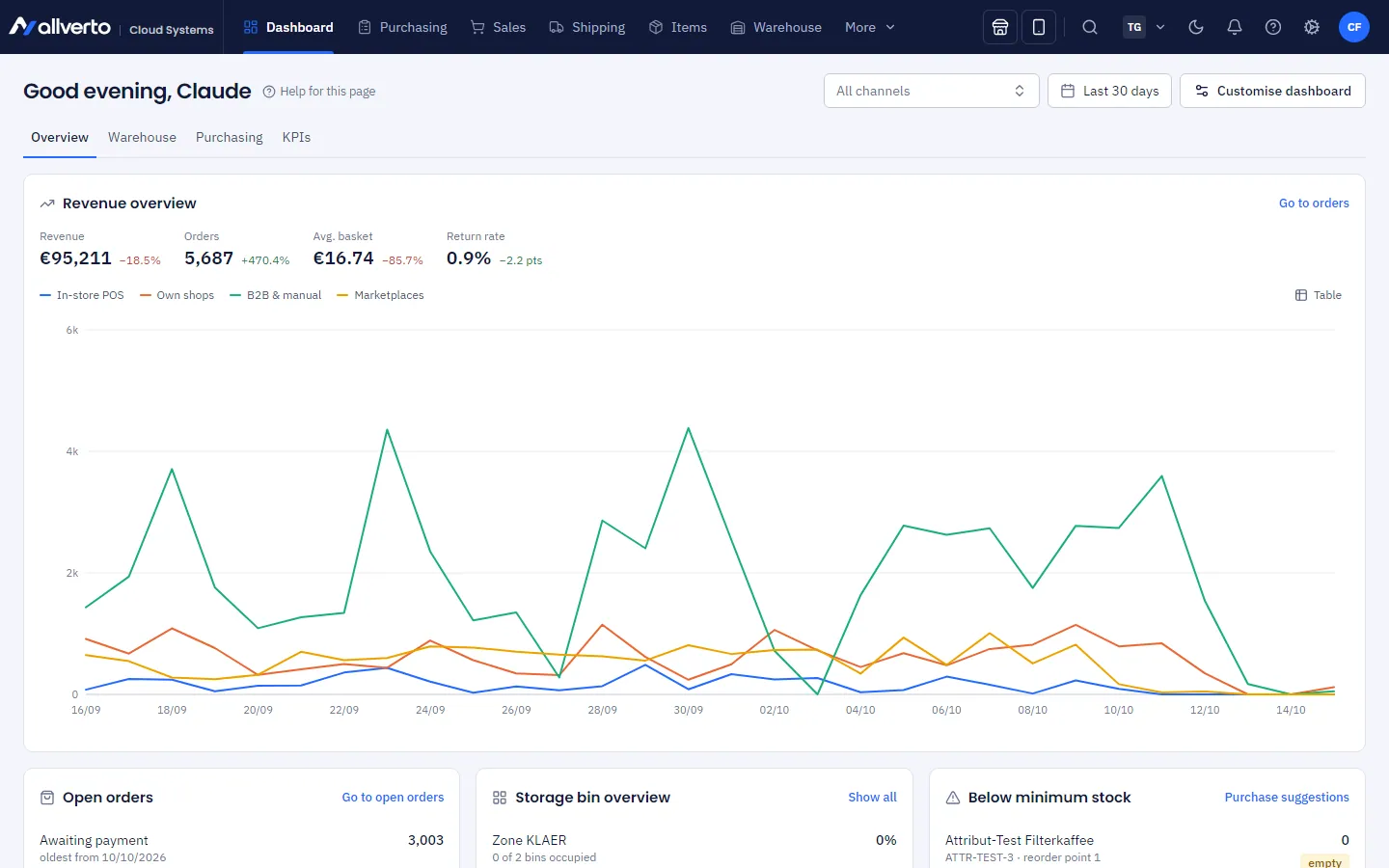
What the widgets show
- Key figures respond to the Channel and Period at the top right (e.g. "Last 30 days"), unless they have their own period set.
- Lists (e.g. "Unpaid orders", "Open purchase orders") open the order, customer, item or document directly in a window when you click them. Show all takes you to the complete list.
- Amounts in order lists are shown in the order's currency – an order for 500 USD appears as “$500.00”, not in euros. Revenue key figures and charts convert foreign currencies into euros at the order's exchange rate.
- The values update automatically when data changes.
- Right-click a widget to get matching actions, e.g. Create pick list for all paid on "Open orders" or Reorder on "Below minimum stock". Pick lists only exist in the warehouse app: such actions and links open the warehouse app's pick list overview with a preselection in a new tab.
- You only see widgets you have permissions for. A warehouse employee, for example, does not see any revenue.
Step by step: customise the dashboard
- Click Customise dashboard at the top right.
- Move: drag a tile by its surface. With the keyboard: focus the tile and press the arrow keys.
- Resize: drag the bottom right corner or use the tile's size menu (Shift+arrow keys on the keyboard).
- Configure: depending on the widget, you can set the title, period, channel, warehouse, number of entries, days, key figure, text, links or the report to show.
- Add: Add element opens the catalogue. Search for a keyword (e.g. "open orders" or "best-before") or browse the groups. A widget can appear more than once – e.g. two key figures with different periods.
- Remove: via the tile's menu.
- Click Done to save. Cancel discards the changes.
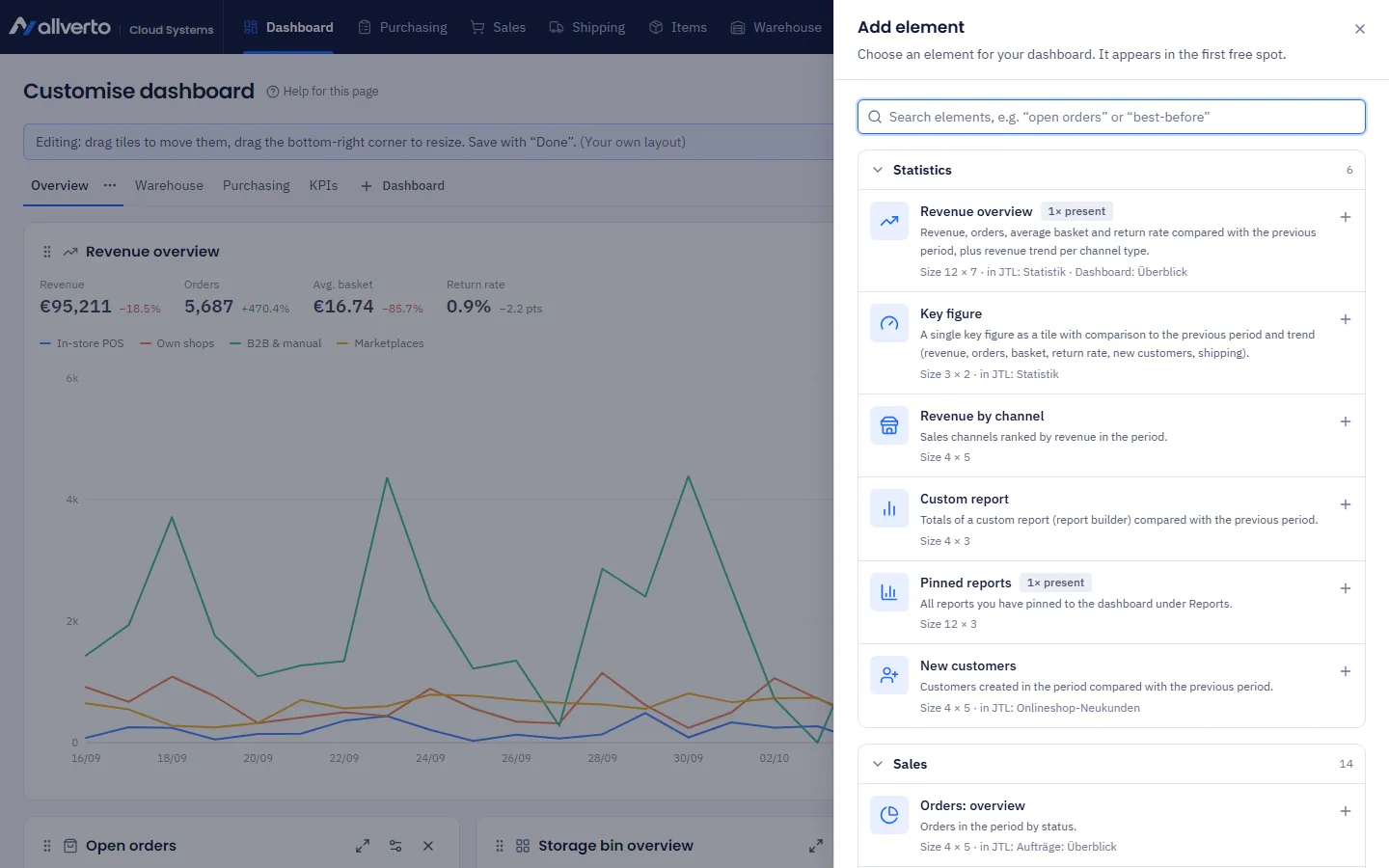
The widget catalogue
| Group | Examples |
|---|---|
| Statistics | Revenue overview, Metric, Revenue by channel, Custom report, Pinned reports, New customers |
| Sales | Orders: overview, Open orders, Unpaid orders, Rush orders, Orders without shipping method, Undeliverable orders, Orders from blocked customers, Orders by platform, Orders by order colour, Due subscriptions, Order processing time, Expired special prices, Return rate |
| Purchasing | Open purchase orders, Open supplier invoices, Below minimum stock |
| Warehouse | Stock value, Stock with best-before date, Several batches in one bin, Stocktaking postings, Stock movements, Storage bin overview, Duplicate identification numbers |
| WMS | Open pick lists: status, Warehouse problems, Packed parcels per employee or per day |
| Shipping | Orders by shipping method, Shipments |
| Finance | Open items |
| Production | Production orders |
| General | Automations: recent errors, System status, Sync overview, Note, Quick access, Spacer |
You can embed a custom report as a "Custom report" widget; pinned reports are collected in the "Pinned reports" widget.
Several dashboards
You can create several dashboards as tabs, e.g. "Daily business" and "Monthly figures". Via the menu next to the tabs: Add dashboard …, Rename …, Duplicate, Delete. Reset to default … restores your role's dashboard.
Defaults for the company and per role
Anyone allowed to manage dashboards (permission Define default dashboards for the company and for roles, by default Owner and Administration) can set a dashboard as a template – in the same menu:
- Set as company default … – applies to everyone without their own dashboard.
- Set as default for "role" … – e.g. a warehouse dashboard for the Warehouse role.
- Manage defaults … – overview and removal of the defaults.
Which dashboard someone sees: their own, otherwise their role's default, otherwise the company default, otherwise the built-in template for the role (e.g. warehouse widgets for the warehouse).