
Connecting merchants and fulfillers
As a fulfiller, maintain your profile, services and prices, become visible in the directory and generate invitation codes; as a merchant, send a request to a fulfiller in the directory or redeem a code.
A connection comes about in two ways: the merchant sends a request to a fulfiller via the Fulfiller directory, or the fulfiller sends them an Invitation code. In both cases the fulfiller accepts the connection.
As a fulfiller: profile and prices
- Open Shipping → Fulfillment network with the view As fulfiller, tab Profile & prices (also under Shipping → Settings → Fulfiller profile & prices).
- Switch on Accept fulfillment customers – without this switch, codes cannot be generated or redeemed.
- Fill in the Fulfiller profile: Display name, Description, Location (city), Country, Cut-off time (orders received up to this time are shipped on the same working day) and SLA (hours).
- Choose your Services, e.g. storage, picking, shipping, returns handling, B2B deliveries, dangerous goods, temperature-controlled, kitting / sets, contract manufacturing. For Organic certified you enter the Control body, Certificate number and Valid until.
- With Visible in directory, merchants find you in the fulfiller directory. For this, provide an Email and Phone for requests.
- Maintain the Price list (net) for goods receipt, pick, packaging, shipping, return and storage.
- Click Save profile.
New connections take over these prices. Existing connections keep their contract terms.
Shipping labels for customers: With Create labels for customers via own shipping accounts you print labels via your own carriers at the packing station when the merchant does not specify their own account. Only permitted if your contract with the carrier allows shipping on behalf of third parties. To bill actual postage, maintain the postage table below (carrier, product, destination or EU/WORLD, up to weight, net postage). In the price list you can also set Shipping via merchant contract (handling) per parcel – for labels via the merchant's account (optional; without a price there is no item). Details: Advance shipping notices, orders and billing.
As a merchant: sending a request to a fulfiller in the directory
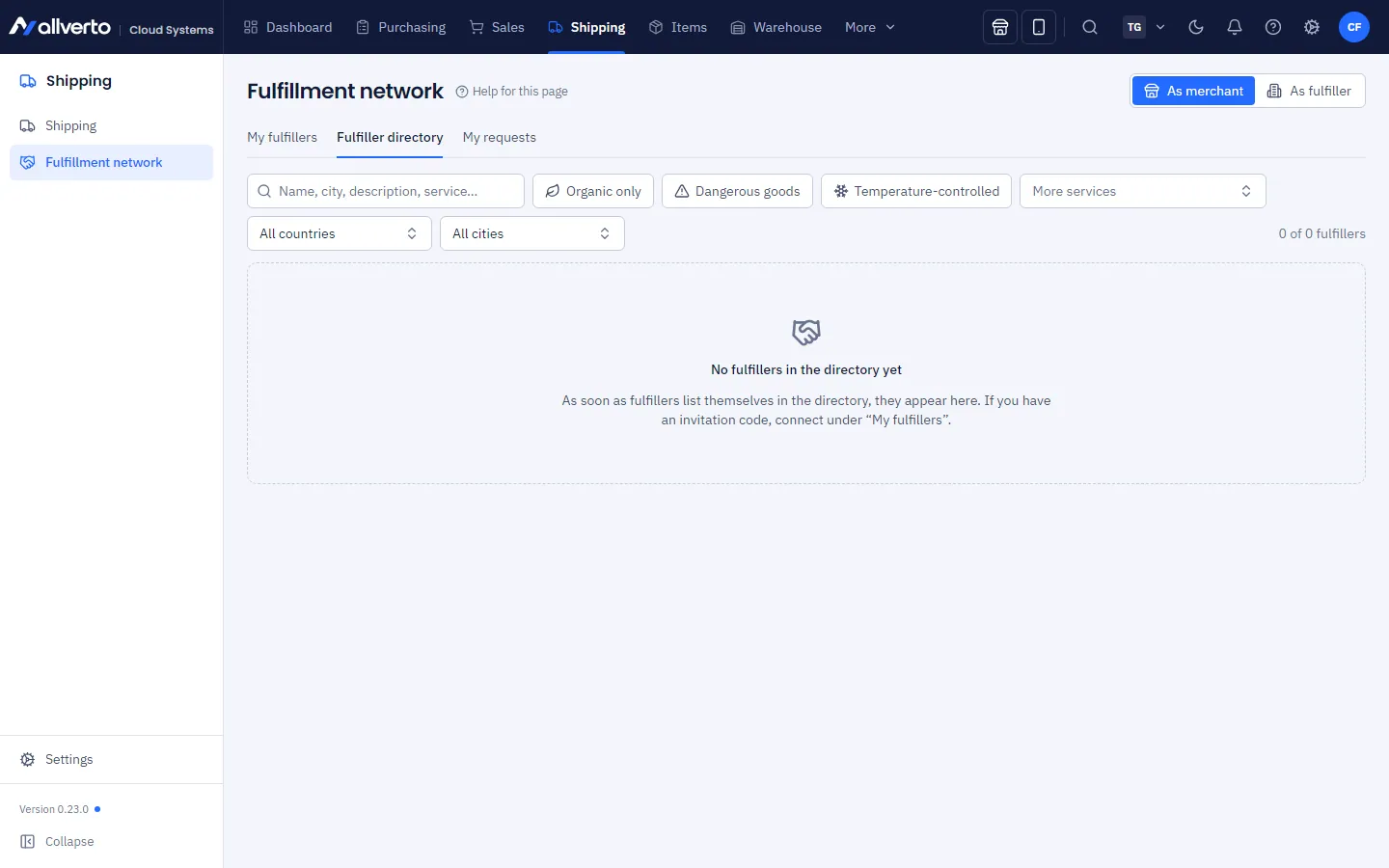
- Open Shipping → Fulfiller directory (or the Fulfiller directory tab in the As merchant view).
- Search by name, city, description or service. The quick filters Organic certified, Dangerous goods and Temperature-controlled as well as More services, Country and City narrow down the list. Each card shows services, cut-off, SLA and the net prices.
- At the right fulfiller, click Send request.
- Describe in the Message what you want to store and ship, and add Orders per month, Number of items, pallet or shelf spaces, Required services, Desired start and Contact person with email and phone.
- Send request. Up to 5 requests per day are possible.
You see the status under My requests; there you can also withdraw an open request. If the fulfiller accepts, their warehouse appears for you as a Fulfiller warehouse. If they decline, you see their reason.
As a fulfiller: answering customer requests
Open Shipping → Customer requests or, on the right in the fulfillment network, the menu Merchants → Customer requests. A notification announces new requests. You see the merchant's details including company and address. Accept creates the connection with your current contract terms; Decline requires a Reason for declining, which the merchant sees.
As a fulfiller: generating an invitation code
- On the right, the menu Merchants → Invitation codes → Generate code.
- Choose the Validity (1 to 30 days) and optionally a Note (only for you), e.g. which customer the code is for.
- Copy it and send it to the merchant. The code has the format
FFN-XXXX-XXXX-XXXXand can only be used once.
You can Revoke codes you no longer need.
As a merchant: redeeming a code
- Open Fulfillment network with the view As merchant, tab My fulfillers, and click Connect fulfiller.
- Enter the Invitation code (upper/lower case and spaces don't matter).
- Click Request connection.
As a fulfiller: accepting
The request appears in the Customers tab (the number on the tab shows open ones). Click Accept (or Decline). From now on, the contract terms with prices, cut-off and SLA apply. Your warehouse appears for the merchant as a Fulfiller warehouse, and the merchant appears for you as a customer. The new customer is automatically assigned to the customer group Fulfillment customers (allverto creates it when needed; you can rename it). In the customer list and the customer window it carries the badge FFN – clicking it opens the connection. The Fulfillment customers view in the customer list shows only these customers.
Ending a connection
Both sides can end the connection via End connection. This requires the permission Connect fulfillers, maintain profile and prices, end connections, bill services.
Ended and declined connections remain readable (history, billing) but are hidden at first. The Show ended switch in the Customers or My fulfillers tab shows them; next to it you see how many there are. allverto remembers your choice. The customer then shows FFN (ended).
Deleting a connection that was never used
If a connection was never used – for example a request that came to nothing – you can delete it completely instead of just ending it: as a fulfiller in the Customers tab via right-click → Delete connection, as a merchant with Delete connection on the fulfiller's card. This works for requested, active, declined and ended connections as long as there are no item releases, delivery notices, orders, stock movements, returns, services or invoices, manufacturing orders or shipping labels, and the merchant's fulfiller warehouse is unused. Otherwise the entry does not appear – then only End connection remains.
Deleted for both companies: the connection, the merchant's empty fulfiller warehouse and the connection's settings. The customer that allverto created when accepting stays in your customer master data; if you don't need it, archive or delete it there. The deletion is logged for both companies and cannot be undone. The same permission applies as for End connection.