
Setting up the JTL-Wawi REST API
What the JTL-Wawi REST API is, from which version it works, how to activate the REST server, register allverto as an app – and what the API delivers and what it doesn't.
JTL-Wawi has its own programming interface: the JTL-Wawi API, often also called the “REST API” or “the Wawi's REST server”. Through it, another program – here allverto – can read items, customers and documents from your Wawi without accessing the database directly. This page explains what you need to set up in the Wawi for this.
What is the REST API – in simple terms?
Think of the REST server as your Wawi's reception desk. Programs that want data ask at the desk (“give me all invoices”). The desk checks whether the program has a valid ID – the API key – and then hands out exactly the approved data.
- The REST server is a JTL program that runs in your company network, usually on the same computer as the Wawi or its SQL Server.
- It can be reached at an address like
http://wawi-server:5883/api/eazybusiness.wawi-serveris the name or IP of your computer,5883the port (yours may differ),eazybusinessthe name of your Wawi database. - Every program must register once as an app. You confirm the registration in the Wawi, after which the program receives its API key.
- allverto registers as the app “allverto – Umzug von JTL-Wawi” and only requests read access (plus, optionally, printing invoice PDFs). allverto changes nothing in your Wawi.
From which Wawi version?
allverto uses the API in the version JTL published for Wawi 2.1 and 2.2 (paths with /v2/…). The API route has been built and tested with these versions.
Step by step
1. Activate the REST server in the Wawi
- Sign in to JTL-Wawi as a user with administration rights.
- Set up the REST server as JTL describes for your version and start it. Note the port it listens on.
- Check that the server is running: a computer in the company network must be able to reach the address
http://<wawi-server>:<port>/api/eazybusiness(open this port on the Wawi computer's firewall for the internal network).
2. Register allverto as an app
You start the registration with the jtl-bridge helper on a computer in the company network:
jtl-bridge register --api-url http://wawi-server:5883/api/eazybusiness- jtl-bridge sends the registration request to your REST server and reports: “Registrierung gesendet … Bitte jetzt in der JTL-Wawi unter Admin → App-Registrierung bestätigen” (registration sent – please confirm now in JTL-Wawi under Admin → App registration).
- In the Wawi, open the App-Registrierung (app registration). According to our documentation, this is what the item is called in Wawi 2.2: Admin → App-Registrierung. There you find the request from allverto – Umzug von JTL-Wawi with the requested permissions.
- Check the permissions (read only, optionally print invoices) and confirm the request.
- jtl-bridge checks every 5 seconds. After confirmation, it shows the API key – only this once. Copy it immediately.
- If you don't confirm within 10 minutes, jtl-bridge aborts – then simply start the registration again.
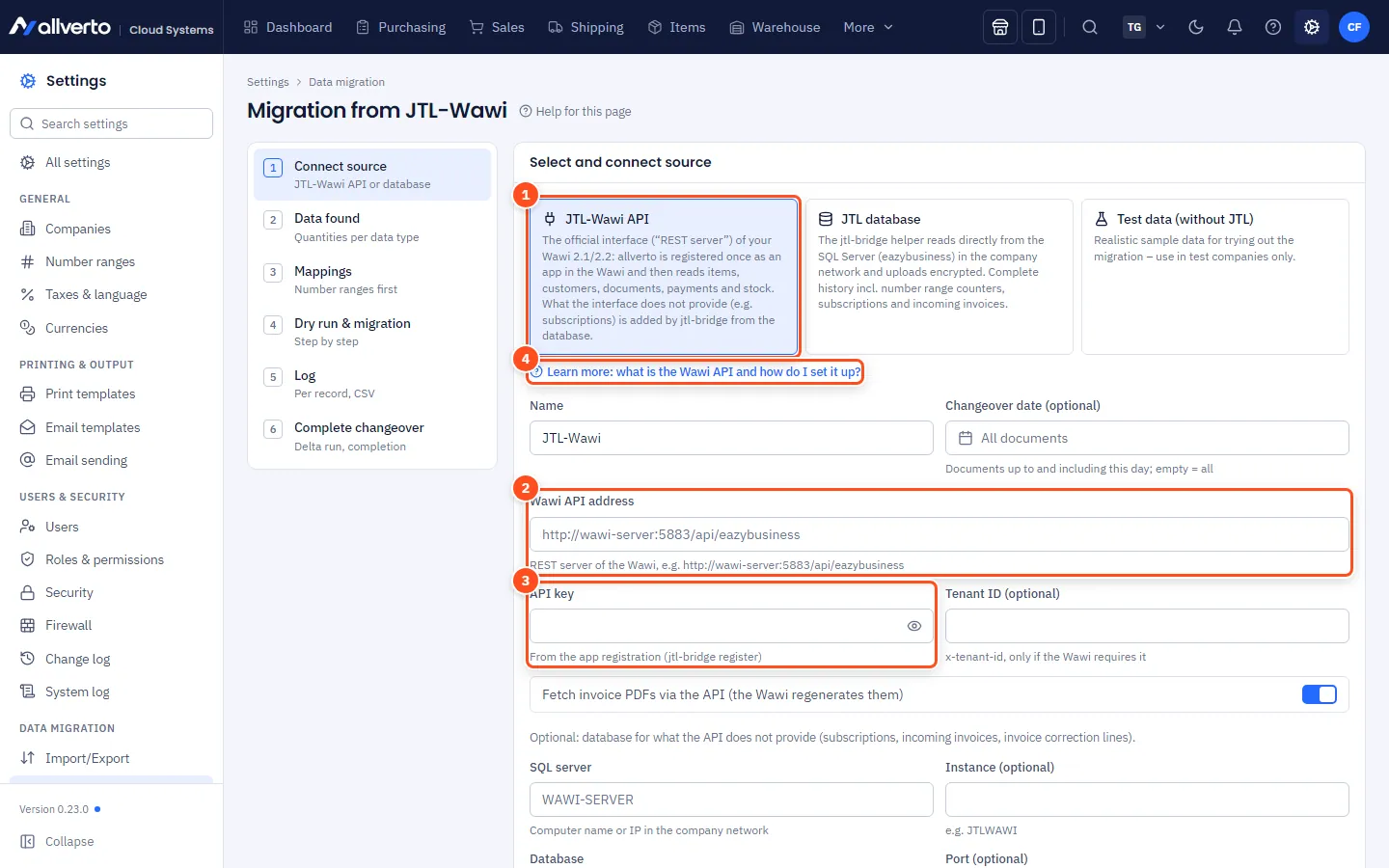
3. Enter it in allverto
- Open Settings → Data migration → Migration from JTL-Wawi, step Connect source.
- Choose JTL-Wawi API.
- Under Wawi API address, enter the address from step 1, e.g.
http://wawi-server:5883/api/eazybusiness. - Paste the API key. allverto stores it encrypted; the next time you open it, the field shows “Stored – leave empty to keep it”.
- Tenant ID (optional): only fill in if your Wawi requires one. For an on-premises Wawi, the field usually stays empty.
- Leave Fetch invoice PDFs via the API on if you want your invoices to come along as PDFs (the Wawi regenerates them for this).
- Optional: enter the SQL Server – then jtl-bridge adds what the API doesn't deliver (see below).
- Click Save source.
4. Upload the data
Because the REST server can only be reached in the company network (and should stay that way), jtl-bridge uploads the data: Create import token, then run the command shown in the company network, e.g.
jtl-bridge upload --url https://erp.allverto.cloud --token avjtl_… --fill-from-dbThe wizard continues with Data found and Mappings – see Migrating from JTL-Wawi: how it works.
What does the API deliver – and what not?
| Data | Via the API | Remark |
|---|---|---|
| Number ranges, company data, taxes, payment and shipping methods, customer groups, warehouses, categories, manufacturers, characteristics | yes | |
| Items | partially | without bill of materials components; attributes only as an ID without a name |
| Custom fields | partially | selection lists come as text |
| Suppliers | partially | list without address and terms |
| Customers, images, stock | yes | bank accounts without SEPA mandate |
| Quotes, sales orders, delivery notes, invoices, payments, purchase orders, returns | yes | the Wawi regenerates invoice PDFs |
| Invoice corrections | partially | only header and totals, no lines |
| Subscriptions, supplier invoices | no | only via the database |
How jtl-bridge closes the gaps
If you start jtl-bridge with --fill-from-db and have also stored the SQL Server in allverto, it reads everything the API doesn't deliver, or only partially, directly from the database: subscriptions, supplier invoices, lines of invoice corrections, bills of materials, attribute names, SEPA mandates. A database user with read permission only is enough for this. Without the database, this data is missing – everything else is still migrated.
Security and network
- The REST server stays in the company network. Don't expose the port to the internet. jtl-bridge runs inside, reads the REST server and uploads the data to the outside – no incoming connections are needed.
- jtl-bridge uploads only via HTTPS. The data is additionally encrypted with a key from the import token.
- The API key and the import token are like passwords: don't send them by email, don't copy them into tickets. The import token is valid until the migration is completed; after that it is invalid.
- Fetch data directly only works if the Wawi API is reachable from the internet. We only recommend this with secured access (e.g. HTTPS via a reverse proxy with access restriction). Normally, use jtl-bridge.
- After the migration you can remove allverto's app registration from the Wawi again.
Troubleshooting
| Message | Meaning and solution |
|---|---|
| “Registrierung abgelehnt … Ist der REST-Server der Wawi gestartet?” (registration rejected – is the Wawi's REST server started?) | The REST server is not responding or the address is wrong. Check the address, port and database name (eazybusiness), start the server, check the firewall. |
| “Die Wawi-API unter … ist nicht erreichbar.” (the Wawi API at … is not reachable) | Network problem between jtl-bridge and the Wawi computer. Is jtl-bridge running on the same network? Is the port open? |
| “Die Wawi-API lehnt den API-Schlüssel ab (App-Registrierung in der Wawi prüfen).” (the Wawi API rejects the API key – check the app registration in the Wawi) | Key copied incorrectly or registration removed in the Wawi. Register again and enter the new key in allverto. |
| “… keine Lizenz bzw. App nicht freigegeben (402).” (no licence or app not approved) | The Wawi does not approve the app. Check the approval in the app registration and your JTL licence. |
| “Die Wawi-API kennt … nicht (Wawi-Version prüfen).” (the Wawi API does not know … – check the Wawi version) | Your Wawi doesn't offer this part of the API. Update the Wawi or use the database route. |
| Notice “Wawi-Version …: der API-Adapter ist für 2.1/2.2 gebaut – Übernahme ungetestet.” (the API adapter is built for 2.1/2.2 – migration untested) | Do a dry run first and check the log carefully. |
More cases: Troubleshooting the JTL migration.