
Translation may be out of date – the German version has changed since. German version
Item overview: categories, search, preview
How to find items quickly – with the category tree, search mode, labels, quick filters, custom filters and the detail preview – and change many items at once with bulk edit.
The item overview under Items → Item list is your starting point for everything to do with items: search, filter, open and edit many items at once.
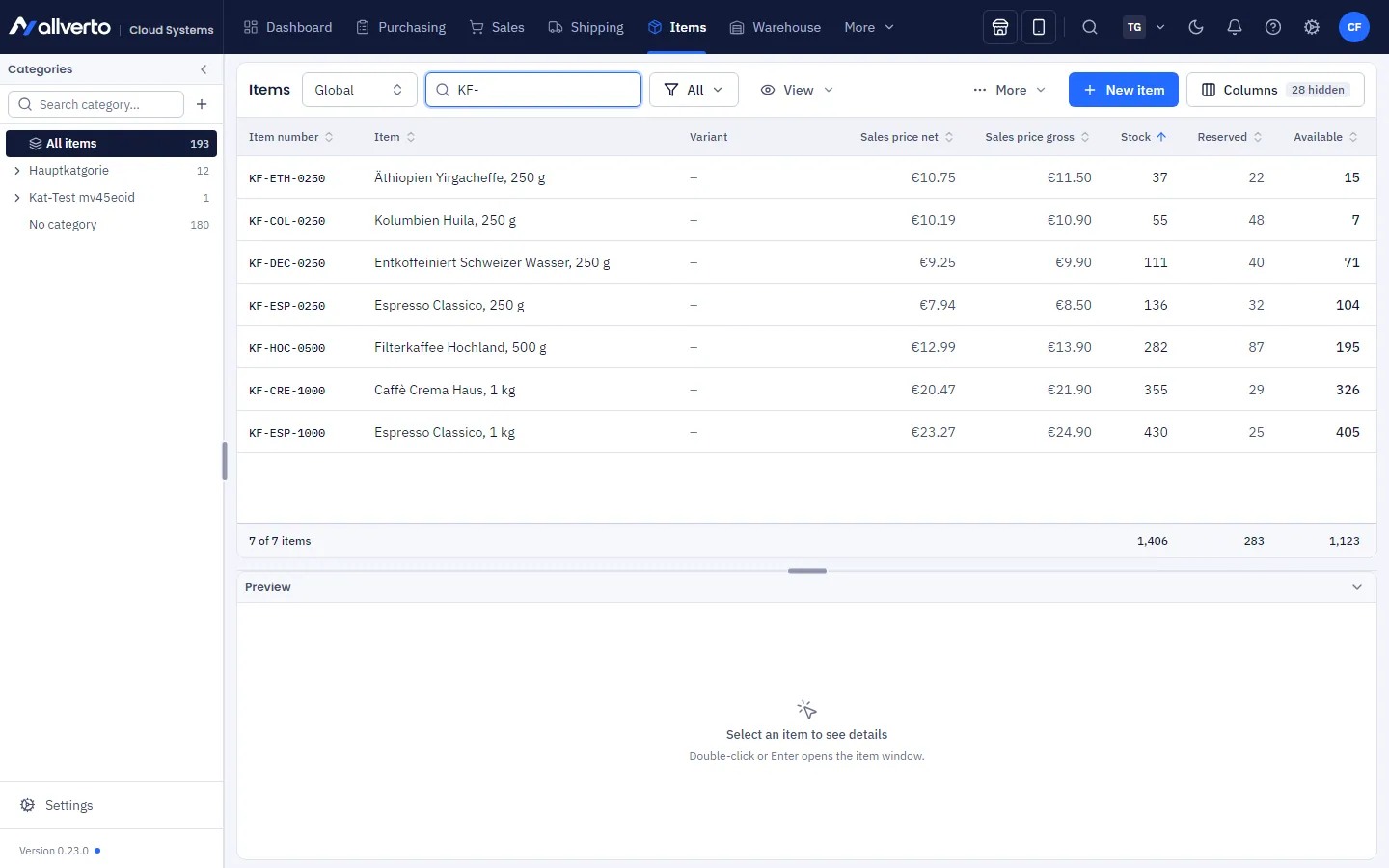
Page layout
| Area | Purpose |
|---|---|
| Category tree (left) | All items, No category and your categories with counts. A click shows only the items of that category and expands its subcategories; another click collapses them. |
| Toolbar (top) | Search mode, search field, labels, Quick filter, template and Filter (custom filters), View, More (import/export) and New item. |
| Item list (middle) | All matches as a table – columns customisable as in any table. |
| Detail preview (bottom) | Shows stock levels, prices, images & videos, characteristics, attributes, suppliers, sales and more for the selected item. |
Drag the dividers with the mouse to set the width of the category bar and the height of the preview. allverto remembers this for you.
Searching
To the left of the search field you choose the search mode:
- Global – searches number, name, GTIN, brand, storage bin and more.
- Contains, Starts with, Exact – search only item number and name.
Filtering
- Labels – shows only items with the selected labels.
- Quick filter – several groups that can be combined freely:
- Active / Inactive items,
- Item type: single items, parent items, child items, bills of materials and configurable items (All types resets),
- Item condition (e.g. new, used),
- Procurement type: purchasing, in-house manufacturing, contract manufacturing,
- Product safety: GPSR incomplete (active, listed in a channel) – see Product safety,
- Packaging: Packaging only or Without packaging.
- Category tree – right-click a category: Edit… (also by double-click), Create subcategory…, Rename…, Move…, Delete…. You create new categories with Create category…. More in Categories and category master data.
Custom filters
Just like in orders and customers, you can build your own filters in the item overview and save them as templates. They work in addition to the category tree, search and quick filter.
- In the toolbar, pick a template from the drop-down list – included are All, Below reorder point, Without category, Without image, Without GTIN, Without supplier and Digital items.
- For your own conditions, click Filter and then Condition. Choose field, comparison and value – e.g. "Brand" "is" "ACME" or "Manufacturer" "is empty".
- With several conditions, decide whether All (AND) or At least one (OR) must apply. The panel shows the number of results.
- Click Apply. Each condition appears as a chip in the toolbar; the × removes it individually, Reset all removes all of them.
- To reuse the filter, click the bookmark Save as template, enter a name (e.g. "Brand X without image") and switch on Share with the whole company if needed.
The fields are grouped into sections like the tabs in the item window:
| Section | Fields (selection) |
|---|---|
| Item | SKU, Item name, GTIN, MPN, Brand, Manufacturer, Product group, Label, Status, Item type, Structure (single, parent, child item, bill of materials, configurable item), Condition, Delivery status, Weight, HS code, Country of origin, Has image, Serial numbers, Batch, Created on, Changed on and more |
| Prices | Sales price gross/net, RRP, Tax class, Purchase price (default supplier), Ignore discounts |
| Stock | Stock item, Stock, Available, Reserved, Reorder point, Below reorder point, Minimum order |
| Categories | Category (incl. subcategories), Number of categories |
| Suppliers | Supplier, Default supplier, Supplier SKU, Number of suppliers |
| Sales channels | Active in sales channel, Switched off in sales channel |
| Characteristics | Has characteristic, Characteristic value |
| Attributes | Attribute (name), Attribute value |
| Custom fields | Custom field filled, Value of a custom field |
Right-clicking a template offers, among other things, Rename…, Edit conditions…, Duplicate and Show on opening (for me). Everything else about templates is in Filters and filter templates.
Setting up the view
Under View you switch on and off:
- Show categories – show or hide the category tree on the left.
- Show detail preview – preview below the list.
- Image preview on hover – shows the main image (or the video thumbnail) when you move the mouse over a row. You set the default for the whole company under Items → Settings → Display; there you can also set your own view.
Opening items
Double-click or Enter on a row opens the item window. In the preview, buttons such as Edit prices or Edit characteristics take you directly to the matching tab.
Right-click menu
Select one or more items (as in Windows Explorer, see Tables) and open the menu with the right mouse button. There you'll find, among other things:
- Open, Duplicate…, Delete…, Set active / Set inactive, Remove from "category" (if a category is selected on the left)
- Bulk edit … – change many items at once: master data, characteristics, attributes as well as manufacturer and product safety (see below)
- Calculate prices…, Print item labels (1 each, per stock quantity or With print template…), set/remove Output and Label
- Item history and Item statistics…
- Release to fulfiller… and Hand over contract manufacturing to fulfiller…
- Add to purchase list, Correction posting… and Calculate producible stock
- Sales channels – per channel Activate, Deactivate and Sync now
- Copy item/master data and Paste item master data…
- Export – selected rows or the whole list as CSV, also in Excel format
You post goods receipts and transfers in the warehouse app – see WMS warehouse and standard warehouse.
Entries that aren't possible right now stay visible and state the reason (e.g. missing permission).
Bulk edit
With bulk edit you change many items directly in the list – without exporting them, editing them in Excel and importing them again.
- Select the items you want to change – e.g. all results of a custom filter.
- Right-click → Bulk edit …. The window has the tabs Master data, Characteristics, Attributes and Manufacturer & product safety.
- In the Master data tab, tick the box in front of every field you want to change and choose or type the new value. Fields without a tick stay as they are.
- Click Apply … fields at the bottom – e.g. Apply 2 fields.
| Section | Fields in the Master data tab |
|---|---|
| Item | Item type, Status, Product group, Add labels, Remove labels, Condition, Delivery status, Brand, Unit |
| Stock | Stock item (stock management Yes or No), Reorder point, Minimum order, Packing unit, Procurement |
| Prices | Tax class, Ignore discounts |
| Shipping & customs | Weight (g), Shipping weight (g), HS code, Country of origin (two-letter country code, e.g. DE) |
For Product group and Delivery status, (clear) removes the current value.
The tabs Characteristics, Attributes and Manufacturer & product safety work as before – see Assign characteristics, Attributes and Product safety.
What is changed for which item
allverto only changes what fits each item. Everything else is skipped: after applying, you see under Skipped: the reason for each field, the number of items and the first item numbers.
- Stock item, Reorder point, Minimum order and Packing unit don't exist for parent and configurable items – for variants, change the child items.
- Stock item doesn't exist for bills of materials; their stock results from the components.
- Switching stock management on (Stock item Yes) is not possible for digital items and vouchers.
- Item type: digital items stay digital. Voucher is only possible for single items, digital only for single and child items.
- Items with stock must be booked out first before you set them to digital or switch stock management off (Stock item No). After applying, such items are listed under Not saved: with the reason.