
Translation may be out of date – the German version has changed since. German version
Create an item
Create a new item with item number, name, price and stock data – step by step in the item window.
You edit items in their own item window with tabs – similar to JTL-Wawi. A new item only needs an item number and a name; you can add everything else later.
Before you start
- Owner and Administration may create and change items (permission "Edit items"). For prices, "Change prices" is also needed.
- Create manufacturers, product groups, labels and units beforehand under Items → Settings – they are then available for selection in the item. See Item settings.
Step by step
- Open Items → Item list and click New item at the top right (or in the menu Items → Create new → New item).
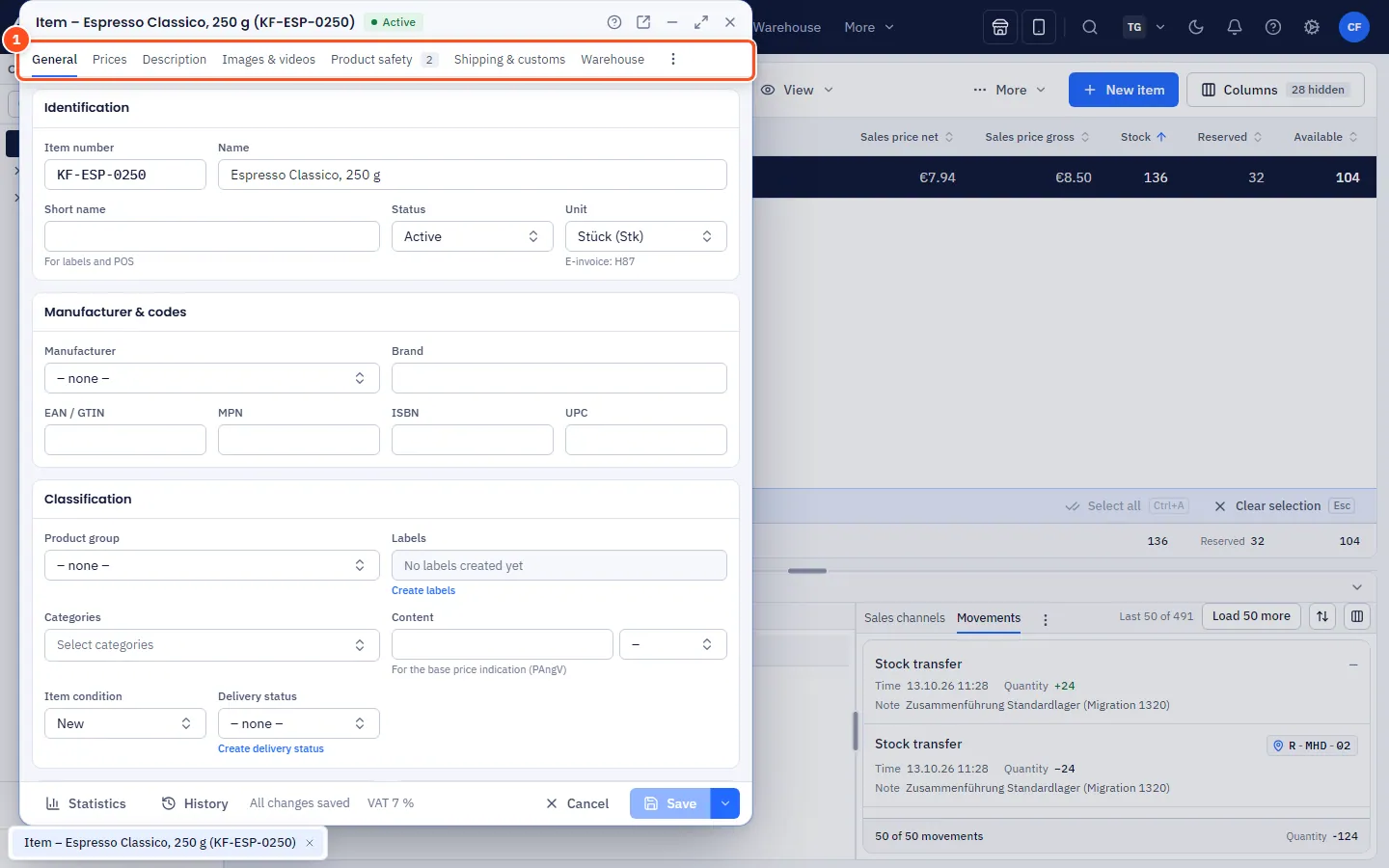
- An empty item window opens with the General tab. In the Identification card, enter the Item number and the Name. A Short name for labels and POS is optional.
- Choose the Unit (e.g. piece) and leave the Status at Active.
- If needed, add the manufacturer, brand and GTIN under Manufacturer & codes. allverto checks the GTIN check digit.
- Under Classification, assign the item to a Product group and Labels. There you'll also find Item type (usually Standard, see below), Item condition (e.g. New) and Delivery status (delivery time text for shops). For food and similar products, enter the quantity under Content (e.g. 250 g) – this is used to calculate the base price. You tick the Categories on the left below the list of sections (see below).
- Switch to the Prices tab and enter the Sales price gross and the Tax class – allverto calculates the net price itself. More in Prices.
- Under Stock & shipping → Warehouse you specify whether it is a Stock item and enter the Reorder point. See Warehouse tab.
- Click Create item at the bottom right or press Ctrl+S.
Create item (Save for an existing item) saves the item and closes the window. Via the small arrow next to it you'll find Save, keep window open (also with Ctrl+S) and Save & new (handy when you create several items one after the other).
If allverto cannot save, the message names every affected field with its tab and the reason, e.g. “Description › Translations 2” with the maximum number of characters. Switch to that tab, correct the value and save again.
Item type
In the General tab, under Classification, you choose the Item type:
| Item type | Used for |
|---|---|
| Standard | Normal goods, with or without stock. |
| Digital item | Downloads, licences, online courses and the like – without stock. The Stock item switch in the Warehouse section is then locked, and the title bar shows Digital. allverto automatically closes paid orders that only contain digital items without shipping (see Completing without shipping). |
| Voucher (multi-purpose) | Gift voucher that can be used to buy anything. allverto sets the tax class to tax-exempt and switches off stock keeping; tax is only due when it is redeemed. See Vouchers. |
| Voucher (single-purpose) | Voucher for which it is already clear at the time of sale what it will be redeemed for (e.g. “1 massage”). Normal tax class – tax is due on sale; no stock keeping. |
Assigning categories
In the General main tab, the category tree sits on the left below the list of sections (in a narrow window, in the General section). Tick every category the item should appear in – an item can be in several categories. A dash instead of a tick means a subcategory below it is selected. At the top you see how many categories are selected. With many categories there is a search field Search category; matches are expanded. You create new categories on the left in the item list – see Categories and category master data.
The tabs in the item window
At the top are six main tabs. Next to them on the left, each main tab lists its sections – these are the familiar tabs from JTL-Wawi with their usual names. In narrow windows the sections appear as a row above the content. Use the arrow keys to switch between main tabs and sections.
| Main tab | Section | Content |
|---|---|---|
| General | General | Number, name, status, codes, product group, labels, item type, item condition, delivery status, main image, key figures; categories as a tree on the left below the sections |
| Description | Short description, description, translations, SEO | |
| Images & videos | Upload images, videos and YouTube/Vimeo links | |
| Custom fields | Additional fields | |
| Prices | – | Sales price, purchasing & margin, customer group, tiered, special and channel prices |
| Stock & shipping | Warehouse | Stock item, reorder point, procurement type, mandatory details, pack GTIN, fixed bins, stock levels, movements |
| Shipping & customs | Weight, dimensions, shipping class, packaging, customs tariff number, dangerous goods | |
| Suppliers | Supplier items with purchase price (only with purchasing permission) | |
| Properties | Characteristics / Attributes | Fixed properties and free attributes |
| Product safety | Manufacturer, responsible person, safety information, documents (GPSR) – see Product safety | |
| Variants & bill of materials | Variants | Parent and child items – see Variants |
| Set bill of materials | Item as a set of components – see Bills of materials (sets) | |
| Configuration | Configuration groups – see Configurable items | |
| Production | Production bills of materials and routings (with the production module) – see Bills of materials and routings | |
| Sales | Sales channels, Listings | Active per channel, own title and price; marketplace listings on Amazon, eBay, OTTO and Kaufland |
| Cross-selling | Linked items |
Only what is used – the rest under “More”
The list only shows sections the item uses or that are set up for you: for example Variants only for parent and child items, Set bill of materials only for sets, Listings only with marketplace channels and Custom fields only if custom fields exist. You find the other sections at the bottom of the list under More. A click shows the section; it stays visible as long as the window is open.
If a main tab does not use anything yet – such as Variants & bill of materials for a simple item – it shows a card with buttons like Create variants, Use as bill of materials/set and Configurable item. Open GPSR issues appear as a number on the Product safety section and on the Properties main tab.
Statistics and History are not tabs but buttons at the bottom left of the window footer – they open a popup (see Item statistics).
Status in the title bar
At the top of the window you see New, Active or Archived and, if applicable, Not a stock item or Digital. A dot in the title and the note Unsaved changes at the bottom show that something still needs to be saved.
Frequently asked questions
Someone else changed the item at the same time – what happens?
allverto notices this when saving and tells you, instead of silently overwriting the other person's changes. Reload the item and then apply your change again.
Can I use an existing item as a template?
Yes: right-click in the item list → Duplicate….
How do I open the window in its own browser window?
Via the icon in the title bar – see Windows.