
Translation may be out of date – the German version has changed since. German version
Setting up the JTL-Wawi REST API
What the JTL-Wawi REST API is, from which version it works, how to activate the REST server, register allverto as an application – and what the API delivers and what it doesn't.
JTL-Wawi has its own programming interface: the JTL-Wawi API, often also called the “REST API” or “the Wawi's REST server”. Through it, another program – here allverto – can read items, customers and documents from your Wawi without accessing the database directly. This page explains what you need to set up in the Wawi for this.
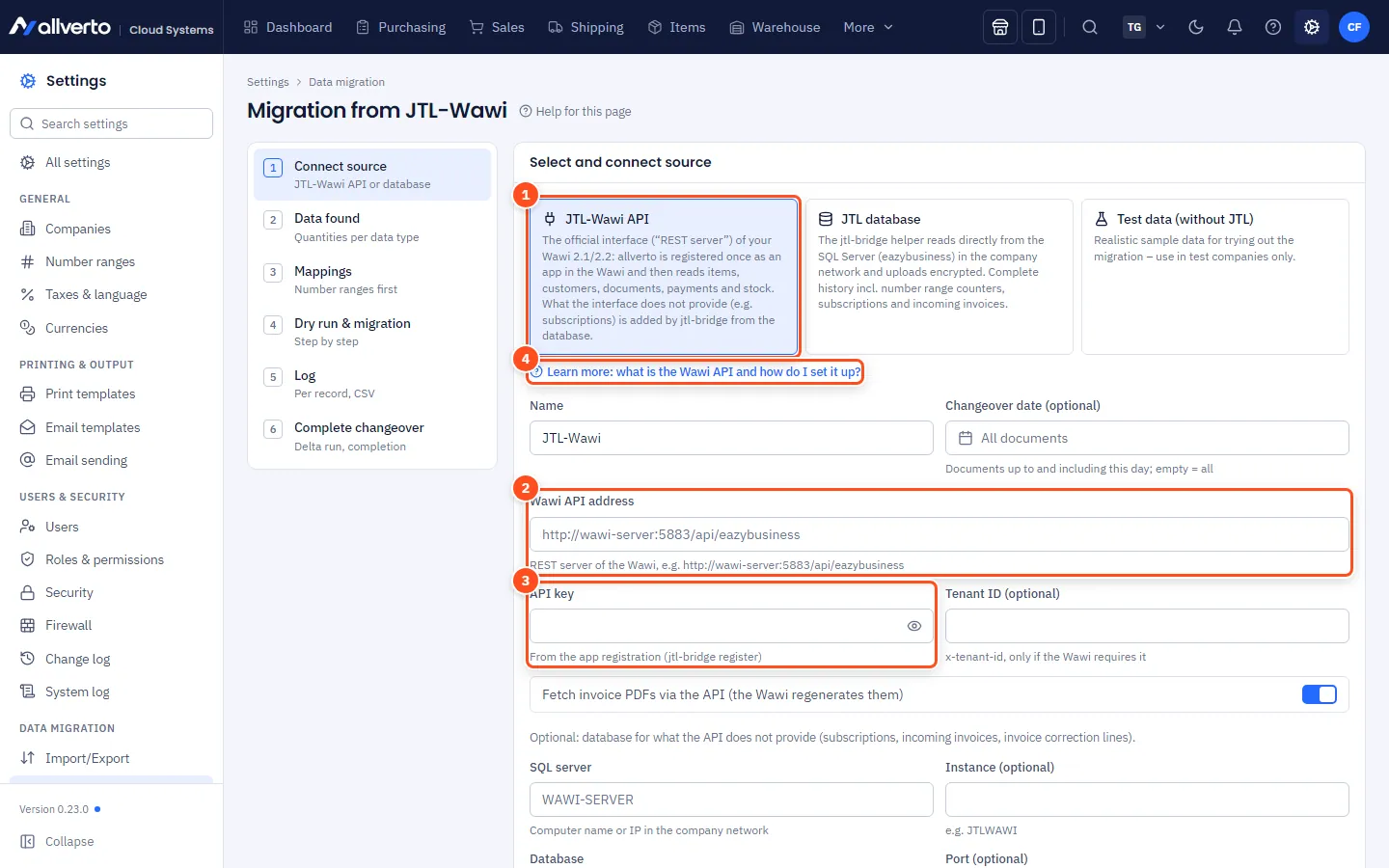
Directly from allverto (main route)
If your JTL-Wawi runs on a rented server and the REST server is reachable from the internet, allverto connects to it itself. You then don't need any program on your server.
This works if:
- the REST server is reachable under a public IP address or a public name – not under
localhost, an address in your office network or a computer name. - the port is 80 or 443 or 1024 or higher.
How to do it:
- Open Settings → Data migration → Migration from JTL-Wawi, step Connect source, and choose JTL-Wawi API.
- Under Connection details, enter the Wawi API address, e.g.
https://217.160.19.64:5885/api/eazybusiness, and click Save. - Click Test connection. allverto queries
…/v2/info. Without an API key the result is “REST server reachable ✓ – sign-in follows via the registration”. It is normal that the address itself (…/api/eazybusiness) shows “404” in the browser. - If your REST server only answers over HTTPS, allverto suggests the address with
https://. Click Change address to https://. - If your REST server uses a self-created certificate, allverto shows the fingerprint (SHA-256), the issuer and the validity. Compare the fingerprint with the certificate on your server and click Trust this certificate.
- Register allverto in JTL-Wawi – in this order:
- In JTL-Wawi open „Anwendungsregistrierungen“ → „Anwendung registrieren“ and click through to “Registrierung beginnen”. The Wawi then waits for a request.
- In allverto click Send registration from allverto. allverto resends the request every 5 seconds for up to 10 minutes. You see the status right below, e.g. “Waiting for the Wawi” or “Accepted”. Cancel stops the process.
- In the Wawi click Weiter (next) on Anwendungsinformationen and Benutzer (pre-filled with the user you are logged in with), tick all three rows in the Erteilen (grant) column under Zugriffsverwaltung (all.read is already ticked; also salesinvoices.print and salesinvoicecorrections.print so allverto can take over the original PDFs of your invoices and invoice corrections) and click “Einrichtung abschließen”. allverto then shows “API key stored.” and stores it encrypted.
- Click Fetch data directly now. allverto fetches the data in the background. The quantities then appear under Data found.
If you enter localhost or an address from your office network, the field shows: “This address is only reachable on your server. Enter your server's public IP – or use jtl-bridge below.” If your REST server is not reachable from the internet, use the route with jtl-bridge (steps 2 and 3 below).
What is the REST API – in simple terms?
Think of the REST server as your Wawi's reception desk. Programs that want data ask at the desk (“give me all invoices”). The desk checks whether the program has a valid ID – the API key – and then hands out exactly the approved data.
- The REST server is a JTL program that runs on the computer your JTL-Wawi runs on (usually a Windows server).
- On that computer, it can be reached at an address like
http://localhost:5883/api/eazybusiness.localhostmeans “this computer”,5883is an example for the port – it means the port you set for the REST server in the Wawi (often 5883, but e.g. 5885 is possible too).eazybusinessis the name of your Wawi database. - Every program must register once as an application. You start the registration in the Wawi, the program sends its request, you complete the setup – after that the program receives its API key.
- allverto registers as the application “allverto – Umzug von JTL-Wawi” and only requests read access (plus, optionally, printing invoice PDFs). allverto changes nothing in your Wawi.
From which Wawi version?
allverto uses the API in the version JTL published for Wawi 2.1 and 2.2 (paths with /v2/…). The API route has been built and tested with these versions.
Step by step
1. Activate the REST server in the Wawi
- Sign in to JTL-Wawi as a user with administration rights.
- Set up the REST server as JTL describes for your version and start it. Note the port it listens on.
- Check that the server is running – e.g. open the address
http://localhost:<port>/api/eazybusinessin the browser on the Wawi server. If any response comes back (even an error message in the browser), it is running.
2. With jtl-bridge: choose the source in allverto
You only need this route if your REST server is not reachable from the internet.
- Open Settings → Data migration → Migration from JTL-Wawi, step Connect source.
- Choose JTL-Wawi API. You don't have to enter anything – jtl-bridge transfers the address and API key itself.
- Optional: set a changeover date.
Under Connection details you also find API key (only if you already have one), Tenant ID (optional) (only if your Wawi requires one), Fetch invoice PDFs via the API and the switch Add missing data from the database (optional) (see below).
3. With jtl-bridge: start the program and register the application in the Wawi
Expand the box Server not reachable from the internet? Transfer data with jtl-bridge below. It guides you through the steps (in detail: The jtl-bridge helper):
- Download jtl-bridge.
- Copy the file to the server your JTL-Wawi runs on – e.g. via Remote Desktop onto the desktop.
- On the server, start the file with a double-click.
- Click “Create setup code” here, copy the code, paste it into the window with a right-click and press Enter.
- Answer the questions in the window – usually Enter is enough. The program looks for the REST server on this computer (ports 5883 to 5890) and suggests the address it found, e.g. “Found: http://localhost:5885/api/eazybusiness – press Enter to use it.”
- Register the application in JTL-Wawi (see below).
- Wait until “Done” appears – allverto then ticks off the step.
About step 6 – the order matters, because the Wawi only accepts a request while its wizard is waiting:
- In JTL-Wawi, open Anwendungsregistrierungen (application registrations) → Anwendung registrieren (register application). The wizard has the steps Einführung, Registrierung beginnen, Anwendungsinformationen, Benutzer, Zugriffsverwaltung and Einrichtung abschließen.
- Click on to Registrierung beginnen. There it says “Eine Sitzung zur Entgegennahme von Registrierungsanfragen wurde gestartet …” (a session for receiving registration requests has been started) and “Es wird auf die Übermittlung einer Registrierungsanfrage durch die zu registrierende Anwendung gewartet …” (waiting for a registration request from the application).
- Now press Enter in the jtl-bridge window. The program sends the request allverto – Umzug von JTL-Wawi. If the Wawi doesn't accept it yet, the program tries again every 5 seconds for 10 minutes.
- In the Wawi, click Weiter (next) on Anwendungsinformationen and Benutzer (pre-filled with the user you are logged in with) and tick all three rows in the Erteilen (grant) column under Zugriffsverwaltung (all.read is already ticked; also salesinvoices.print and salesinvoicecorrections.print so allverto can take over the original PDFs of your invoices and invoice corrections).
- Click Einrichtung abschließen. jtl-bridge then hands the API key to allverto in encrypted form – you don't see it and don't have to copy anything. allverto stores it encrypted and uses it only for this migration.
If you don't complete the setup within 10 minutes, jtl-bridge aborts – then simply start it again.
Where does the API key come from?
JTL-Wawi does not show an API key and does not create one at the push of a button. It only issues it to an application that is currently requesting it – while its wizard waits at “Registrierung beginnen”. allverto sends this request itself (Send registration from allverto). If your REST server is not reachable from the internet, jtl-bridge sends it.
After that, allverto fetches the data or jtl-bridge uploads it. The wizard continues with Data found and Mappings – see Migrating from JTL-Wawi: how it works.
What does the API deliver – and what not?
| Data | Via the API | Remark |
|---|---|---|
| Number ranges, company data, taxes, payment and shipping methods, customer groups, warehouses, categories, manufacturers, characteristics | yes | |
| Items | partially | without bill of materials components; attributes only as an ID without a name |
| Custom fields | partially | selection lists come as text |
| Suppliers | partially | list without address and terms |
| Customers, images, stock | yes | bank accounts without SEPA mandate |
| Quotes, sales orders, delivery notes, invoices, payments, purchase orders, returns | yes | the Wawi regenerates invoice PDFs |
| Invoice corrections | partially | only header and totals, no lines |
| Subscriptions, supplier invoices | no | only via the database |
How jtl-bridge closes the gaps
If you turn on the switch Add missing data from the database (optional) under Details in the wizard and enter the access to the SQL Server, jtl-bridge reads everything the API doesn't deliver, or only partially, directly from the database: subscriptions, supplier invoices, lines of invoice corrections, bills of materials, attribute names, SEPA mandates. User (sa) needs the SQL Server user (usually sa), not your user in JTL-Wawi; a separate user with read permission only is also enough. Without the database, this data is missing – everything else is still migrated.
Security and network
- Directly from allverto, the REST server must be reachable from the internet. Open the port in your firewall only for the allverto servers:
2.31.70.120,2.31.74.112,2.31.72.228– never for everyone. - Use
https://. Withhttp://, API key and data travel unencrypted over the internet. You confirm a self-created certificate once with Trust this certificate. After that, allverto only connects with exactly this certificate. - With jtl-bridge, nothing needs to be reachable from the internet. jtl-bridge runs on the Wawi server and uploads only via HTTPS. The data is additionally encrypted with a key from the import token.
- The API key and the setup code are like passwords: don't send them by email, don't copy them into tickets. allverto stores the API key encrypted and never shows it. The setup code is valid for 30 days at a time (extendable), at most until the migration is completed.
- Test connection only lets allverto check an address itself if it is reachable from the internet. For
localhostor an address in your office network, jtl-bridge does the test and reports the result. - After the migration you can remove the application “allverto – Umzug von JTL-Wawi” from the Wawi again under „Anwendungsregistrierungen“.
Troubleshooting
| Message | Meaning and solution |
|---|---|
| “Die JTL-Wawi nimmt die Anfrage noch nicht an” (the JTL-Wawi does not accept the request yet) | The wizard in the Wawi isn't waiting yet. Open Anwendungsregistrierungen → Anwendung registrieren and click on to Registrierung beginnen. The program tries again every 5 seconds. |
| “Registrierung abgelehnt … Ist der REST-Server der Wawi gestartet?” (registration rejected – is the Wawi's REST server started?) | The REST server is not responding, the address is wrong or the Wawi isn't waiting at Registrierung beginnen. Are the port (the one set for the REST server in the Wawi, e.g. 5883 or 5885) and database name (eazybusiness) correct? |
| “Die Wawi-API unter … ist nicht erreichbar.” (the Wawi API at … is not reachable) | The easiest way is to start jtl-bridge directly on the Wawi server and use localhost in the address. If you start it on another PC, the server must allow the port in its Windows firewall. |
| Windows reports “Key not valid for use in specified state” | The REST server runs under a different Windows user than the one the Wawi database connection was set up with. Windows key + R → services.msc → double-click the JTL-Wawi REST server service → Log On tab → enter the same Windows user and restart the service. Or set up the database connection again under the service account. |
| “Die Wawi-API lehnt den API-Schlüssel ab (App-Registrierung in der Wawi prüfen).” (the Wawi API rejects the API key – check the app registration in the Wawi) | The application was removed in the Wawi or the key is wrong. Start jtl-bridge again – it then registers allverto anew; click through the wizard in the Wawi up to Einrichtung abschließen again. The new key replaces the old one. |
| “… keine Lizenz bzw. App nicht freigegeben (402).” (no licence or app not approved) | The Wawi does not approve the application. Check Anwendungsregistrierungen and your JTL licence. |
| “Die Wawi-API kennt … nicht (Wawi-Version prüfen).” (the Wawi API does not know … – check the Wawi version) | Your Wawi doesn't offer this part of the API. Update the Wawi or use the database route. |
| Notice “Wawi-Version …: der API-Adapter ist für 2.1/2.2 gebaut – Übernahme ungetestet.” (the API adapter is built for 2.1/2.2 – migration untested) | Do a dry run first and check the log carefully. |
| “Dein REST-Server antwortet nur über HTTPS.” (your REST server only answers over HTTPS) | The server only speaks https://. Click Change address to https:// – allverto saves the address and tests again. |
| “Das Zertifikat des Servers ist nicht vertrauenswürdig” or “… noch nicht bestätigt” (certificate not trusted / not confirmed yet) | Your REST server uses a self-created certificate. Compare the fingerprint shown with the certificate on your server and click Trust this certificate. |
| “Der Server zeigt ein anderes Zertifikat als das bestätigte …” (the server shows a different certificate than the confirmed one) | The certificate has changed. If you renewed it yourself, test again and confirm the new one. Otherwise don't confirm – someone could be intercepting. |
| “… aber keine Wawi-API (…/v2/info: 404)” (but no Wawi API) | A server answers at the address, but no Wawi API. Check the part after the port: usually /api/eazybusiness. |
More cases: Troubleshooting the JTL migration.