
Migrating from JTL-Wawi: how it works
Take over all data from JTL-Wawi into allverto – number ranges, master data, customers, stock and documents. Process, routes and schedule at a glance.
You currently work with JTL-Wawi and want to switch to allverto? The migration wizard takes over your data completely – with the original numbers of your documents, so that invoices, customer numbers and item numbers continue exactly as before. Until the changeover date you keep working in JTL as usual.
Before you start
- In allverto you need the permission Carry out migration from JTL-Wawi (take over data). Owners and the Administration role have it.
- You find the wizard under Settings → Data migration → Migration from JTL-Wawi.
- allverto is built for JTL-Wawi 2.1 and 2.2. Older versions (1.5 to 2.0) can usually be read via the database but are not tested – in that case, talk to us beforehand.
- Plan a changeover date (e.g. a Monday). Until then you can do as many trial runs as you like.
Two routes to your data
allverto can read the data in two ways. You choose the route in the first step of the wizard.
| Route | How it works | Good for |
|---|---|---|
| JTL-Wawi API | Your Wawi's REST server delivers the data. allverto is registered as an app in the Wawi for this. | Wawi 2.1/2.2 with a configured REST server – JTL's “official” route. |
| JTL database | allverto reads directly from the Wawi's SQL Server (database “eazybusiness”). | Full history, subscriptions, supplier invoices, number range counters. |
For both routes: if your Wawi server is reachable from the internet (e.g. a rented server with an opened port), allverto fetches the data directly – this is the main route. If it is only reachable in your network, the small jtl-bridge helper transfers the data.
What the API does not deliver (e.g. subscriptions and supplier invoices), jtl-bridge adds from the database on request. The wizard shows a table What does each route deliver? right next to the source. In detail: Setting up the JTL-Wawi REST API and Access via the JTL database.
Step by step
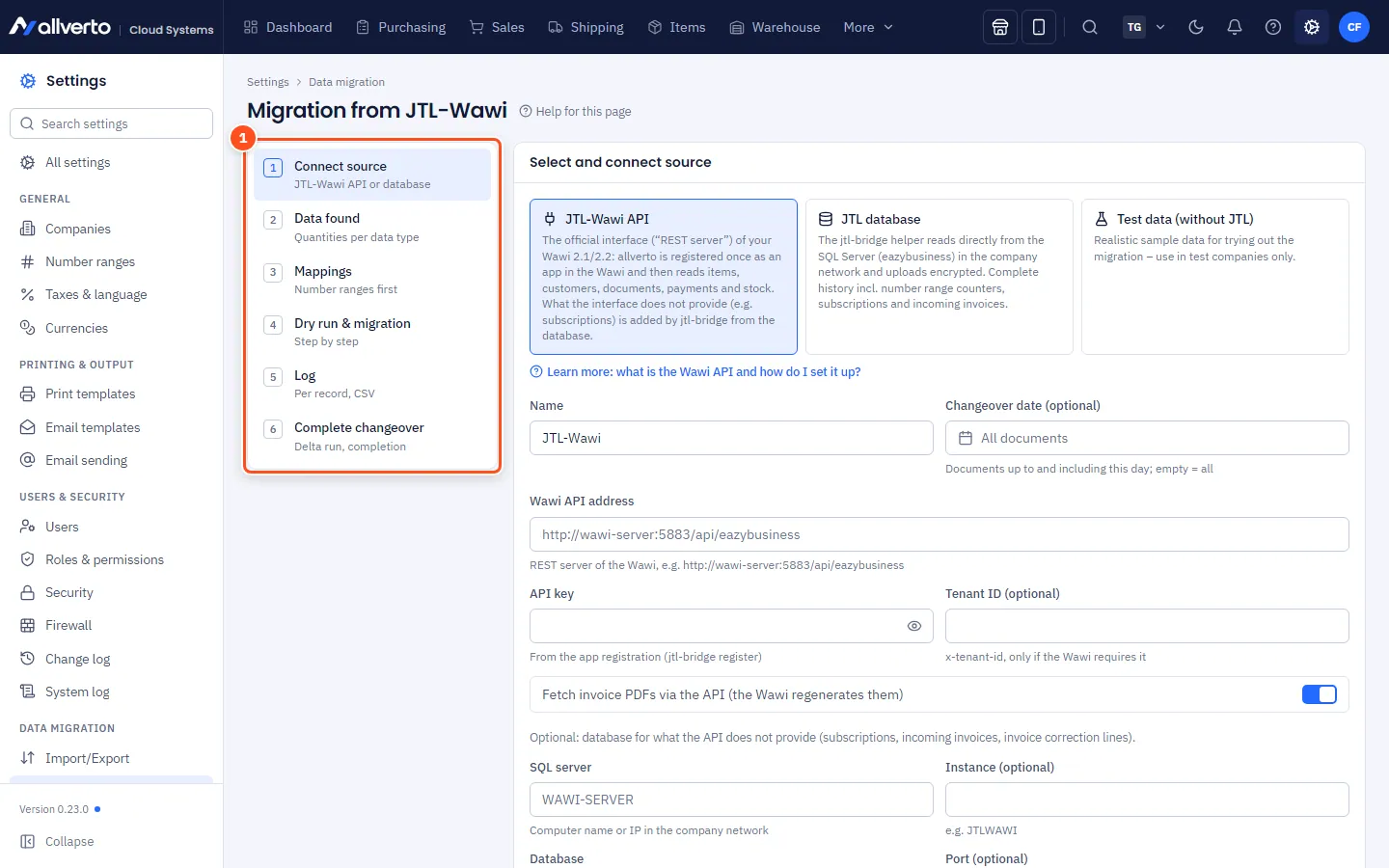
- Connect source: Choose JTL-Wawi API or JTL database. Under Connection details, enter the public address of your Wawi server and click Test connection. For the Wawi API you then register allverto in the Wawi with Send registration from allverto. Then you fetch the data with Fetch data directly now (API, database). If your server is not reachable from the internet, expand the box Server not reachable from the internet? Transfer data with jtl-bridge: download the program, start it by double-click on the computer running your JTL-Wawi and paste the setup code (here's how). Optionally set a changeover date – then only documents up to that day are migrated. In a test company you can try the whole process with Test data (without JTL) and Load test data without connecting a Wawi.
- Data found: check the quantities per data type – do the item, customer and document counts roughly match your Wawi?
- Mappings: define where number ranges, tax rates, payment and shipping methods, warehouses, customer groups and platforms go in allverto. Number ranges first – so allverto continues counting seamlessly after the migration.
- Dry run & migration: start a Dry run (without writing). It calculates everything completely once and writes nothing. When the log is clean, migrate the data in a fixed order: number ranges → master data → customers → stock → documents.
- Log: for each record you see whether it was newly created, updated, skipped or rejected – filterable and as CSV.
- Complete changeover: on the changeover date you upload once more and start a delta run. Then click Complete changeover.
What is migrated?
- Number ranges with prefix, suffix and next number.
- Master data: company data, taxes, payment and shipping methods, customer groups, warehouses, categories, manufacturers, characteristics, attributes, custom fields, suppliers, items with variants, translations, bills of materials, prices, special prices and images.
- URL path of the items (SEO URL in the shop) per language – so your existing shop links stay the same. If you migrated earlier, Fetch data directly now and a delta run catch up on the URL paths; then start Full sync … via the shop's … menu under Settings › Sales channels (see URL path in the shop).
- Workflows as automations – every workflow, switched off and marked Review: open them under Automations, check them and switch them on. If a part doesn't fit (e.g. print template output, JTL colours, tickets or DotLiquid formulas), the automation is marked Incomplete and the box at the top lists what is missing. It can only be switched on once you have completed it and marked the note as done (see Creating an automation). On every further run the migration checks the workflows again and only updates automations you haven't touched yet.
- Customers with original customer number, addresses, contacts, terms and bank accounts.
- Stock as opening stock per storage bin (posting “Übernahme” (migration) in the stock journal). If you map a JTL warehouse to a Default warehouse (without storage bins), allverto merges its JTL storage bins – storage bins are only created individually in WMS warehouses.
- Documents 1:1: quotes, sales orders, delivery notes, invoices, invoice corrections, payments, dunning levels, purchase orders, returns – with original number and date. Migrated documents are finalised and do not draw a new number from your number ranges.
The changeover date
- Stop creating new documents in JTL.
- Click Fetch data directly now – or start jtl-bridge once more and paste the code. The data is updated.
- Start delta run and check the log.
- Complete changeover: the setup code (import token) becomes invalid and the cached JTL data is deleted. Migrated data, mappings and logs are kept.
From now on, allverto is your leading system. Next, connect your shops and marketplaces. If something doesn't work, see Troubleshooting the JTL migration.